stellar data recovery
search
data recovery services
My status

USA : (Tollfree) 1-866-554-2512
UK : (Europe) +44-207-993-2293
Germany : +49-180-110-105-0051
Worldwide : +91-921-395-5509

Mailbox Exchange Desktop Stellar Phoenix Mailbox Exchange Desktop v.4.0

Convert OST to PST


A Convert OST to PST utility that converts an orphaned and damaged OST (Microsoft Outlook Offline Storage file) to application-usable PST (Microsoft Outlook Personal Storage file) and restores all Emails, Calendar, Notes, Tasks, Journals etc. at a user-desired location. The OST to PST product scans the inaccessible Offline folder and converts into an Outlook Personal folder without any modifications to original file structure and view.

  • Overview
  • Key Features
  • Spec
  • FAQs
  • Support
  • Testimonials

Stellar Phoenix Mailbox Exchange Desktop Details :

Stellar Phoenix Mailbox Exchange Desktop

  • Recovers e-mails, calendar entries, contacts, notes and journals
  • 3-pane structure to view messages-Same as of Outlook
  • Restores OST as PST on any disk (including network) that can be detected by host operating system
  • Supports Microsoft Outlook 2007, 2003, 2002 and 2000
  • Restores RTF and HTML messages' formatting
  • Demo version previews file objects including E-mails, Calendar, Contacts, Tasks, Notes and Journal

Stellar's OST PST Converter salvages inaccessible emails and Outlook objects in below and similar instances :


  • User Mailbox is deleted or migrated from Exchange Server computer
  • Exchange database is corrupt
  • OST file is damaged
  • Exchange Server is down or crashed
  • Exchange profile is modified or damaged
  • E-mail server name or mailbox name is changed


Stellar Phoenix Mailbox Exchange Desktop v4.0 is an OST 2 PST utility applicable in all cases when OST fails to synchronize with server (also due to damage) and lefts orphaned comprising all email data locked within.

Stellar Phoenix Mailbox Exchange Desktop Details :


Stellar Phoenix Mailbox Exchange Desktop v4.0 is an OST Recovery solution for Outlook serving as a MAPI-client in cached mode. The product is designed for both Unicode and ANSI-formatted OST and doesn't modify the original view, indexes and structure of file.


Follow the steps mentioned below convert inaccessible OST to PST file.


  • Locate OST : Launch the software and select ('Select Outlook File' option) or search ('Find Outlook File' option) the affected OST through 'Select Outlook Data File' box. You can reopen this box using the corresponding toolbar or menubar option.
  • Convert and Save : Click 'Start' to begin the file scanning process. After the OST File Recovery software completes the scanning process, it shows the recovery details displaying the number of items it recovered. The main windows shows the recovered items in tree-view. Click 'Save Outlook File' to save the scanned file. Click 'Browse' if you want to change the default (same as of root) 'Destination Path'.
  • Import PST : The software restores the converted file named as of original, followed by a prefix 'Converted' with file extension .pst at the specified location. To access the emails, import the PST file within MS Outlook using its import and export wizard.


Important :


  • Microsoft Outlook is not mandatory to be installed on system for running the product demo version
  • You can directly save the PST file after activating the product. There is no need to rescan if the demo version has scanned the file once .


Download and try the free demo version of the Convert OST to PST software to assess its recovery features, user interface and options.


OST to PST Recovery Software Interface Details.


The OST File Recovery tool has a Outlook-resembling interface consisting of different shortcut buttons to view Mail, Calendar, Contacts, Tasks, Notes, and Journal. The GUI is also equipped of distinct toolbar and menubar options, each with a designated task to perform. The Convert OST to PST software previews the emails and other PST objects in three panes that respectively show folders, emails' header information, and emails' data.


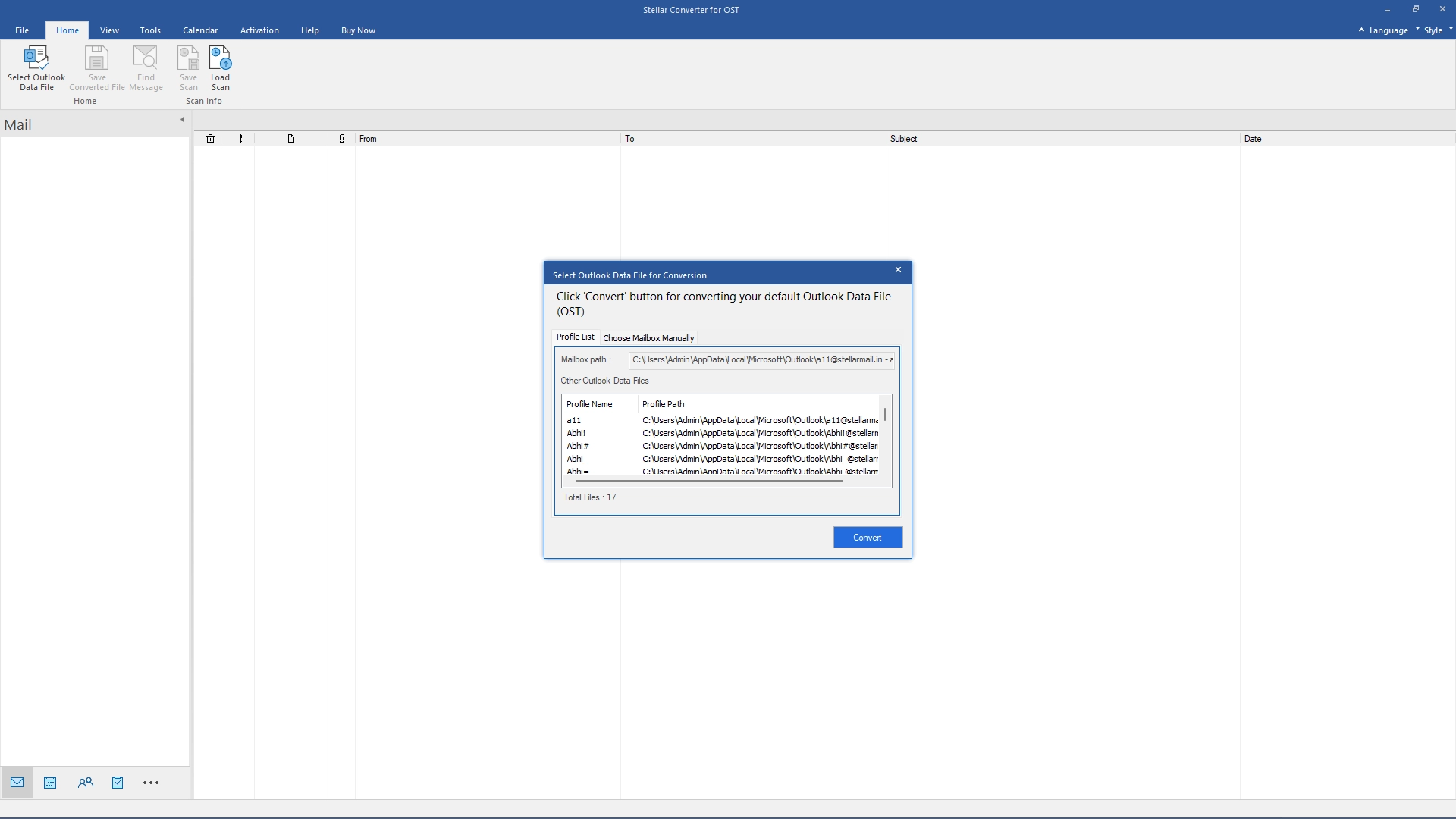
The OST to PST utility displays 'Select Outlook Data File' dialog box to select, search and initiate the file conversion process.


"Select Outlook Data File" Box


This dialog box comprises three buttons, described below:


  • Select Outlook File : This option allows you to locate the Outlook Offline folder from a pre-determined location through a Windows-similar dialog-box .
  • Find Outlook File : The 'Find Outlook File' option opens up another dialog box that lets you to search the affected OST in disk drive (by 'Look-in' list-box) and folder and subfolders (by 'Search in Folder' button and 'Search Subfolders' checkbox ). This option is used when you do not know the exact OST file location. The search results are displayed at the bottom of box.
  • .
  • Start : This buttons turns green in color when you select the OST file and allows you to start the file scanning process.


The two status bars at the bottom show the overall recovery progress of Convert OST PST.


Toolbar

  • Open Outlook File button opens the 'Select Outlook Data File' dialog box (as described above)
  • Save Outlook File option allows you to save the converted file at a preferred location.
  • Switch Reading Pane option switches the view of emails displaying in right-pane from horizontal to vertical columns and vice-versa. The view is horizontal by default.
  • Stop option ceases the scanning and recovery process
  • Help option opens up the user help file to guide about the OST PST Converter
  • Update option installs the available updates after a secure Internet connection is set up.
  • About option provides the generic information about software and its EULA


Menubar


  • File Menu lists two options, namely 'Open Outlook File' and 'Exit' (to exit from the application)
  • View Menu provides options to view the software generated log report and recovery details as ' View Log Report' and 'View Recovery Details'
  • Activation Menu lists options to activate the OST 2 PST product manually or through Internet
  • Help Menu provides various options to open software help file, view support section and knowledge base, file a ticket, purchase the software, and get general software and its EULA information.


Download and try the free demo version of the Convert OST to PST software to assess its recovery features, user interface and options.


Key Features :


Key Features Comparison of Stellar Phoenix Mailbox Exchange Desktop v3.0 vs v4.0 :


Features SPMDE V.3.0 SPMDE V.4.0

Windows 7 supported

Not supported Support for Windows 7

Preview for Calendar, Contacts, Tasks, Notes, Journal

Preview not available Available(except for distribution list in contact)

Availability of MS Outlook

MS outlook is mandatory on system for running application in demo version. MS outlook is not required on system for running application in demo version.

Detailed Summary Report of all recoverable items

Not Available Available

Count for items in Individual Folder

Not Available Available

Switching of reading Pane

Not Available Available

Graphical User Interface

Normal Same as MS outlook (provided shortcut buttons to view Inbox, Calendar, Contacts, Tasks, Notes, Journal data)

Creation of PST in demo version

PST will be created No PST will be created.

Sorting by fields

Not available Available

Rescanning of PST file

After viewing details in demo version, user needs to redownload full version software & again scan file for repair in full version. Demo & Full version are same. No need to rescan file, the customer can save file after activation.

Stellar Phoenix Mailbox Exchange Recovery - Desktop


License Types :


Lifetime License available in :


  • Technician License - (CD+Download) can use at multiple systems & locations
  • Admin License (educational) - (CD+Download) can use at multiple systems & one location
  • Administrator License (corporate ) - (CD+Download) can use at multiple systems & one location


Languages :


Software Interface Available In :

  • English


Package Details :


Name: Stellar Phoenix Mailbox Exchange Recovery - Desktop

  • Version: 4.0
  • Version Launch – Nov, 2009
  • Do it yourself software


Software Components :

Box – Version

  • CD - 1
  • Hardware Lock – 1
  • Boot CD - 1


Microsoft Exchange Versions Supported :

Exchange OST File Recovery software supports OST files created by Microsoft Exchange Server 5, 5.5, 2000 and 2003


Systems Requirement:


  • Processor : Pentium Class
  • Operating System : Windows NT4(SP6)/2000/XP/2003/Vista/Windows 7
  • Memory : Minimum 256 MB (512 MB recommended)
  • Hard Disk : 50 MB of free space
  • MS Outlook : 2000, 2002 (XP), 2003, 2007
  • Internet Explorer : Version 6 or later


FAQs – Stellar Phoenix Mailbox Exchange Recovery


What is OST File ?


If you use Outlook as an Exchange Server client and do not use PST file to store your data (instead store your data on the Exchange Server), OST file allows you to work offline. OST file acts essentially as an offline copy of your data store on the Exchange Server. When you're working offline, all changes that you make to contacts, messages, and other Outlook items and folders occur in the offline store. When you go online again, Outlook synchronizes the changes between offline store and your Exchange Server store. For example, if you've deleted messages from your offline store, Outlook deletes those same messages from your online store when you synchronize the folders. Any new messages in your Inbox on the server are added to your offline store. Synchronization is a two-way process, providing the most up-to-date copy of your data in both locations, ensuring that changes made in each are reflected in the other.


An OST file is similar to a PST. The difference is that an OST file is RTF-aware, while a PST is not. The contents of any folder designated as an offline folder are included in the OST file, but the contents of the mailbox and other folders are not.


Back to top


I have converted my OST file to PST. How can I import it in the outlook ?


Please follow the below mentioned procedure to import the PST file :


  • Open Microsoft Outlook.
  • Click on File-->Open-->Outlook Data File.
  • Select the PST file to be imported and click on Ok.


After this, you will be able to see second personal folder with the name of ‘Stellar Phoenix Outlook PST Repair’ in which you will be able to see all the mail folders.


Back to top


I have my OST file which am not able to access in my outlook, how do I recover my emails from it ?


  • Open the software i.e. "Stellar Phoenix Mailbox Exchange Recovery".
  • Click on "Select OST File" and then go to the location where is your PST file is located and select the same.
  • Now give the desire location to save the recovered PST file by clicking on "Change Destination"
  • Now click on "Start" and let the scanning process to be completed.
  • Once the scanning process will be completed you will get you recovered PST files on the same location where you have saved it.


Back to top


While trying to activate the software, I’m getting an error message that the software is not installed correctly. How can I activate the software ?


Follow the below steps to rectify the above mentioned problem :


  • Go to Control Panel.
  • Open Administrative Tools.
  • Then, open Services.
  • Now, right click on Crypkey License and click on start.


After starting the Crypkey Service, try to activate the software.


Back to top


Support Options :


Phone Support :


USA (Tollfree- Pre Sales Queries) : 1-866-554-2512
USA (Post Sales Queries) : 1-315-220-6245
UK & (Europe) : +44-207-993-2293
Germany : +49-180-110-105-0051
Worldwide : +91-921-395-5509


SKYPE : stellarsupport

Monday – Friday 24 Hours


Support :


Free Download --- details :


Free Download – is demo download of the product and offers preview of all the recoverable files using the software. Only those files viewed in preview are recoverable. For Recovering data you will have to purchase the software.


Support is available Monday-Saturday (except holidays) 24/6

My PST file has been totally damaged by Outlook 2000 as the file has been grown over 2 GB to 2.013.000 MB! I was naturally deeply said and shocked... Then I have installed Office 2003, and after it your software “Stellar Phoenix Outlook Pst Repair (v3.0) S” . After running your program (about 90 Minutes) the PST file has been not only totally reconstructed but all deleted messages of earlier time periods, too !!! It is very splendid, and I’ll publish that everywhere in my in-ternational magazines, of course! Very great was for me to see the absolutely professional running and nice information displaying (menus) to the user! Congratulations to this high-sophisticated product, and I wish your whole team a Happy and Successful New Year!


Pal Poth


buy now30 days money back guarantee
Download Mailbox Exchange Desktop
upgrade now

* Free Download offers free evaluation of the software & preview all the lost files and folder that can be recovered by the software.


product tour

Screenshots OST to PST Converter


contact for lab recovery services