Screenshots - Stellar Password Recovery for Windows Server
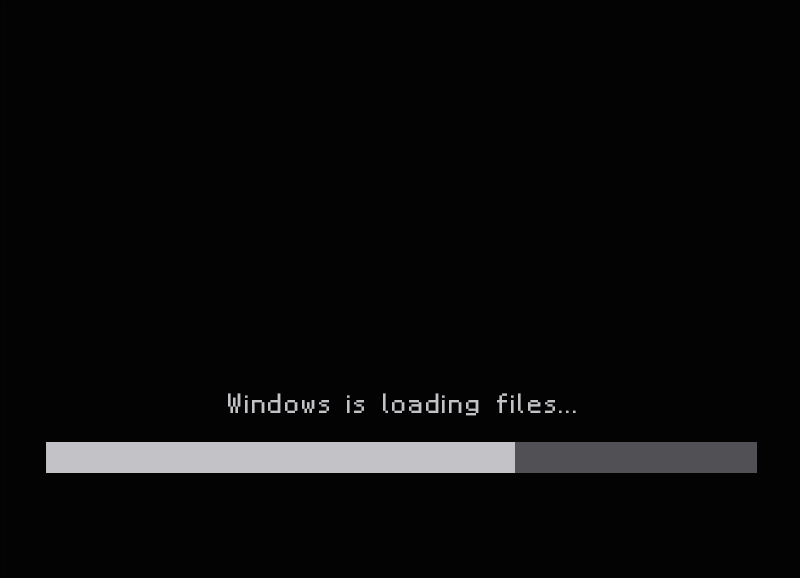
Step 1: Insert the ‘Stellar Password Recovery for Windows Server’ bootable CD/DVD into the drive and restart the system to boot it.
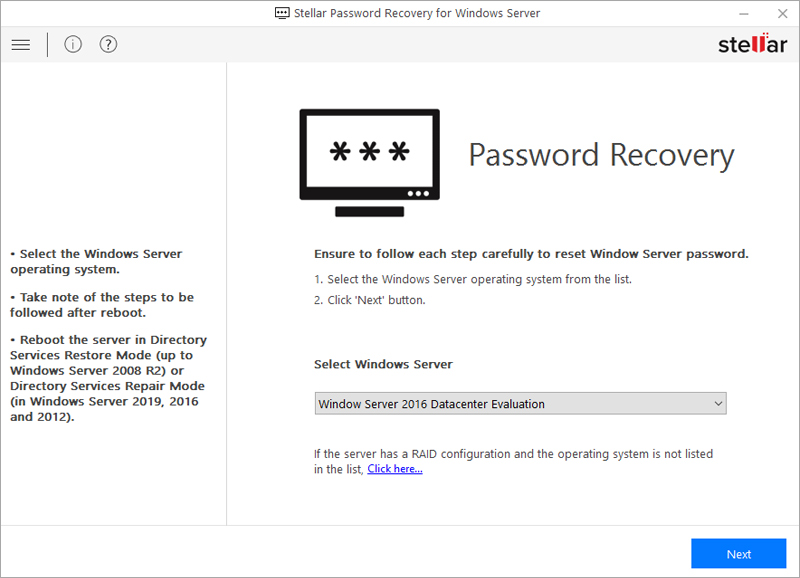
Step 2: Select the version of Operating System (OS) of your server from the ‘Select Windows Server’ drop-down list to start the password reset process. Click Next.
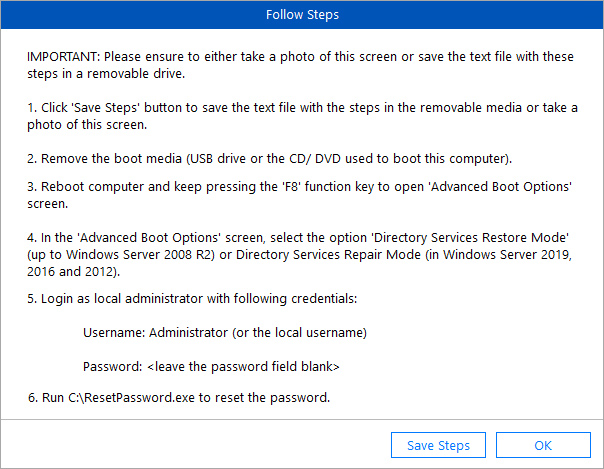
Step 3: Read all the steps carefully and note them down along with the path C:\ResetPassword.exe, which needs to be run after the reboot. Click OK.
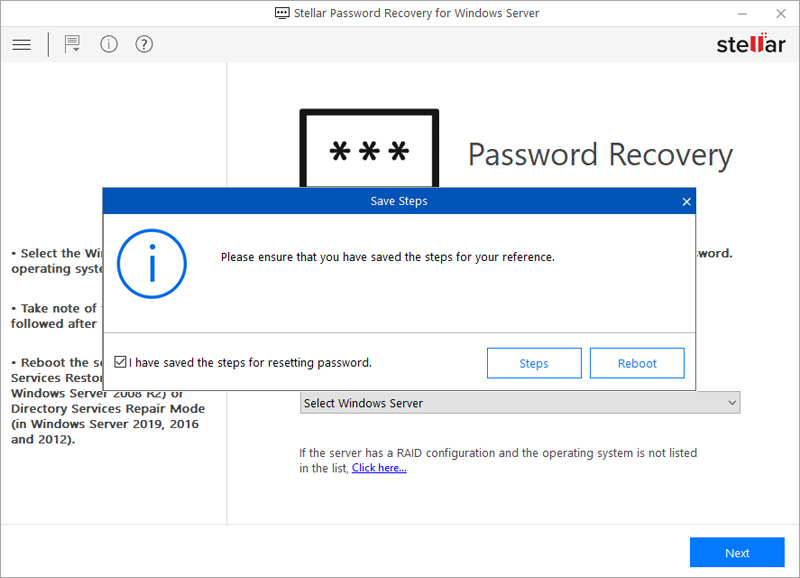
Step 4: Check the “I have saved the steps for resetting password” check box and click Reboot.
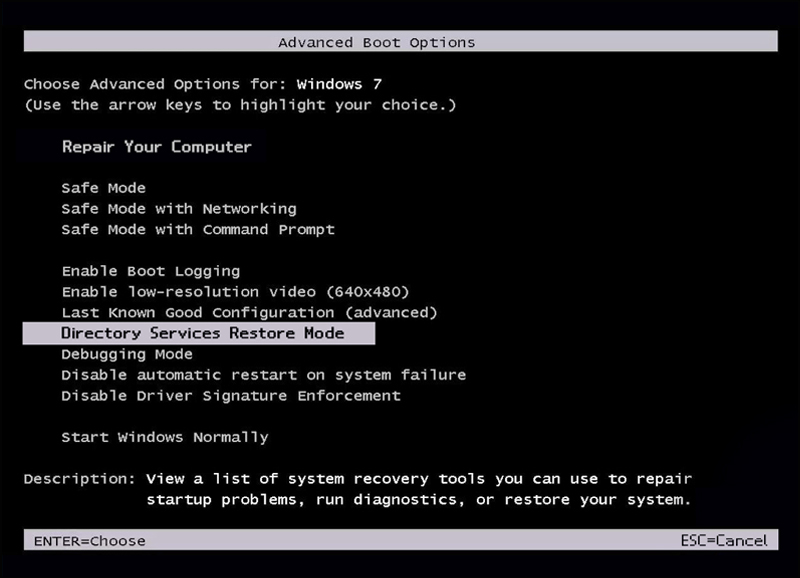
Step 5: Remove the CD/DVD or the USB drive attached to the server. Press ‘F8’ key to enter into the 'Advance Boot Options'. Select 'Directory Service Restore Mode' and hit Enter.
Step 6: For the Windows Server version 2019, 2016, or 2012, select 'Directory Services Repair Mode' option, and then press Enter.
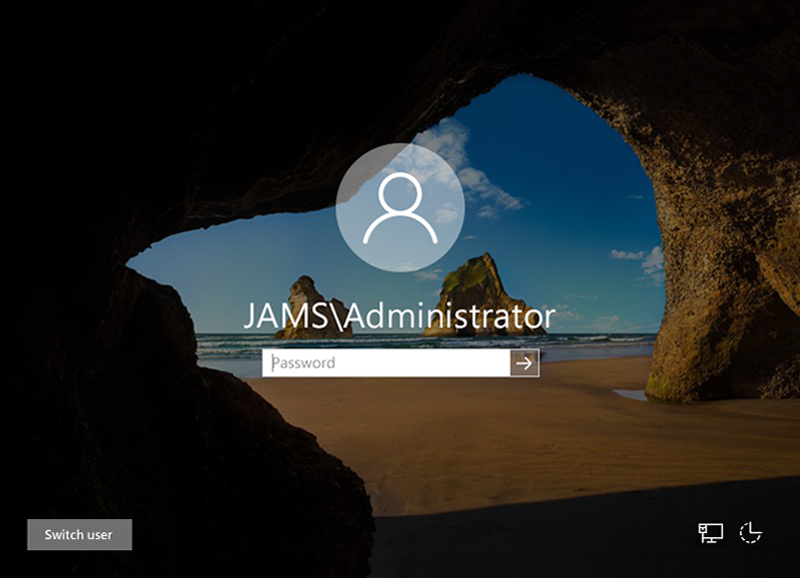
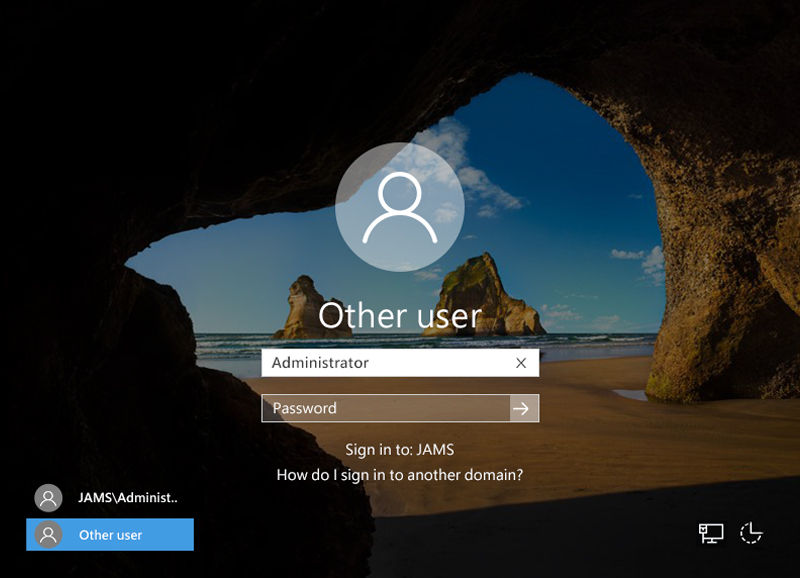
Step 7: Press the combination of Ctrl-Alt-Delete keys. When the operating system login screen is displayed, click ‘Switch User’.
Step 8: In the Switch User login screen, enter the following details: User Name: Administrator, Password: (No password to be given), and then hit the Enter key.
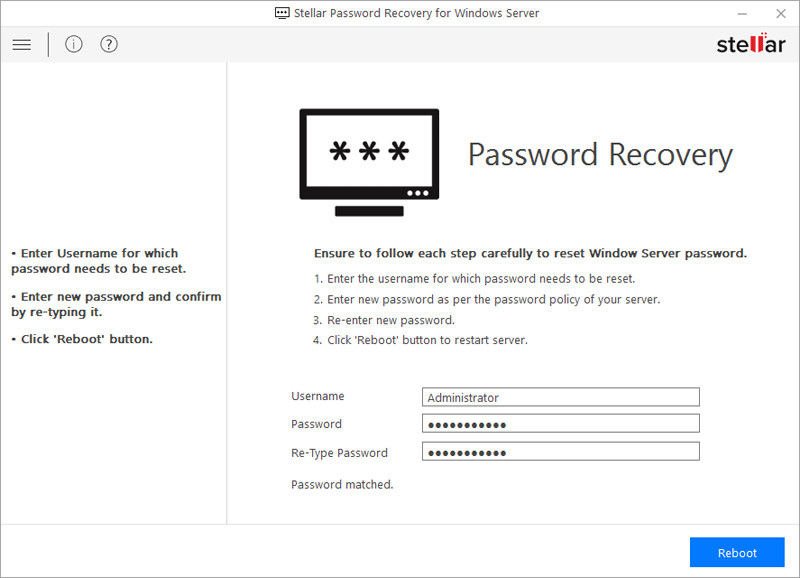
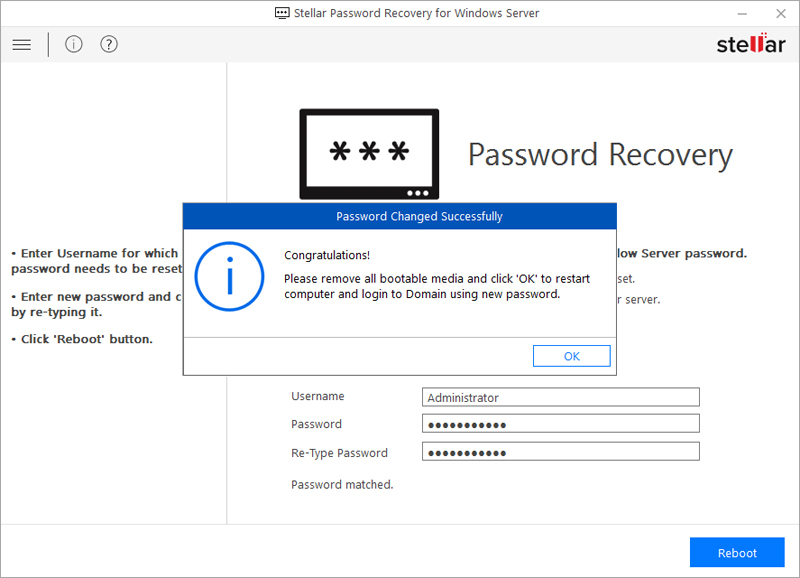
Step 9: Run the ‘ResetPassword.exe’ executable file. In the window that appears, enter the new password as per the security policies of your Windows Server. Click Reboot.
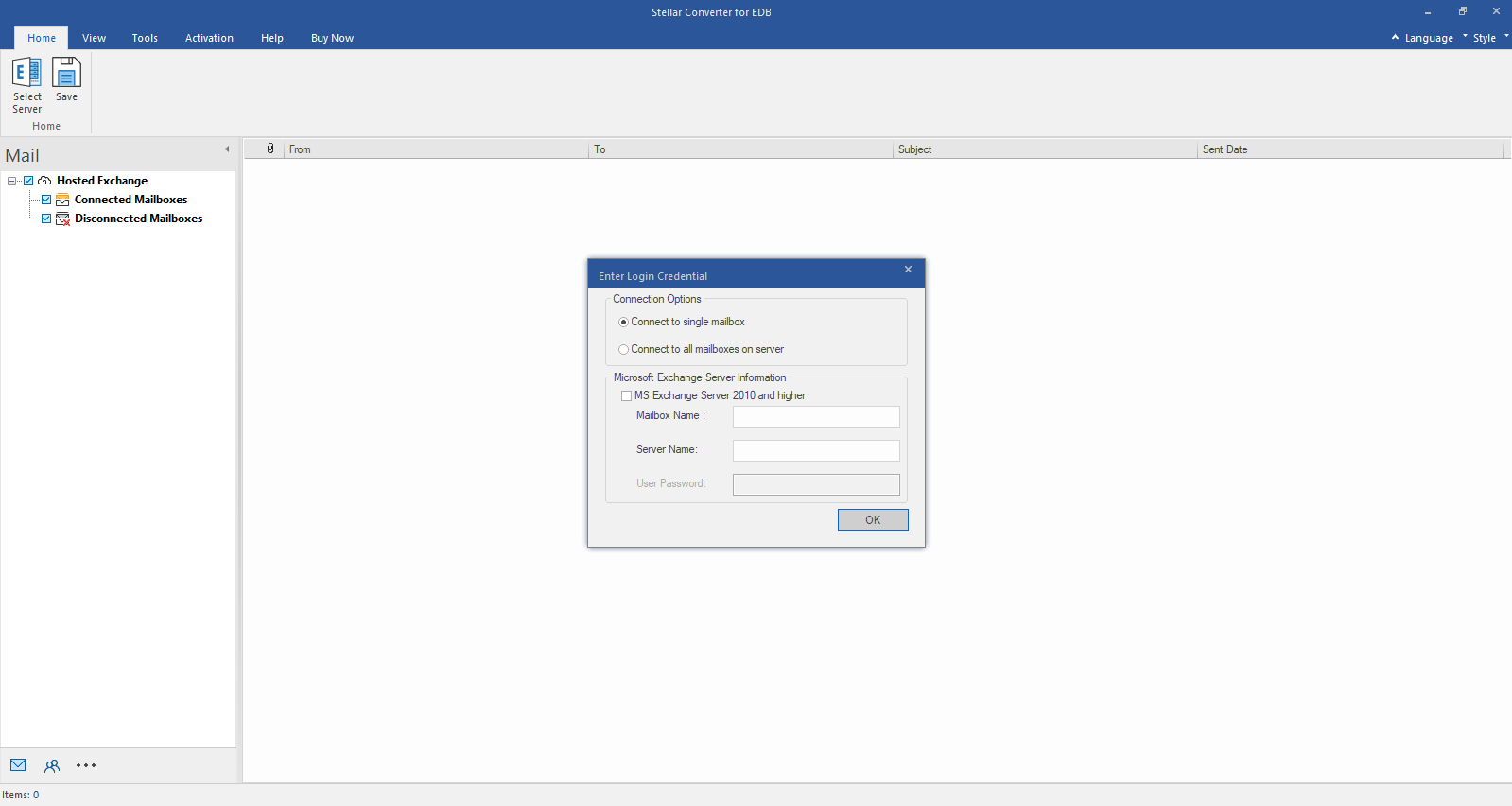
Step 1: Select Hosted Exchange to export mailboxes from an online EDB file. Select Connect to Single Mailbox or Connect to Single Mailbox from Connection Options
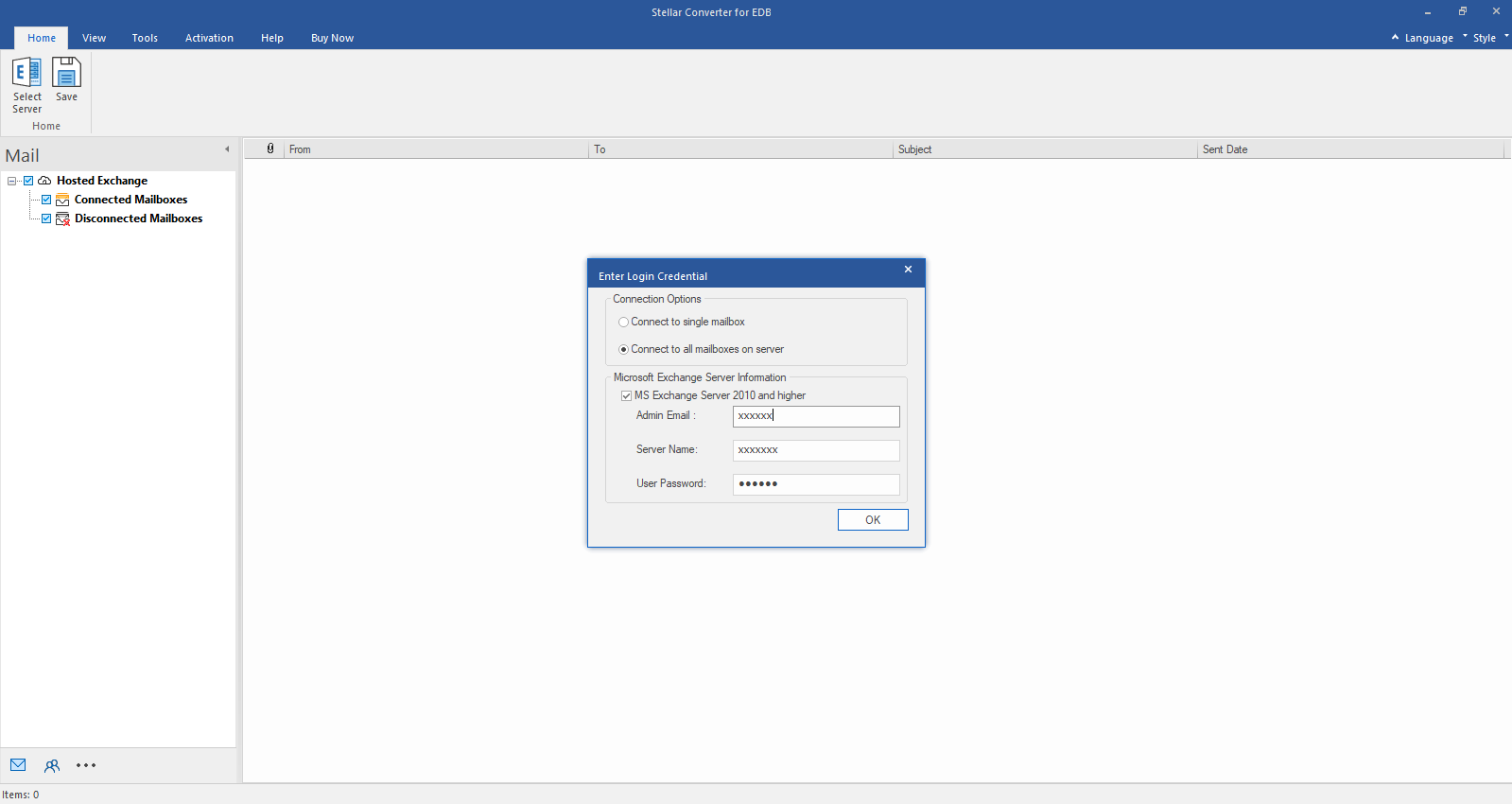
Step 2: Enter Admin and Server Name (for Exchange 5.5, 2000, 2003, 2007) or tick "Exchange Server 2010 and higher" checkbox to enter Admin Email, Server Name and Password (for MS Exchange 2010, 2013, 2016, and 2019). Click OK.
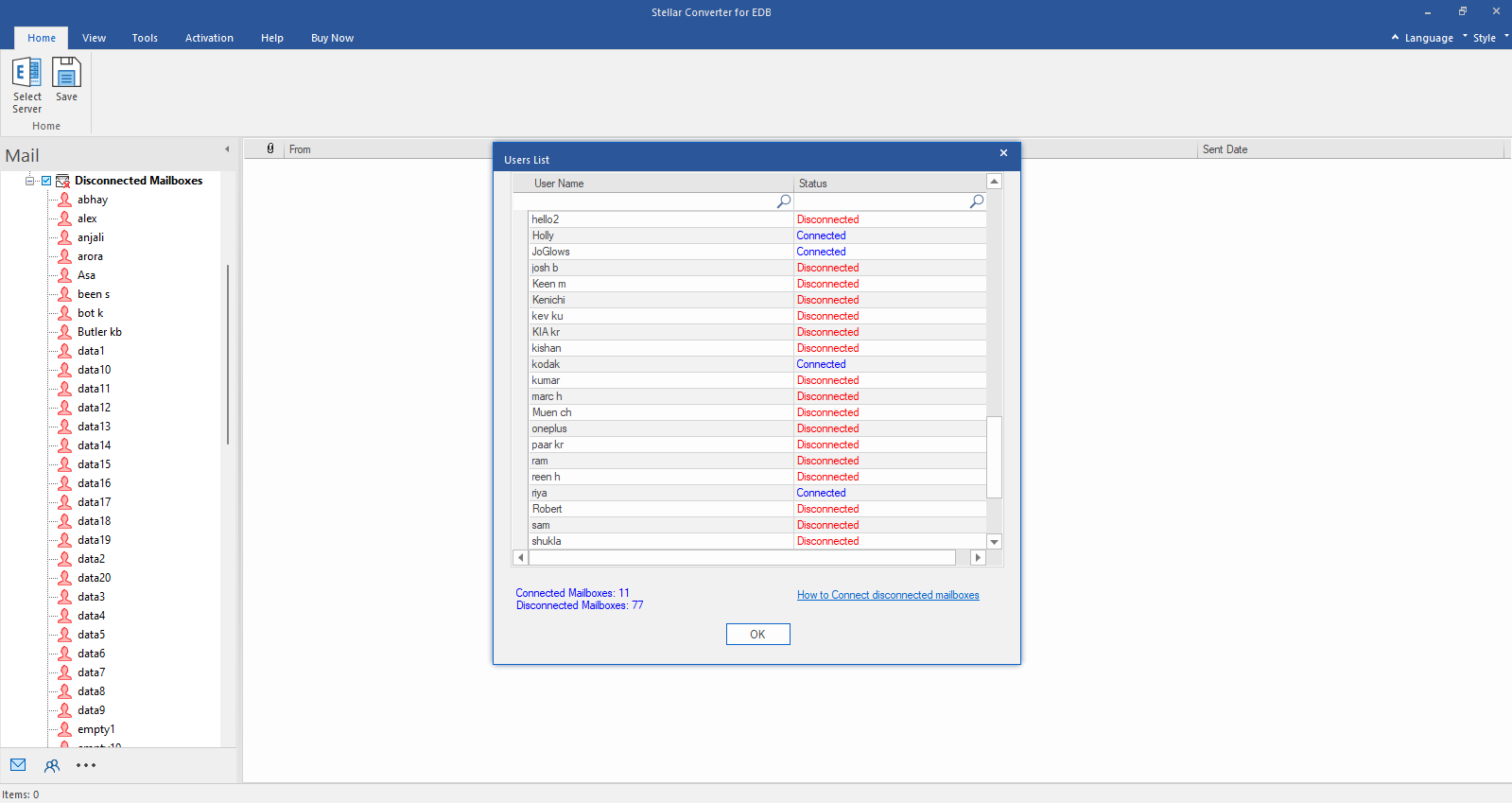
Step 3: After establishing the connection with Exchange Server, Next window displays list of connected and disconnected mailboxes. Click "OK" to proceed.
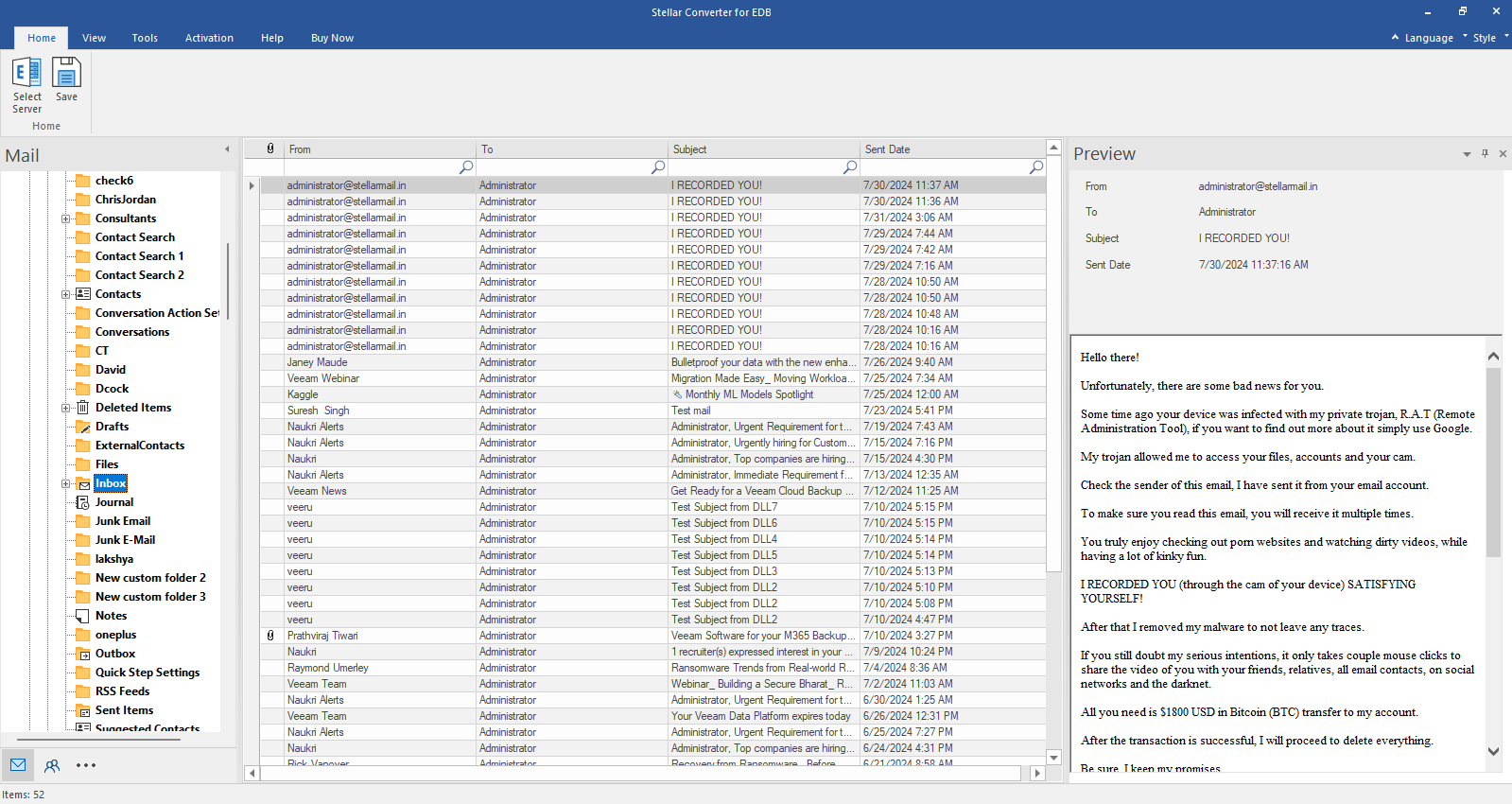
Step 4: Check the preview of all mailbox items- Emails, Calendars, Contacts etc.
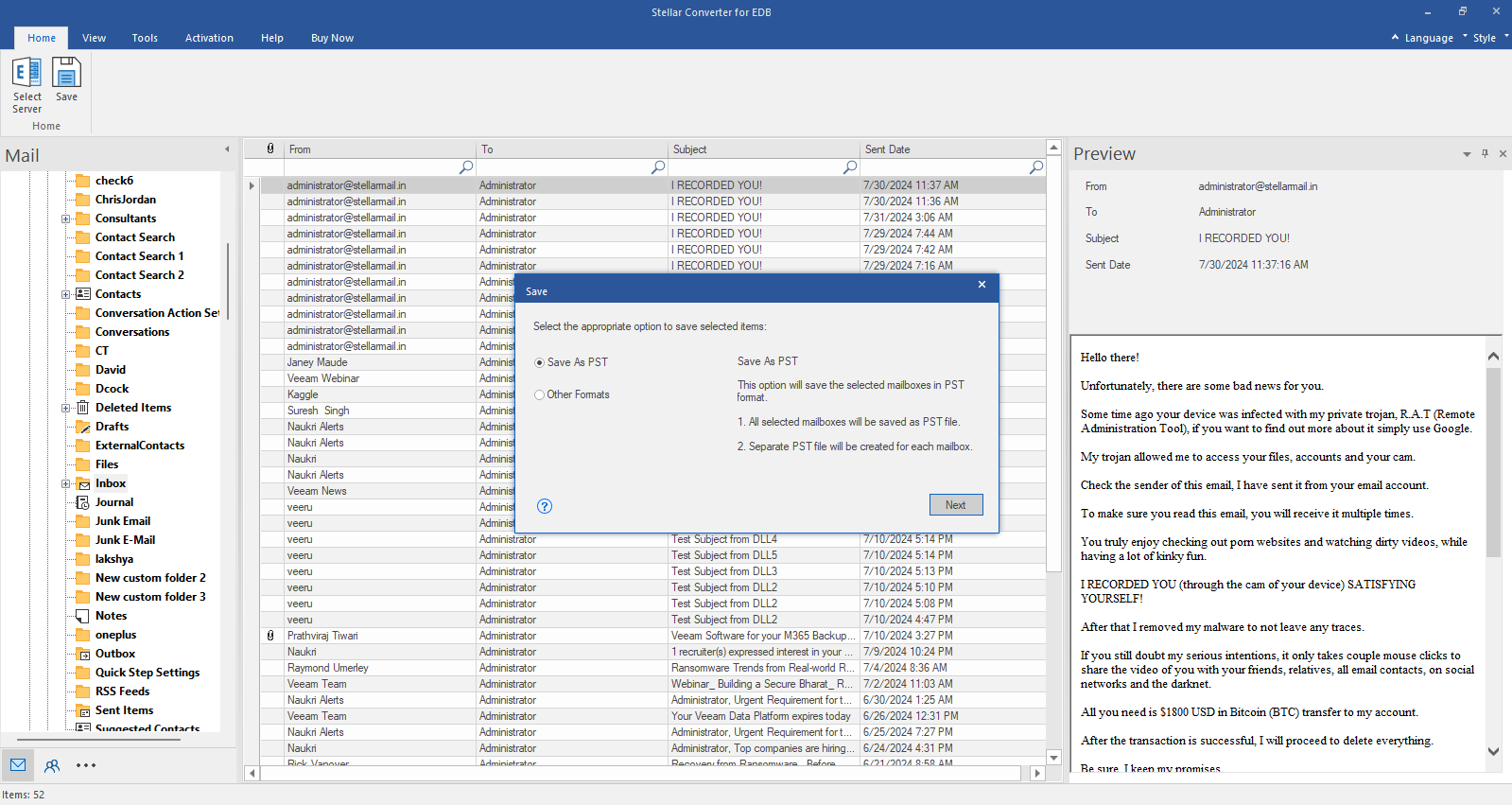
Step 5: Click Save from Home Ribbon and Select Save as PST option. Click "Next" to proceed.