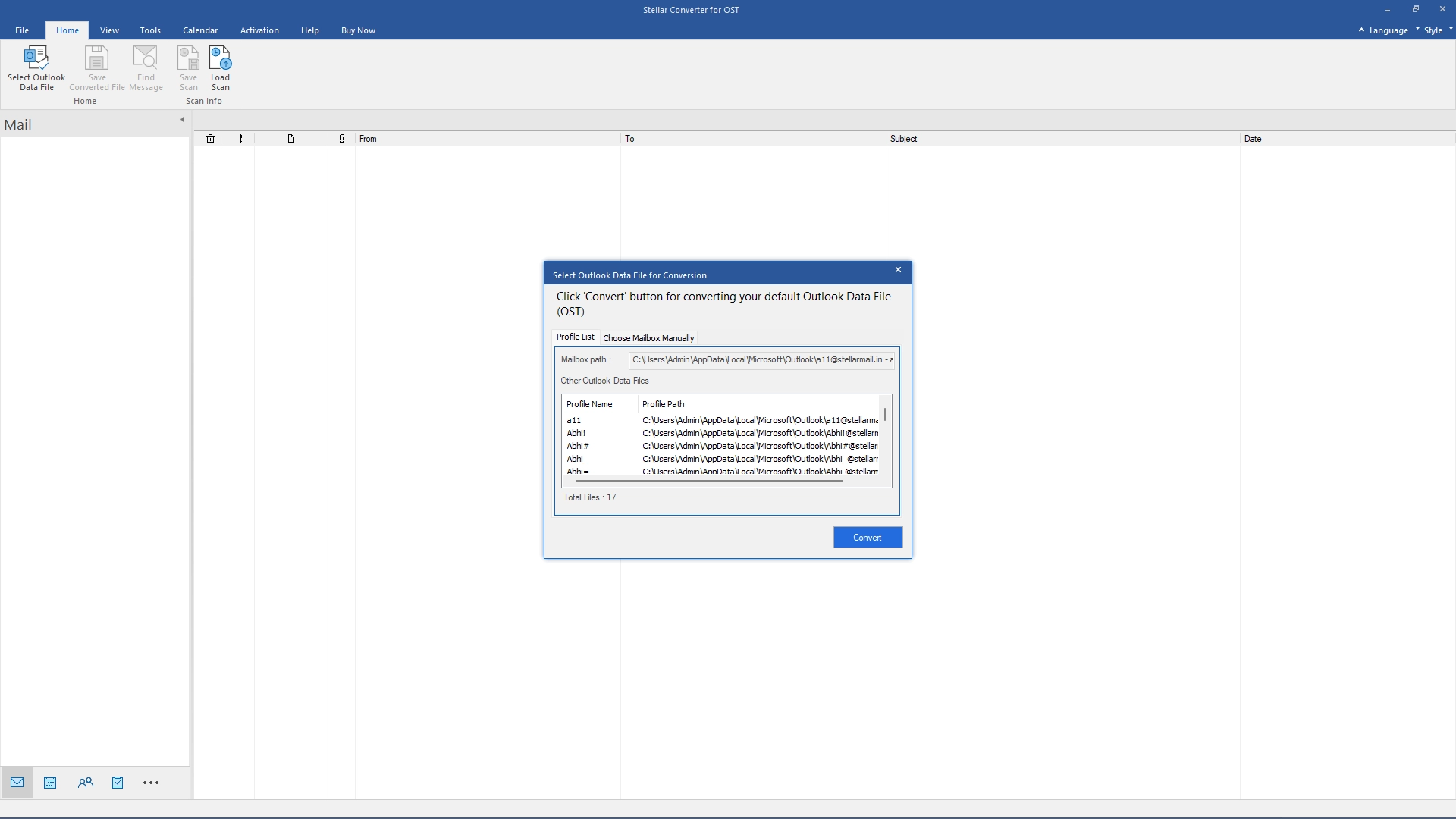
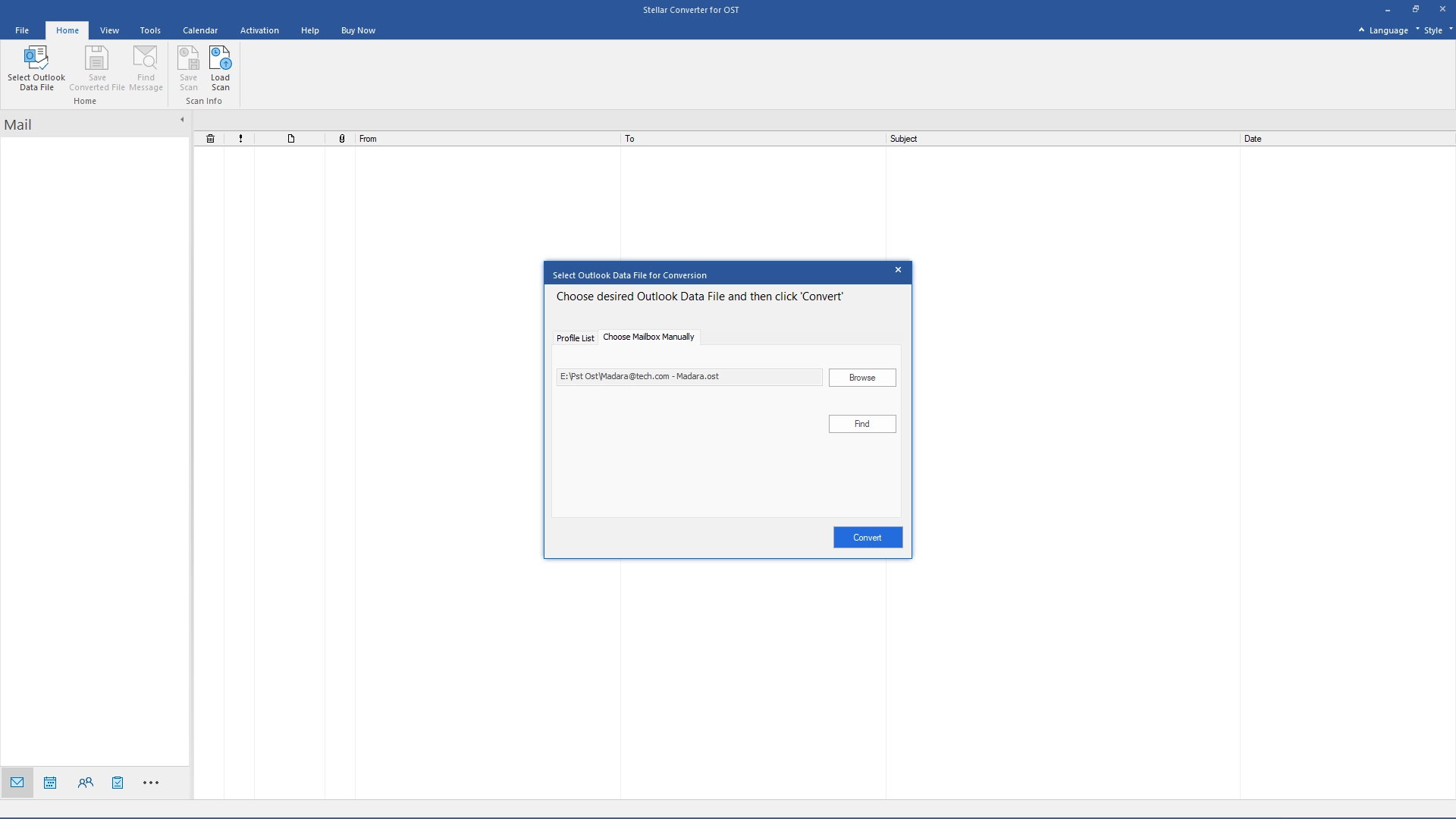
Select Offline OST File from the Home ribbon. A screen appears with the Profile List tab and a tab to Choose Mailboxes Manually.
The List Profile tab displays all the configured Outlook profiles and Choose Mailboxes Manually tab locates outlook data file (.ost).
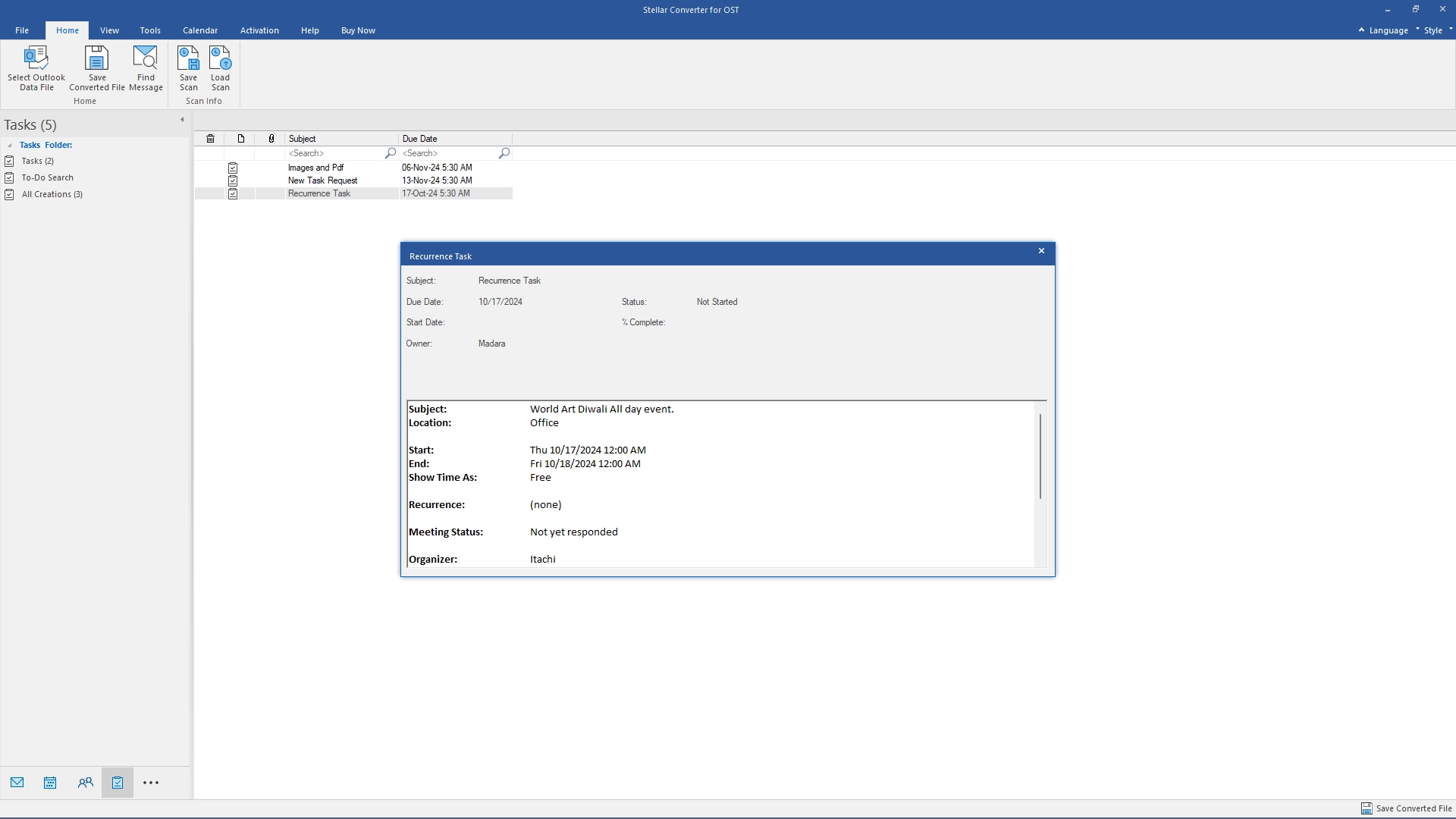
The software displays a preview of the converted PST files in a three pane structure.
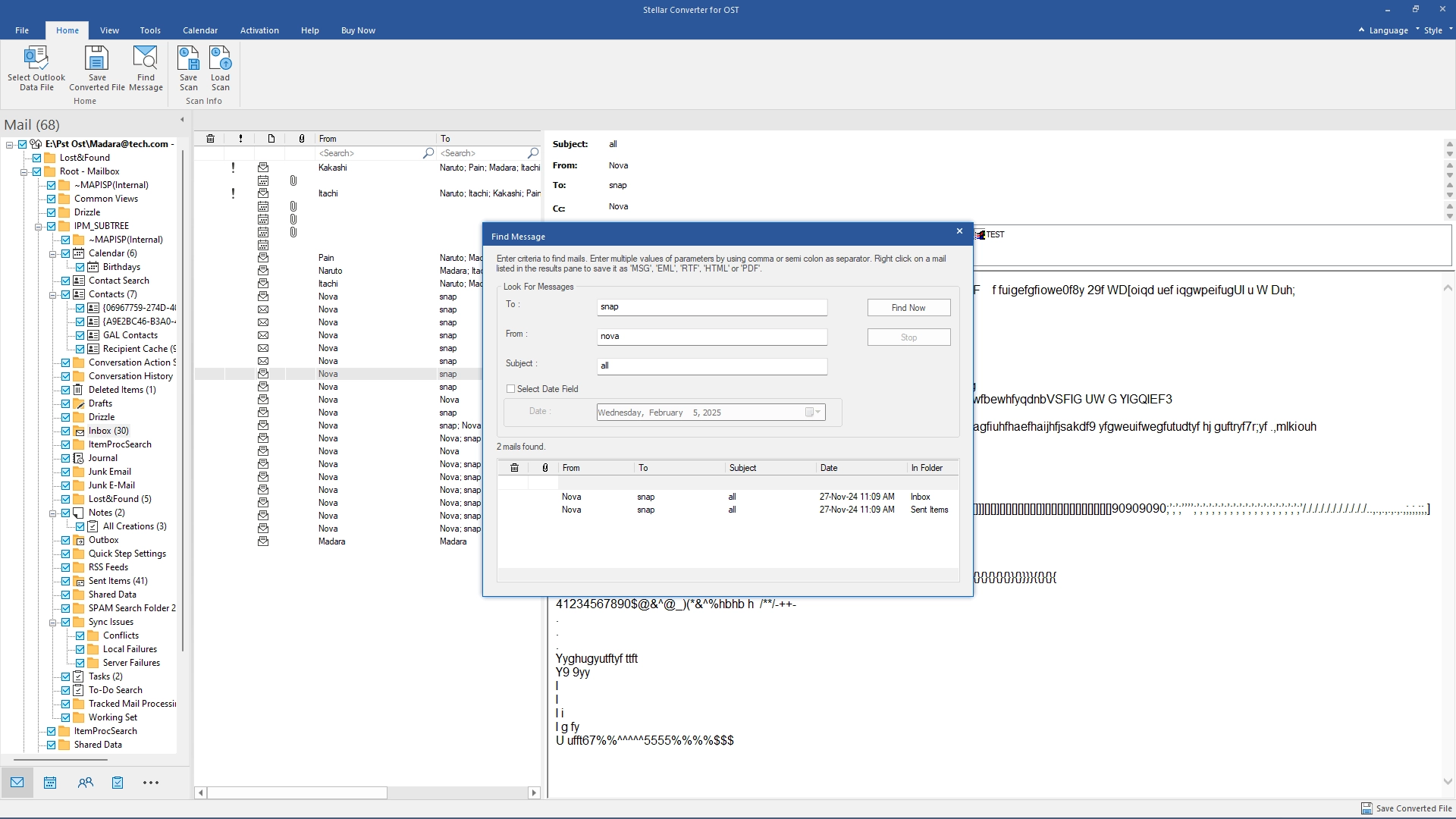
Click Find Message button on the Home Ribbon and enter the search criteria. Click on Find Now button to find the messages corresponding to the criteria.
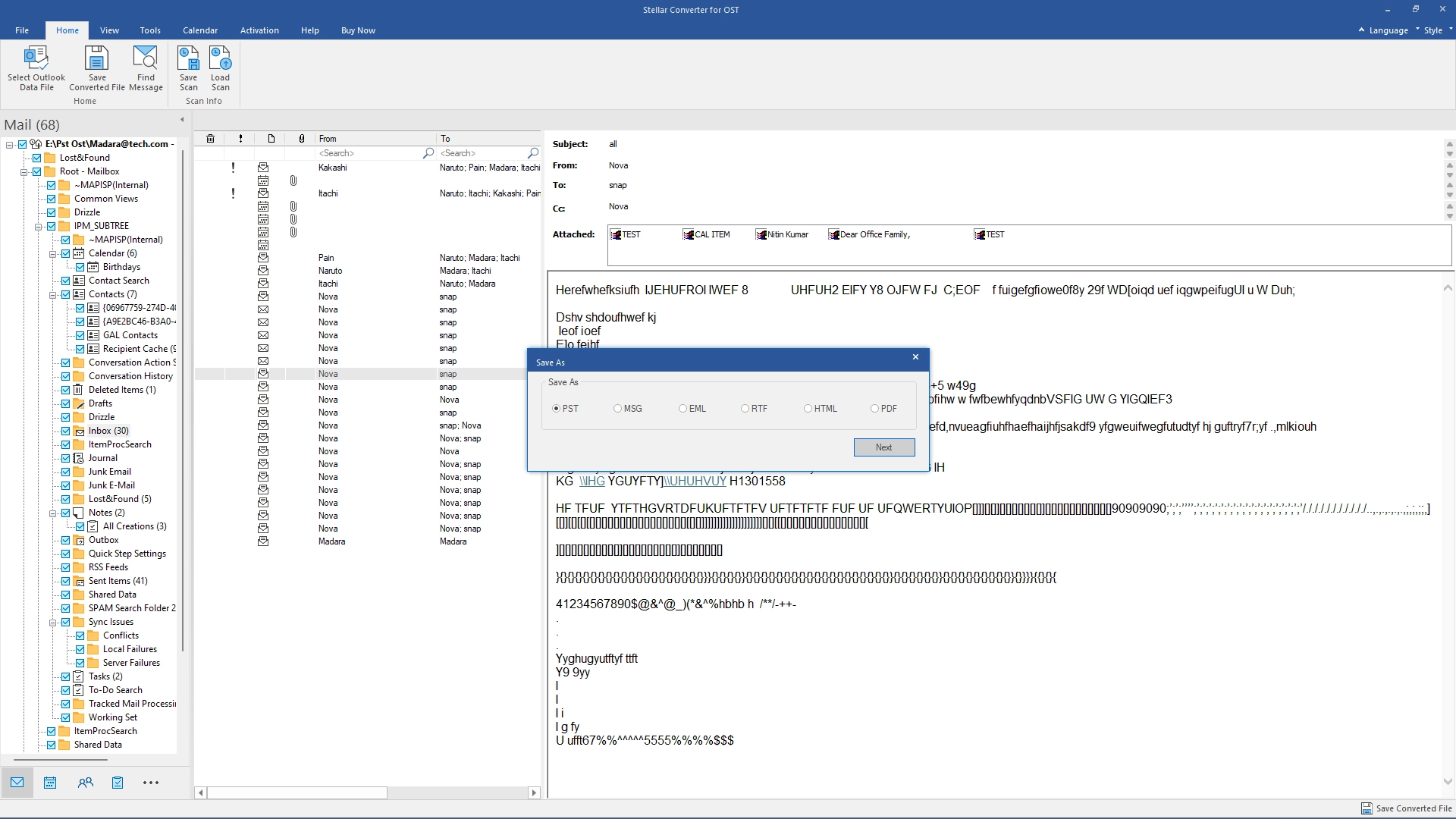
Click Save Converted File button in the Home ribbon. Select the desired format and destination for the file. Click OK to save the file.
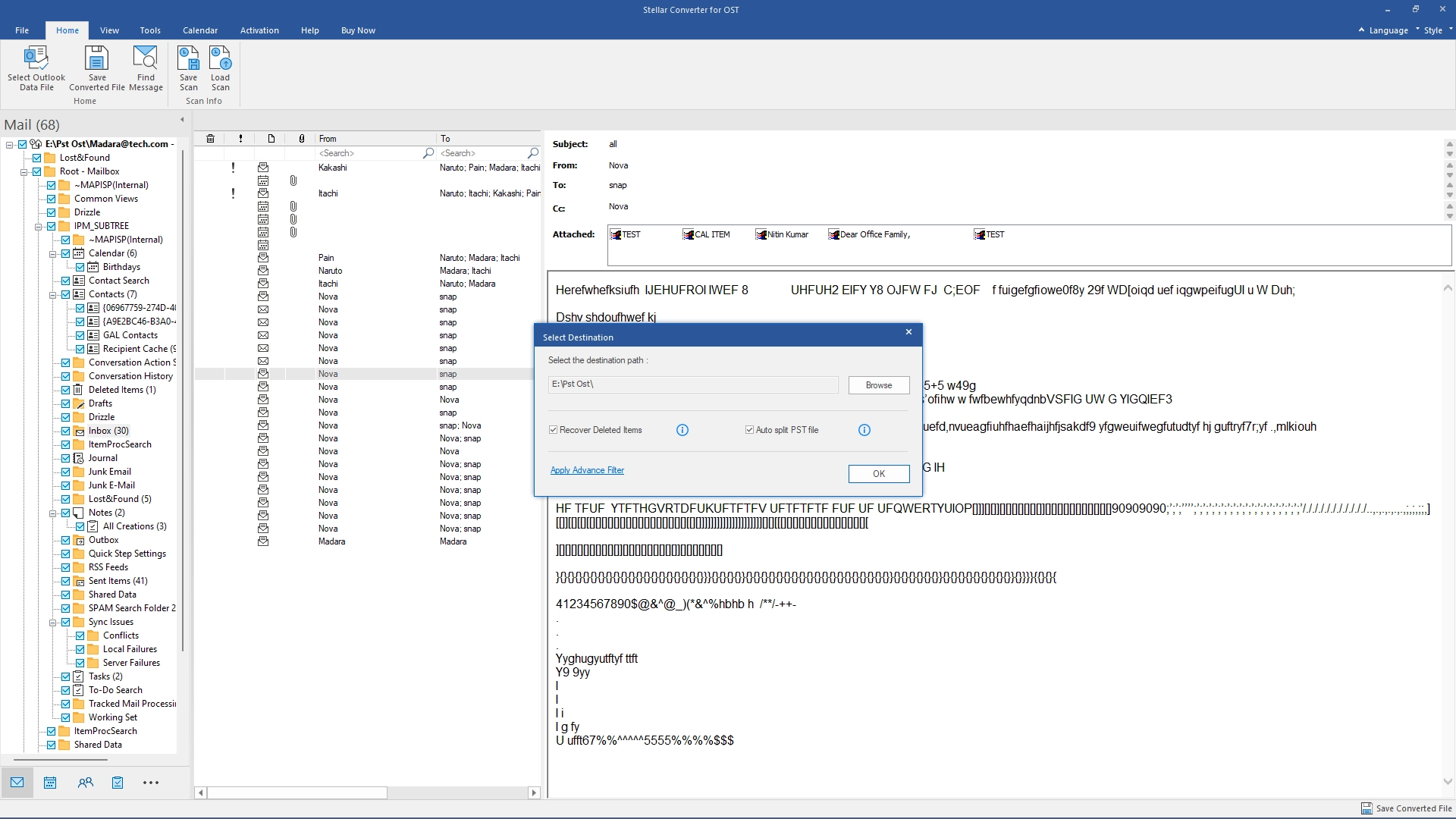
Click on Browse button to save converted file at specified destination. Check Recover Deleted Item box to recover deleted items. Check auto split PST to Split the PST files into smaller files.
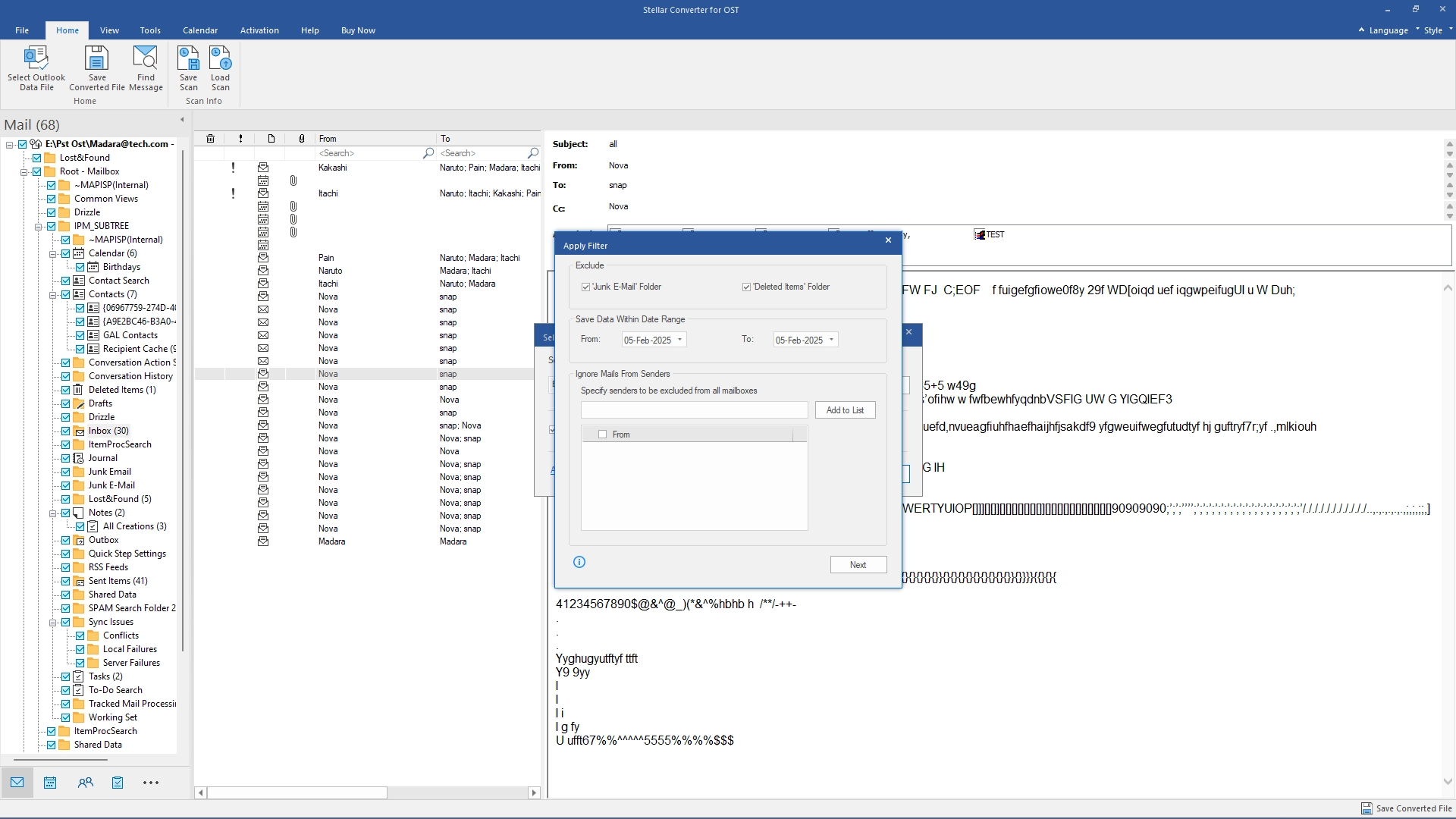
In the Apply Filter window, you can include or exclude junk and deleted items folders, set a date range, and specify sender IDs to exclude before clicking "Apply" to implement the selected filters.
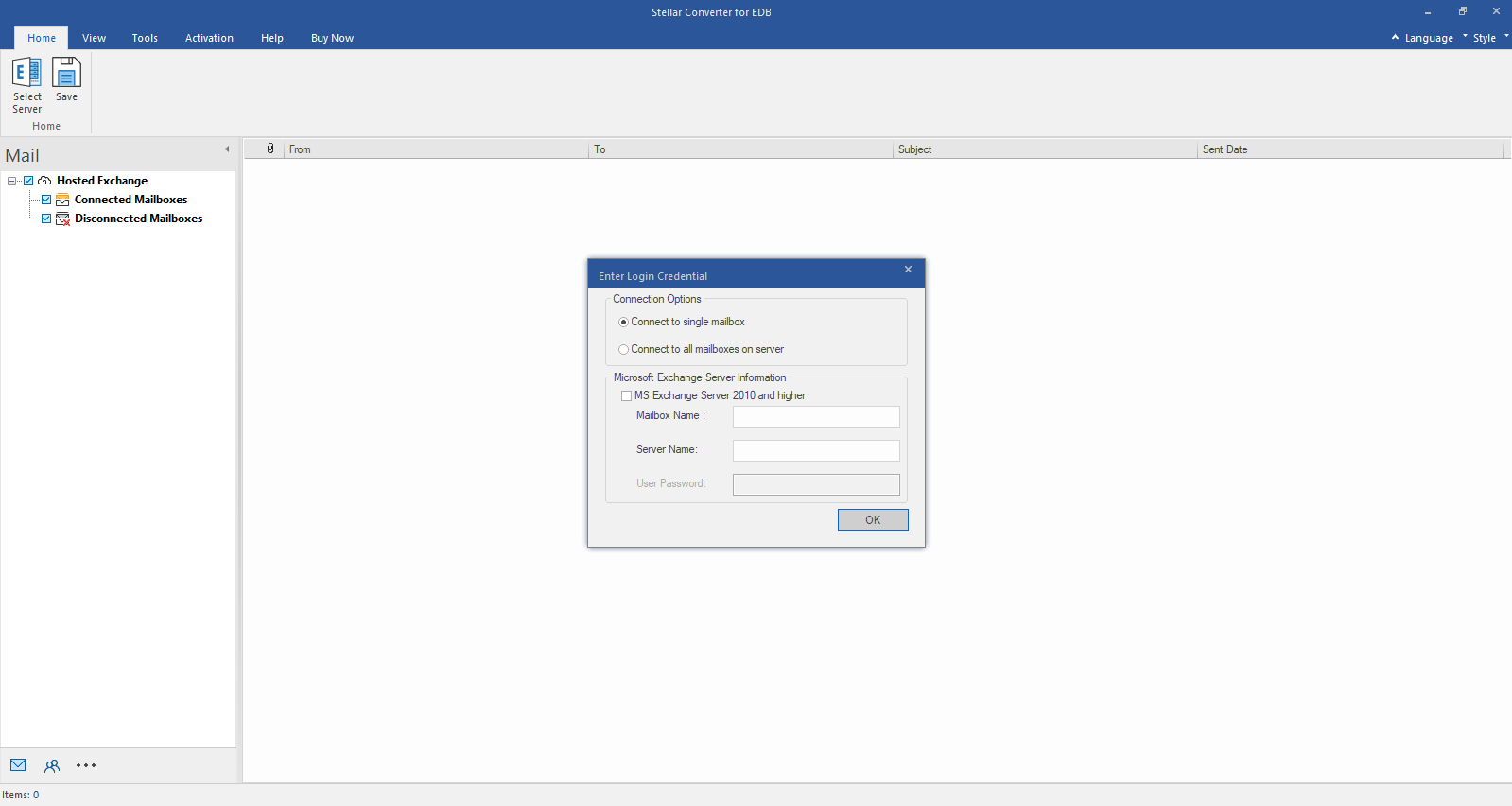
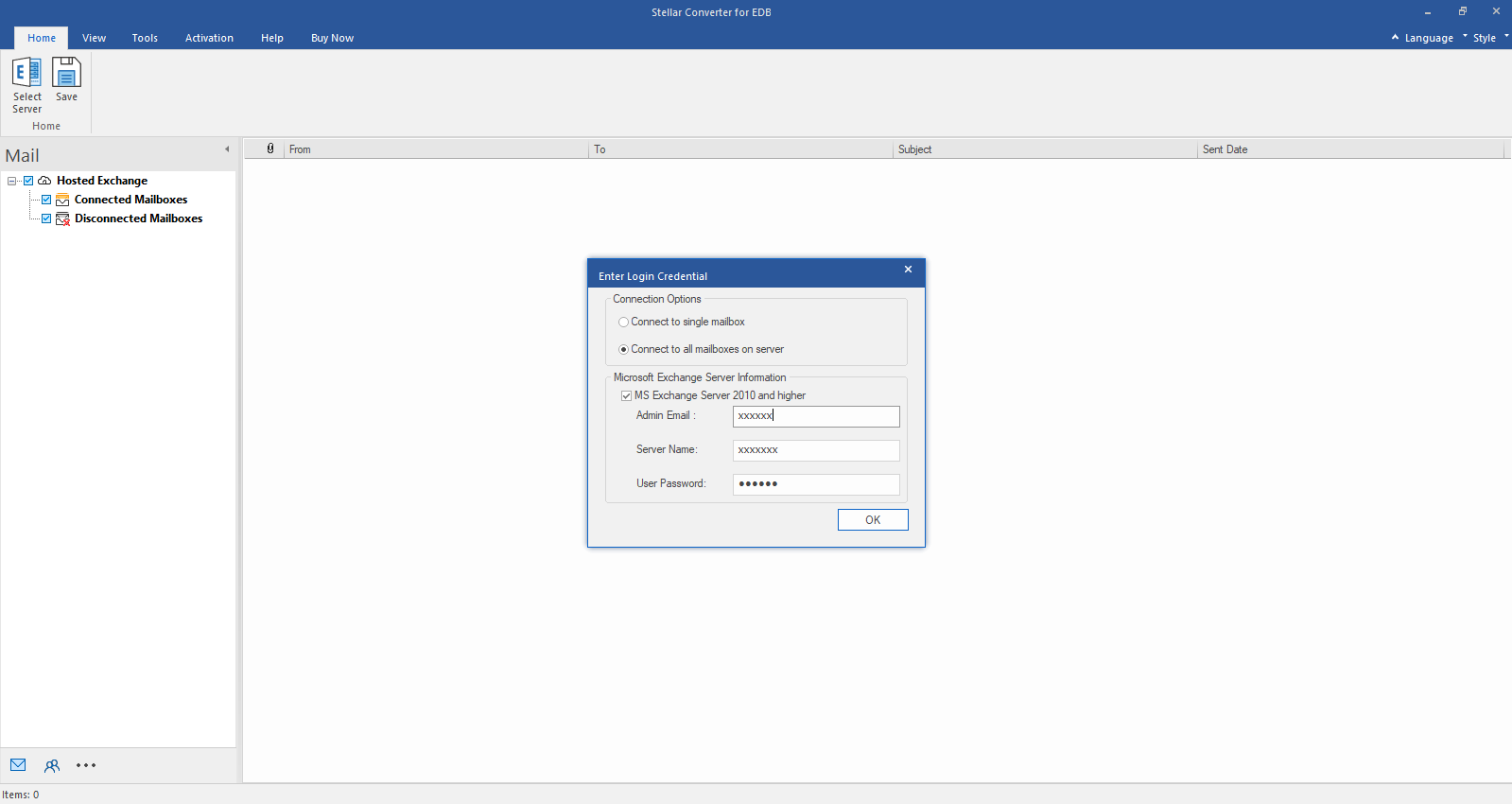
Step 1: Select Hosted Exchange to export mailboxes from an online EDB file. Select Connect to Single Mailbox or Connect to Single Mailbox from Connection Options
Step 2: Enter Admin and Server Name (for Exchange 5.5, 2000, 2003, 2007) or tick "Exchange Server 2010 and higher" checkbox to enter Admin Email, Server Name and Password (for MS Exchange 2010, 2013, 2016, and 2019). Click OK.
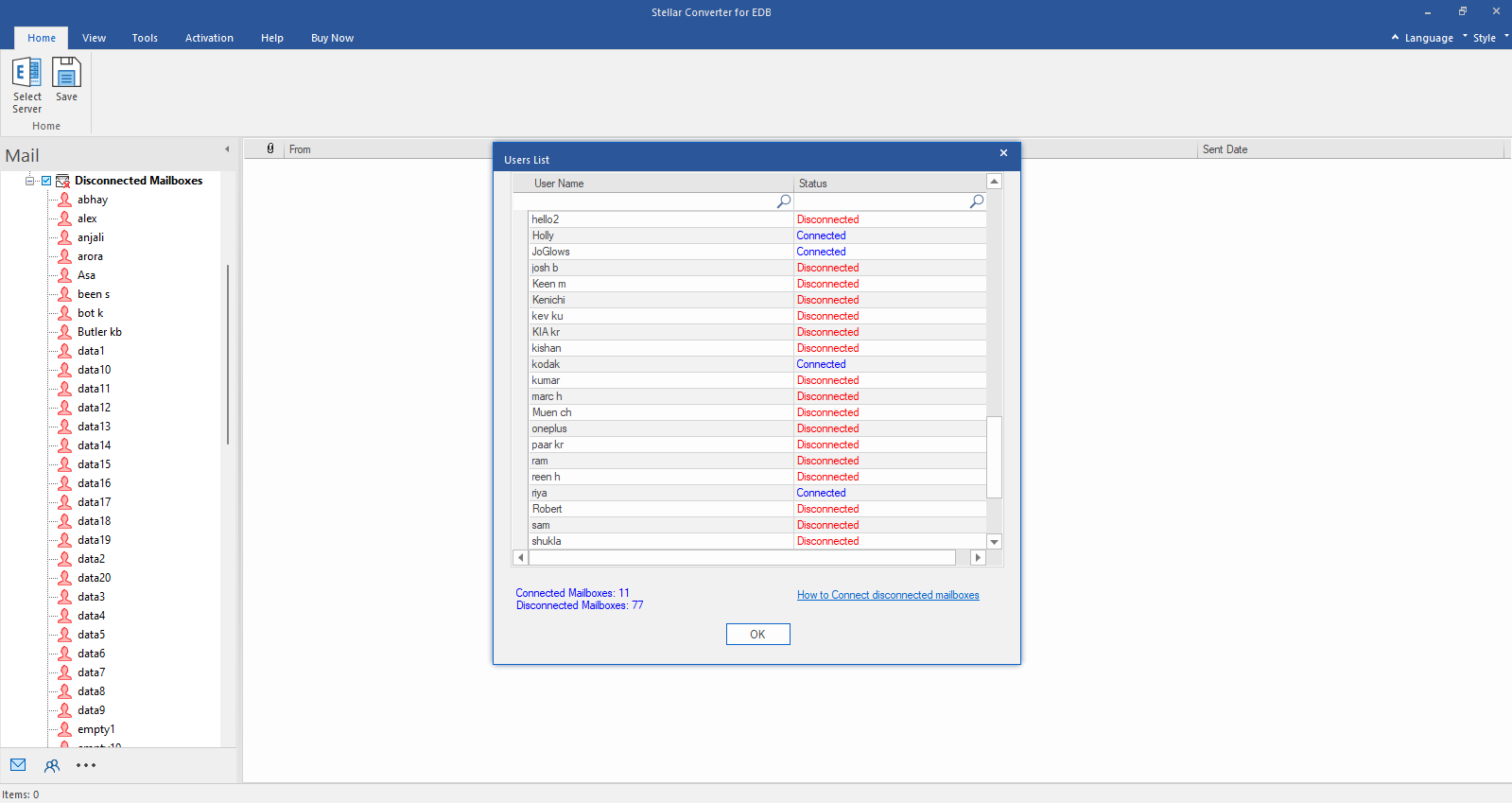
Step 3: After establishing the connection with Exchange Server, Next window displays list of connected and disconnected mailboxes. Click "OK" to proceed.
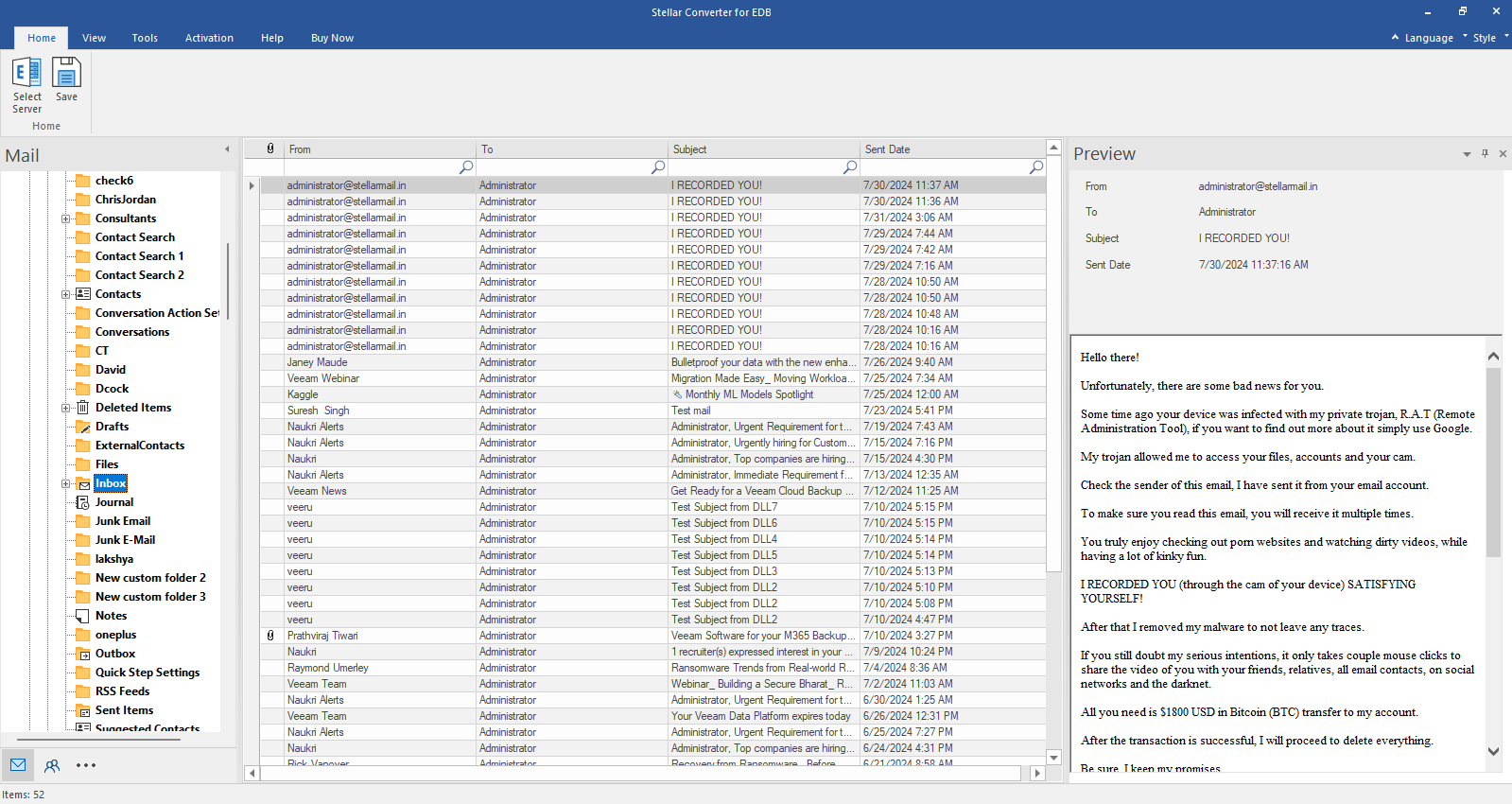
Step 4: Check the preview of all mailbox items- Emails, Calendars, Contacts etc.
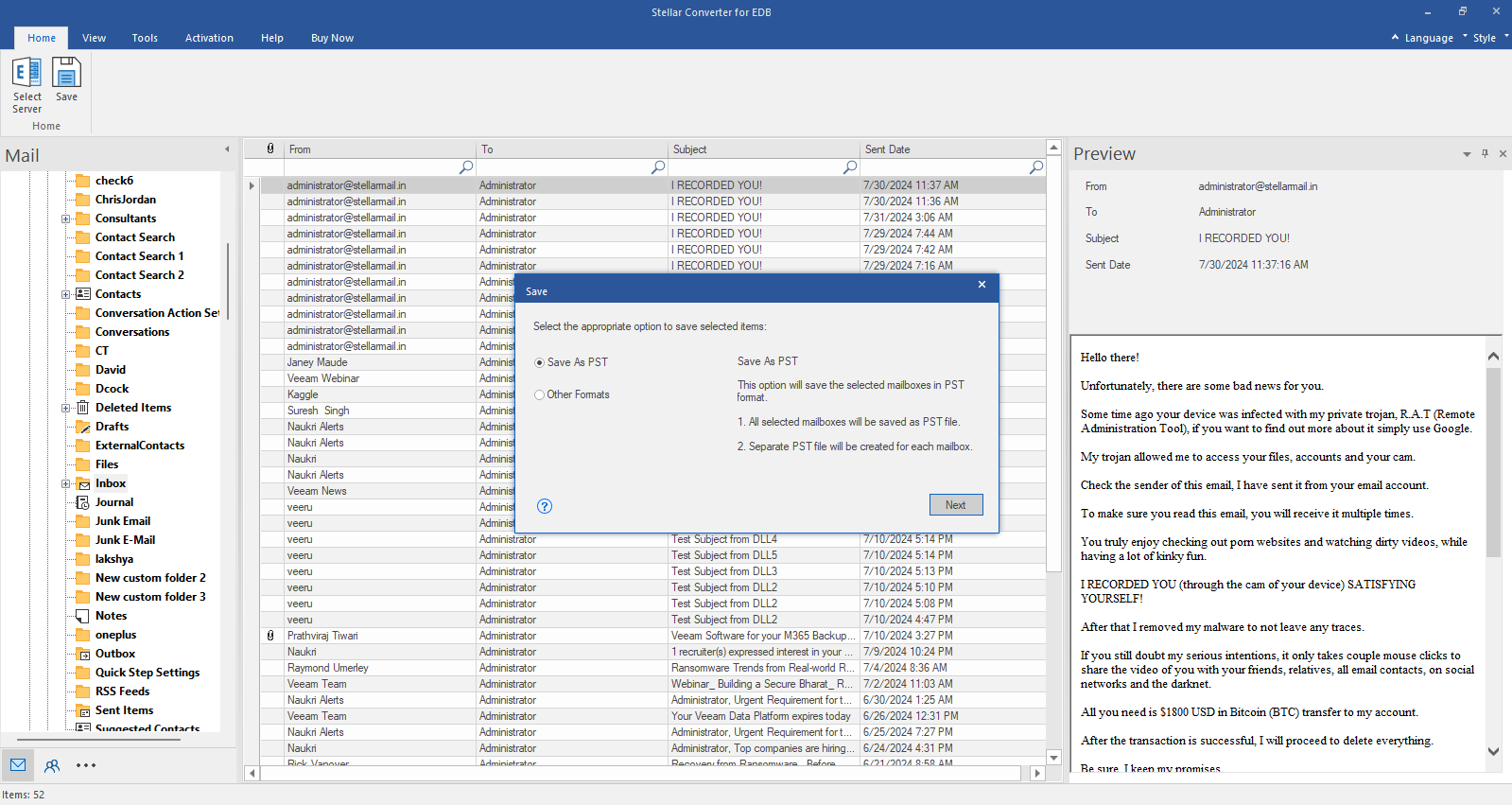
Step 5: Click Save from Home Ribbon and Select Save as PST option. Click "Next" to proceed.