&media=https://www.stellarinfo.com/public/image/article/How-to-fix-error-Outlook-Stuck-in-Offline-Mode-532.jpg&url=https://www.stellarinfo.com/article/outlook-stuck-in-offline-mode.php)




The Outlook stuck in offline mode issue can easily be resolved by checking the Work Offline setting, ensuring a stable internet connection, install the latest MS Office/Outlook updates, disabling the add-ins, or manually setting up the Exchange account. But if these solutions fail, then create a new profile or recreate the OST file. Read this article to know how to perform these solutions and get the Outlook back online quickly.
What is Offline Mode in Microsoft Outlook?
In Outlook 2010 and later versions, the offline mode allows users to read, create, delete, and organize emails and other items without an active internet/server connection. Users can switch from Offline Mode to Online Mode and vice-versa based on their preference.
Outlook automatically switches to offline mode when it can't connect to the Exchange Server. Users can also use the 'Work Offline' option when the internet connection is not reliable. This helps them work seamlessly without any interruptions. The changes are saved locally in the Outlook OST data file and later synchronized with the mailbox server. When offline, the status is displayed in the status bar at the bottom as Working Offline or Disconnected.

However, users can't send and receive emails when the Outlook status is displayed as Working Offline or Disconnected.
Why is Outlook Stuck in Offline Mode?
Outlook may get stuck in offline mode due to one or more of the following reasons:
- Problem with the Mail Server: When the mail server is not available due to maintenance tasks or other issues, Outlook may fail to connect to the server and display the status as Disconnected. This indicates that the internet is working fine, but Outlook cannot connect to the mailbox server.
- Issue with the Internet Connection: When the problem is with the internet connection, Outlook may display Working Offline or Disconnected status. The Outlook may remain stuck in the offline mode until the network is restored.
- Account Configuration Issue: Problem with account configuration can also prevent Outlook from connecting to the mail server, resulting in Offline Mode.
- Damaged or Corrupt Outlook Profile: A corrupt Outlook profile can prevent Outlook from authorizing and connecting to the mail server and result in the Outlook stuck in offline mode problem.
- Corrupt or Inconsistent OST File: If OST file gets corrupted or becomes inconsistent, then Outlook might not connect to the server and stay offline.
How to Fix Outlook Stuck in Offline Mode Issue?
You can follow these methods to troubleshoot and resolve the Outlook stuck in Offline Mode error. These methods work in Outlook 2010, 2013, 2016, 2019, and 2021.
Method 1: Reset 'Work Offline' to Reconnect
The Work Offline option is available under the 'SEND/RECEIVE' tab in Outlook. Click the 'Work Offline' option to disable work offline mode and reconnect to the Exchange or mailbox server.
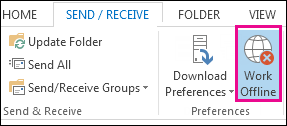
Check the status. It should reconnect to the server and display Connected: Exchange Server or similar status in the status bar. If not, check the internet connection and then retry.
Method 2: Check and Install Pending Updates
Sometimes, updates can also lead to certain issues with the programs installed on Windows OS. Therefore, if there are any pending updates related to MS Office or Outlook, you should check and install them.
However, if you are experiencing the issue after installing the updates, revert or uninstall the updates and check your Outlook.
Method 3: Create a New Profile
To fix the Outlook stuck in offline mode error, you can also create a new Outlook profile. The steps are as follows:
- In Outlook, click File > Account Settings > Manage Profiles.
- Click Show Profiles > Add.
- Enter the profile name and click OK.
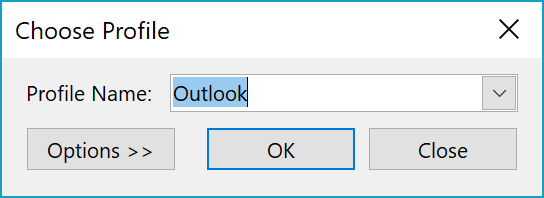
You can now switch to this profile by navigating to File > Account Settings > Change Profile. This will close Outlook. Start it again and then choose the new profile name from the dropdown.
Method 4: Check and Disable Conflicting Add-ins
Sometimes, third-party add-ins can conflict with Outlook functionality and keep it stuck in offline mode. To check this, you can open Outlook in safe mode as it opens the application without any add-ins. The steps are as follows:
- Close Outlook.
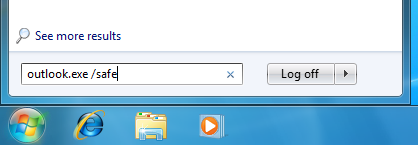
- Press Windows+R keys, type Outlook.exe /safe, and press 'Enter.' This will launch Outlook in safe mode.
- Now press the Send/Receive button. Finally, check the status bar. If it changes from offline to online, this means any add-ins was causing the issue.
You can disable the add-ins by following these steps:
- Go to File > Options > Add-Ins.
- In the window that appears, look for the Manage section and click the Go button in front it.
- In the COM Add-Ins window, uncheck the checkboxes for all add-ins and then click OK.
- Now, start Outlook normally.
To check which add-in was causing the problem, enable the add-ins one-by-one and restart Outlook. This will help you to eventually find the conflicting add-in. When found, remove it permanently.
Method 5: Manually Setup Exchange Server Account
You may also connect to the network and control the connection state by manually configuring the Exchange account settings. The steps are as follows:
- In Outlook, navigate to File > Account Settings > Account Settings.
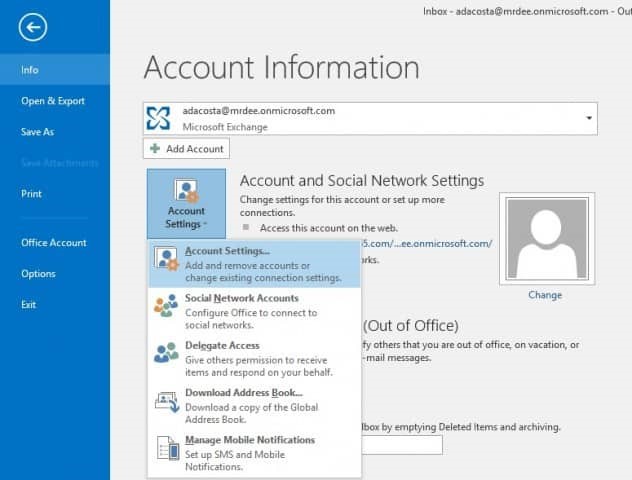
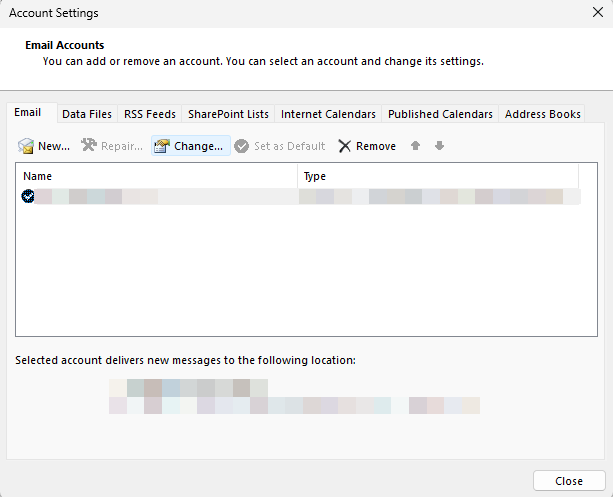
- Click on your Microsoft Exchange Server account under the Email tab.
- Click on the 'Change' and then on the 'More Settings' button.
- Click the 'Manually control connection state' option and then select "Connect with network'.
- Click OK > Next > Finish to complete the wizard and close the window.
- Finally, click the 'Close' button to terminate the Account settings window.
Method 6: Recreate OST File
If the methods discussed above did not work, there could be a problem with the Outlook OST file, preventing Outlook from connecting and syncing mailbox items with the mailbox server. In such cases, you can recreate the OST file. The steps are as follows:
- In Outlook, click File > Account Settings > Account Settings and click 'Data Files'.
- Select the Outlook profile and click 'Open File Location….'
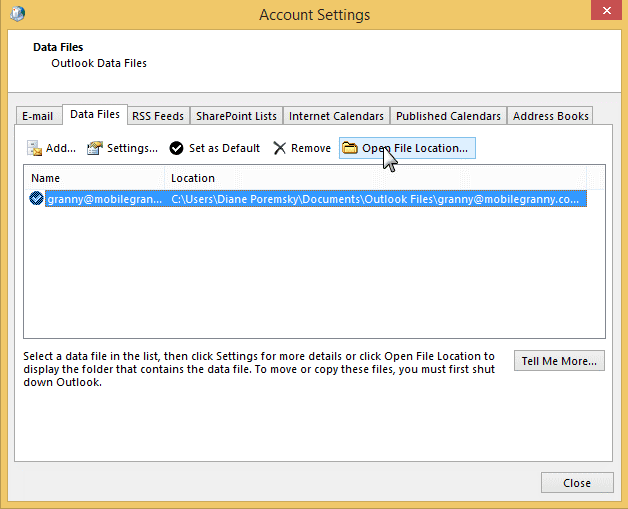
- Copy the OST file to a safe location and then close Outlook.
- Delete the OST file and restart Outlook. This will recreate the new OST file and sync all mail items from the server. This should fix the Outlook stuck in offline mode error if it is due to a problem with OST file.
However, Outlook may fail to recreate the OST file if it can't connect to the server or your mailbox on the server. For example, it may happen when there is a problem with your profile on the mailbox server or if your mailbox is deleted or disabled. In such a case, you can use Stellar Converter for OST to convert the orphaned OST file into Outlook importable PST format. This will help you get back your mail items and access them in other Outlook profiles until the administrator resolves the issue. This will also help you prevent data loss.
Download Stellar Converter for OST
Download Stellar Converter for OST for free!

To Wrap Up
The Outlook stuck in offline mode issue can prevent you from sending and receiving new emails. Thus, resolving such Outlook issues should be your top priority. In this article, we've discussed the reasons that can lead to this issue and the methods to resolve it without losing any mail item. However, if the error is not resolved, you can use Stellar Converter for OST to extract mail items from the OST file and save them in PST format. With this tool, you can also export the OST file items directly to an existing Outlook profile, live Exchange Server, or Office 365.


The first thing you can do is check and disable the Work Offline option. If Outlook reconnects successfully, you’ll see the Connected: Exchange Server in the status bar. If this doesn’t work, then you can try the following:
- Check and Install Latest MS Office Updates
- Create a New Profile
- Disable Faulty Add-ins
- Manually Setup Exchange Server Account
- Recreate OST File
 9 min read