You may encounter the “Microsoft Outlook Not Responding” error while sending or receiving emails, opening messages or attachments, searching the mailbox, or performing other tasks. When this happens, Outlook may freeze, becomes unresponsive, or stops responding. This issue can disrupt your day-to-day email communication and workflow. In this guide, we will explain the common causes of this error and provide the solutions to resolve it.
Why is Microsoft Outlook not Responding?
This error can occur due to one or more of the following reasons:
- Insufficient system resources, such as low memory (RAM) or high CPU utilization
- Large mailbox or oversized PST file can cause Outlook to slow down or stops responding when performing certain operations
- Corruption in Outlook data file (PST) can cause errors when accessing the mail items
- Outdated or faulty add-ins can interfere with normal Outlook operations
- Damaged or corrupted Outlook profile can prevent the application from loading properly, resulting in the ‘not responding’ error
- Missing or damaged Outlook or MS Office program files may affect the application’s normal operations
- Synchronization issues or errors may cause Outlook to become unresponsive or freeze
- Improper shutdown of Outlook or system may interrupt ongoing operations or leave background processes running
7 DIY Methods to Fix the “Outlook not Responding” Error
Before trying the below methods, wait for some time to see if Outlook starts responding, specifically if it is in the middle of processing large attachment or synchronizing the mailbox. If it is still not responding, restart it and check if the issue persists. You can also check and install the latest Outlook updates, if available.
If the problem persists, follow the methods mentioned below.
Method 1: Close Outlook and Related Processes
Sometimes, Outlook does not close completely, leaving one or more Outlook.exe processes continue running in the background. When you try to open the application again, these background processes may interfere and prevent it from starting. You can check and close all Outlook-related processes from the Task Manager. Follow these steps:
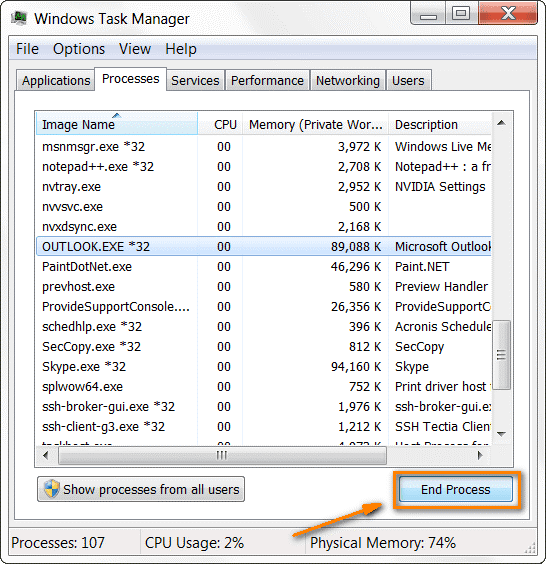
- Press CTRL + ALT + DEL keys and click Task Manager.
- Click on the Processes tab and search for all processes with the word Outlook in the name (primarily, processes named outlook.exe).
- Find each process, select it by clicking on it, and then click on the ‘End Task’ button at the bottom right corner of Task Manager.
After closing all the processes, launch Outlook again and check whether the issue is resolved. If it is still unresponsive, proceed to the next troubleshooting method.
Method 2: Identify and Remove Problematic Outlook Add-Ins
Add-ins are installed in Outlook to provide additional functionality and improve user experience. But faulty or incompatible add-ins can cause problems with the normal working of the application. You can open Outlook in Safe Mode to check whether an add-in is responsible for the issue.
If it opens successfully in Safe Mode, an add-in is likely causing the error. In such a case, you can find and disable the faulty add-ins. To do this:
- Go to File > Options > Add-ins.
- Next to Manage: COM Add-ins, click Go.
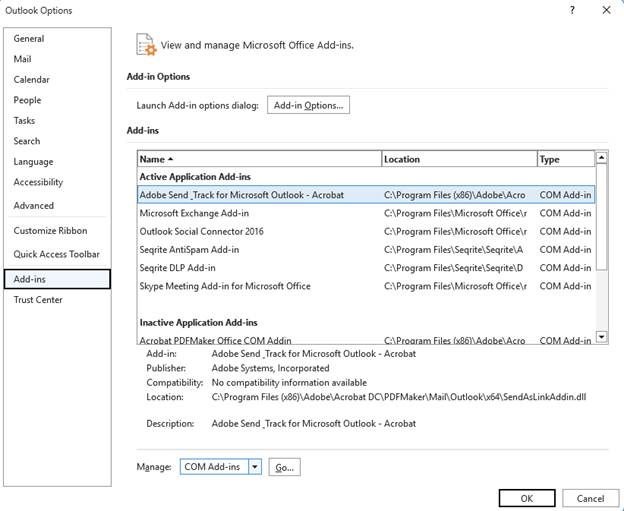
- Uncheck the checkbox next to each add-in to disable it and then close Outlook.
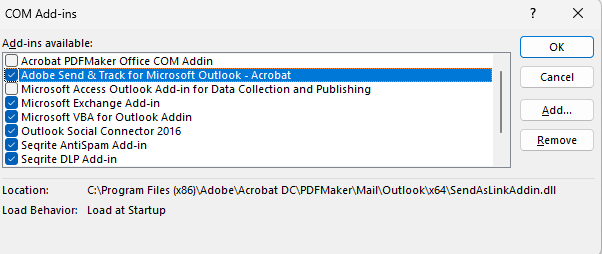
- Start Outlook in normal mode and check whether the issue is resolved.
- If Outlook works correctly, enable one add-in at a time and restart Outlook after each change.
- Continue this process until the issue reappears.
- Once you find the faulty add-in, disable or remove it to prevent the issue from occurring again.
Method 3: Turn Off the Antivirus Program
Some antivirus programs are designed in such a way that they scan every outgoing and incoming email to your system. This might cause problems with the normal functioning of Outlook.
To check if your antivirus is causing the problem, go to Control Panel and turn off your antivirus. Then, restart Outlook.
If everything works fine, you know where the problem is. To keep using both your antivirus and Outlook without issues, add Outlook and all its related processes in the antivirus software. You may also use an Outlook-aware antivirus program to avoid conflicts and issues with the application.
Note: Disabling antivirus protection may expose your system to security risks. Re-enable the protection immediately after testing Outlook.
Method 4: Organize and Reduce Mailbox Size
Over time, your mailbox becomes large which affects Outlook’s performance and cause issues such as freezing or not responding. To enhance the application’s performance, you can regularly organize your mailbox and reduce its size. Here’s how to do this:
- Move emails to appropriate folders and subfolders instead of storing everything in a single mailbox folder.
- Delete unnecessary emails, attachments, and outdated calendar items.
- Empty the Deleted Items and Junk Email folders regularly.
- Archive older emails that you no longer access frequently.
- Review large attachments and remove or save them outside Outlook.
- Compact the PST file to reclaim empty space and reduce its size.
Method 5: Repair Outlook Installation
If your Outlook installation files get damaged, the application may crash, freeze, or stop responding. You can repair the Microsoft Office installation to fix the damaged program files and restore Outlook’s normal functionality. To repair Microsoft Office:
- Close Outlook and all other Office applications.
- Open Settings and select Apps > Installed apps.
- Select Microsoft 365 or Microsoft Office from the list of installed programs.
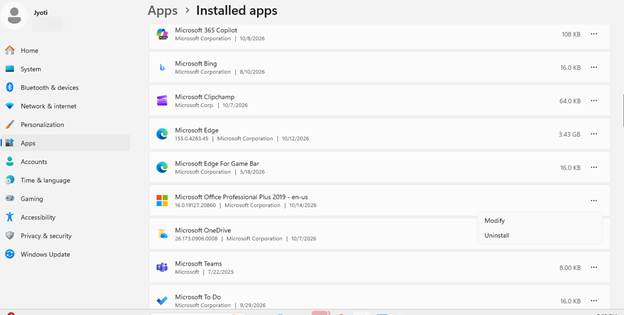
- Click Modify.
- Select Quick Repair and follow the on-screen instructions.
- If the issue persists, repeat the process and choose Online Repair for a more thorough repair.
- Restart your computer after the repair is complete.
Method 6: Create a New Profile
If your Outlook profile becomes corrupted or misconfigured, you may encounter errors and other problems. You can create a new profile to resolve the issues. Here are the steps:
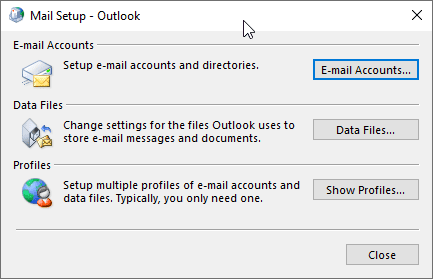
- In Control Panel, search and click on the Mail option.
- Click Show Profiles.
- Click Add and enter a name for the new profile.
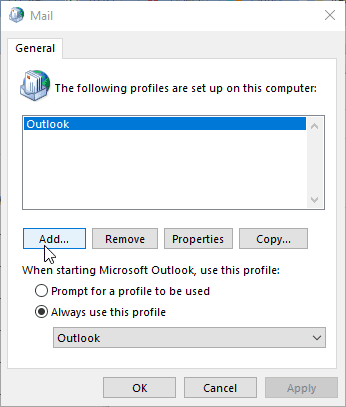
- Type a name for the new profile and click OK.
- Provide your email and password, and click Next.
- After configuring the new profile, open Outlook and see if the issue is resolved.
Note: Removing the profile may also remove the linked PST file. Thus, back up the file before creating a new Outlook profile.
Method 7: Repair Outlook PST Data File
A corrupted PST file can prevent Outlook from functioning properly and may lead to issues, such as freezing, crashing, or not responding, when accessing the mail items. You can repair the PST file by using Microsoft Outlook’s built-in utility, called the Inbox Repair Tool (ScanPST.exe). To repair the PST file using the ScanPST.exe:
- Close Outlook and ensure that no Outlook processes are running in the background.
- Go to the ScanPST location and open ScanPST.exe.
- In the Inbox Repair Tool window, click Browse and select the PST file you want to repair.
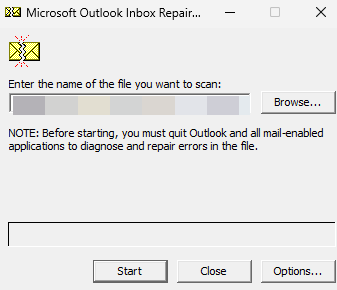
- Click Start to scan the selected PST file for errors.
- After the scan is complete, review the results. If errors are found, select Repair to fix the issues.
- Wait for the repair process to finish.
- Once the repair is complete, reopen Outlook and check whether the issue has been resolved.
What if ScanPST cannot Repair the PST File?
If ScanPST fails to repair the corrupted PST file, you can consider using a specialized PST repair tool. If your file is small (up to 500 MB), you can use the browser-based PST repair service by Stellar to repair it for free. You just have to upload your PST file and repair it. It directly works through a web browser and doesn’t require any software to be installed.
For larger files and advanced PST recovery capabilities, you can download and install Stellar Repair for Outlook. This advanced PST repair software is designed to repair severely corrupted PST files without any file size limitations. It can recover emails, attachments, contacts, calendars, notes, and other Outlook items while preserving the original mailbox structure. It can help restore access to mailbox data when built-in repair tools are unable to repair the PST file successfully.
In addition, the software offers recovery of deleted mailbox items, preview of recoverable emails and other mailbox content after repair, and multiple saving options, such as PST, EML, MSG, etc.
Conclusion
The “Microsoft Outlook not responding” error may occur due to faulty add-ins, large mailbox size, damaged Outlook profile, corrupted Outlook data file, and other reasons. To fix this error, you can follow the solutions mentioned in this guide.
If the issue is caused by a severely corrupted PST file and the Inbox Repair Tool (ScanPST) is unable to repair it, you can use Stellar Repair for Outlook. This tool can help you fix issues within the corrupted PST file, extract all the data from it, and save it in a new PST that you can directly import into Outlook.
FAQs
