


Windows 11 KB5078127 Out-of-Band Update Fixes Outlook Crashes Issue
July 24, 2026| 5 min read



Summary: If you have accidentally deleted important emails or calendar events in Outlook, take a look in your Deleted Items folder first – emails stay here for up to 30 days. If they are not there, then check the Recoverable Items folder. Nevertheless, if inbuilt recovery options fail, then you can use a reliable tool such as Stellar Undelete Email for Outlook. This tool can recover permanently deleted mailbox items from the Outlook data file.
Free Download 100% SecureIf you have deleted an email unintentionally, then you can immediately press Ctrl+Z to undo it. This provides the most immediate recovery for lost mailbox content. But this undo shortcut only works within the same session. After restarting Outlook, it will not work.
If this option doesn’t work or the session expires, Microsoft suggest to recover that items from the Deleted Items or Recoverable Items folders. In this post, we will explain the stepwise process to recover deleted emails and other items using these options in Outlook.
When you delete an email or calendar events in Outlook, it moves to the Deleted Items or Trash folder first (Depending on the account configuration). The email remains there until you manually remove it or the retention policy expires – by default, it is 30 days or the timeframe set by the admin. If you emptied that folder, then your removed emails move to the Recoverable Items or Trash folder, where messages are retained for 14 days by default. After this period, IT Administrators may still restore deleted emails or other mail items by using the Microsoft Purview Compliance Portal.
Follow the methods listed below to recover deleted emails, calendar and other mailbox data in Outlook’s all versions:
This is the most straightforward recovery approach. In case you have removed an email recently and have not emptied the Deleted Items folder, then you can recover it from this folder. Here is how:
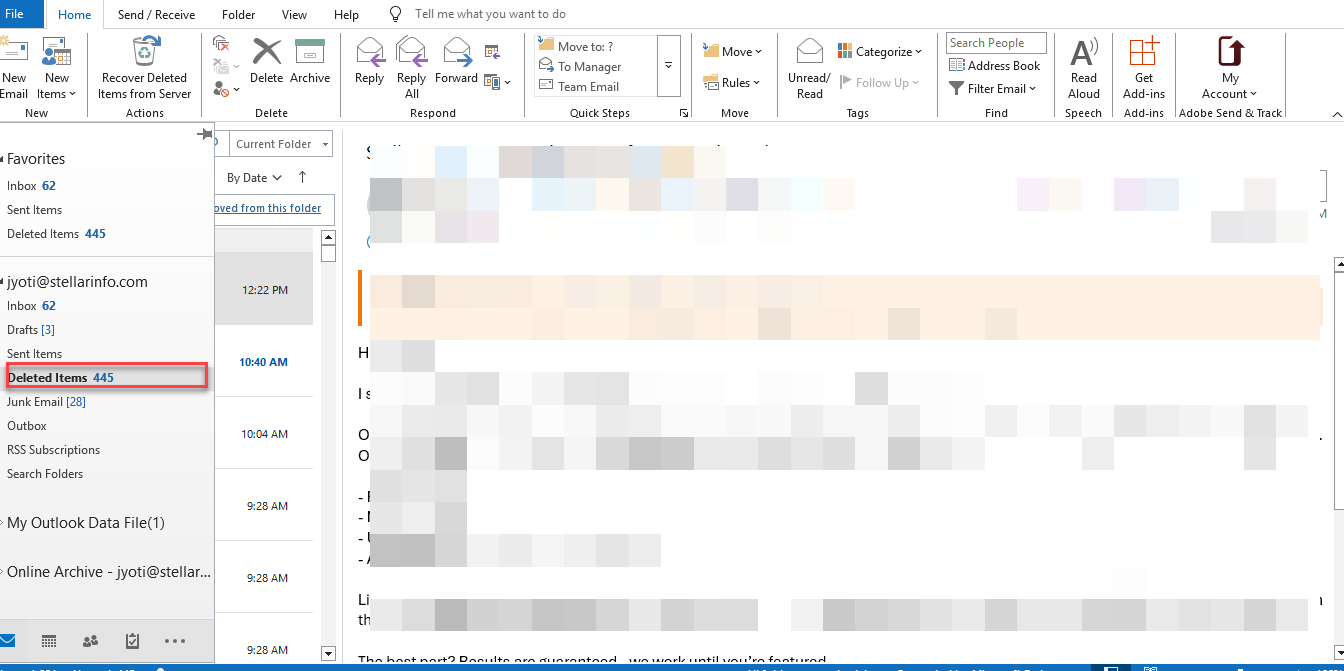
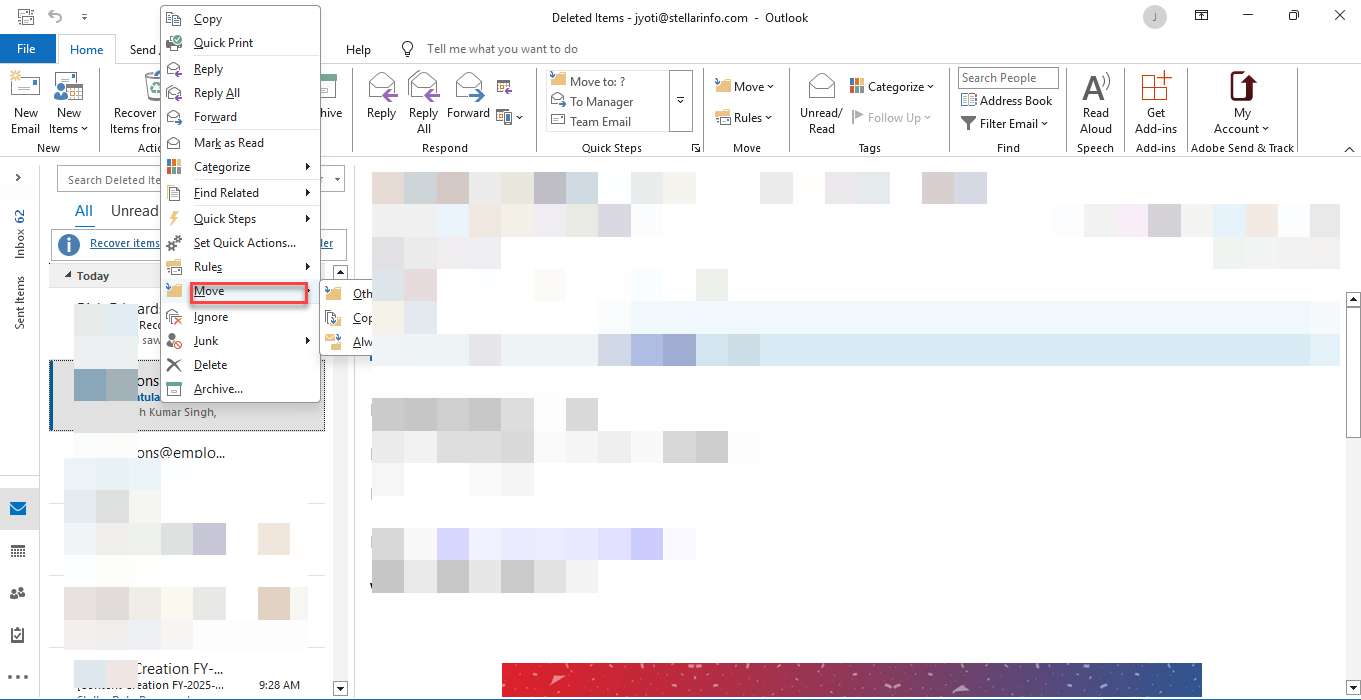
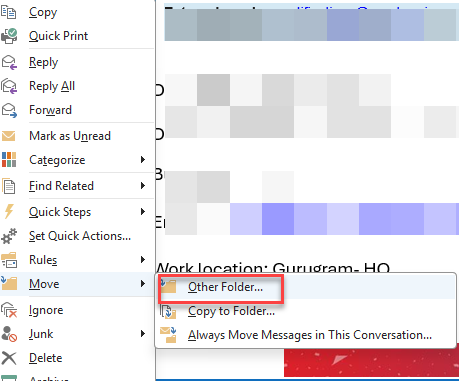
The emails will be moved to the selected folder.
In case you have cleared your Deleted Items folder or the retention period has passed, then it moves to Recoverable Items folder – also called “dumpster” – instead of deleting it permanently. You can recover deleted items from this folder from the Deletions subfolder using the Recover Deleted Items option.
According to Microsoft Exchange Online documentation, deleted mailbox items are stored for 14 days in the Recoverable Items folder, but can be extended by the administrator. If this retention period has passed then Microsoft 365 administrators can additionally recover the deleted emails by using Microsoft Purview Compliance Portal to perform Content Search or use eDiscovery tools.
Microsoft also assigns separate storage quotas to the Recoverable Items folder. The default warning quota is 20 GB, and the maximum quota is 30 GB in Exchange Online.
Source: Recoverable Items folder in Exchange Online.
Note: This option appears only when your Outlook account is connected to an Exchange or Microsoft 365 account. If you use a POP3 or IMAP account, this option will not appear.
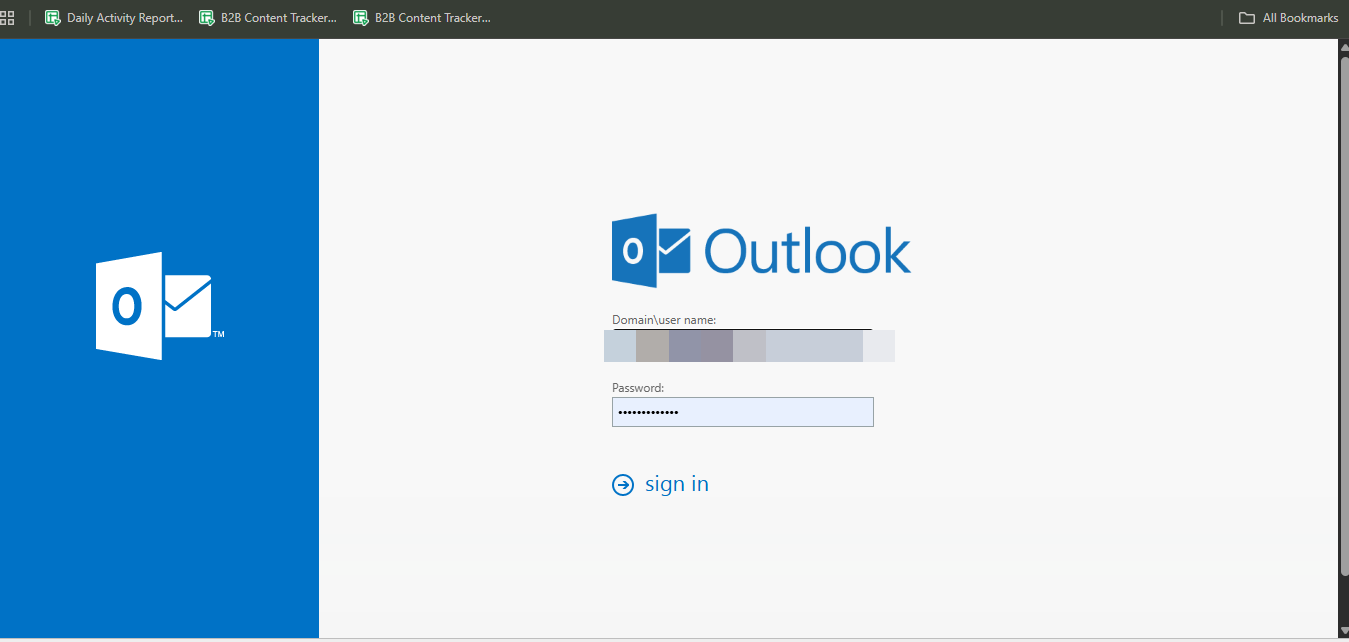
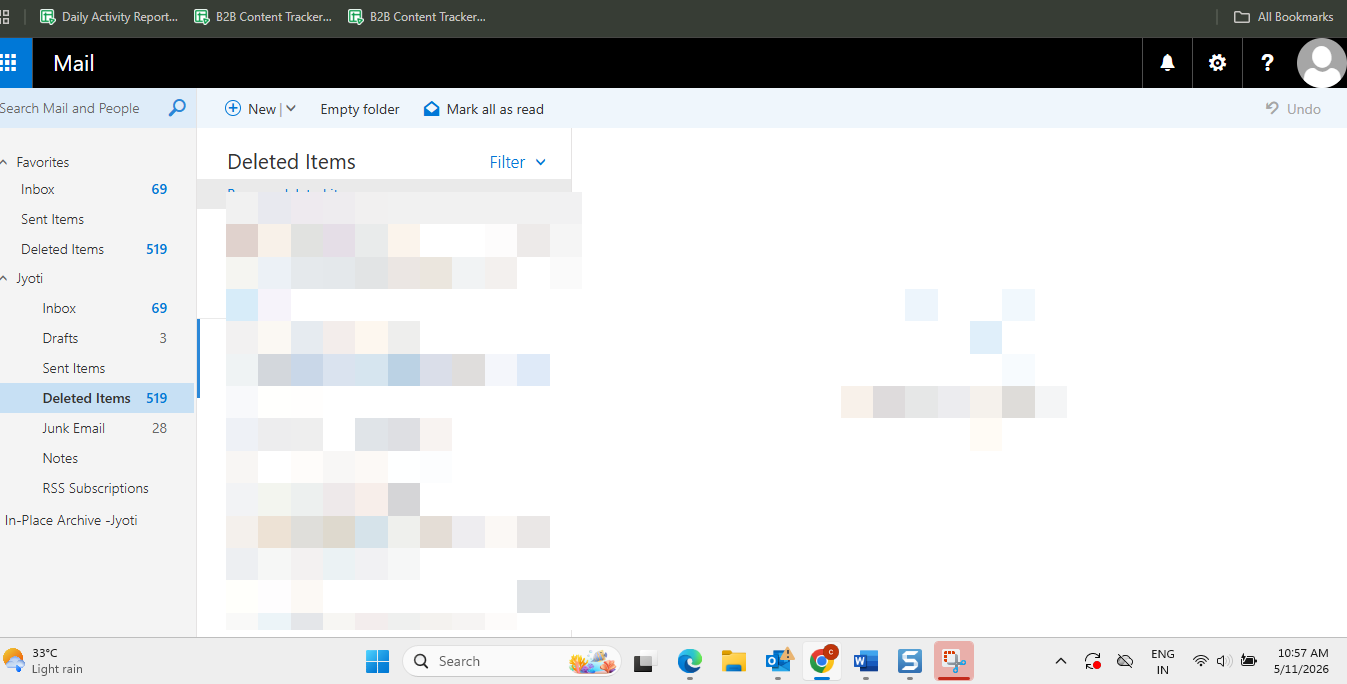
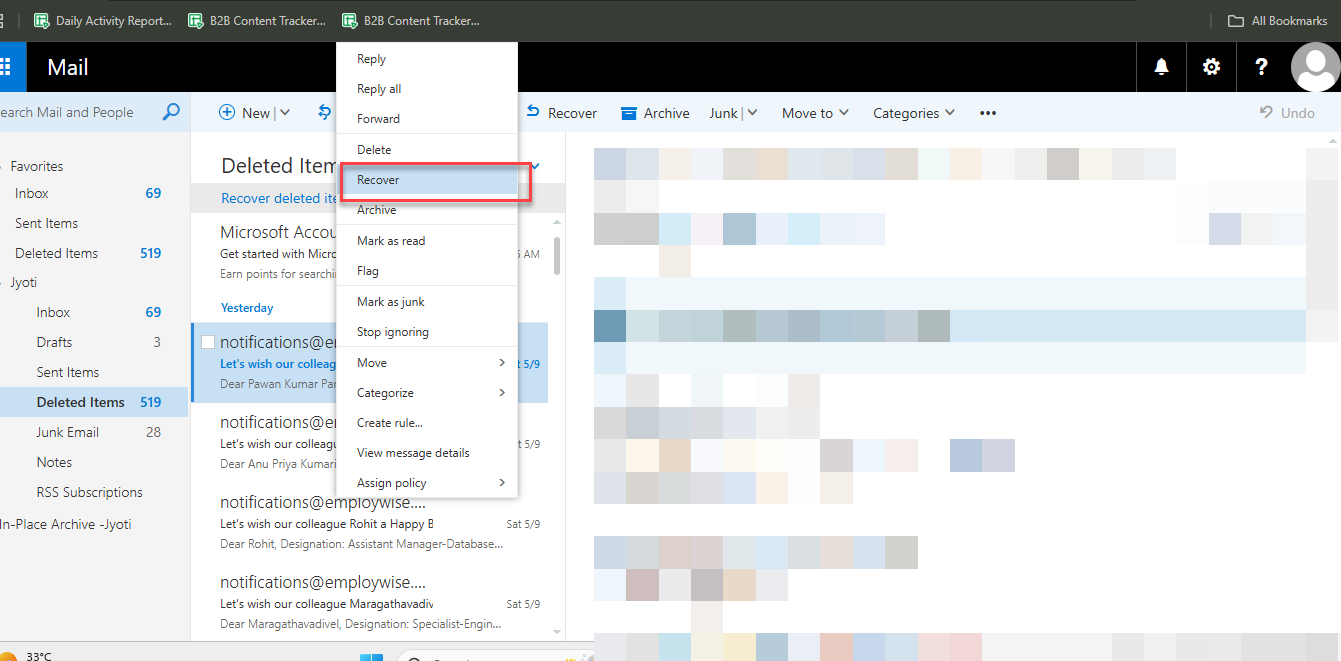
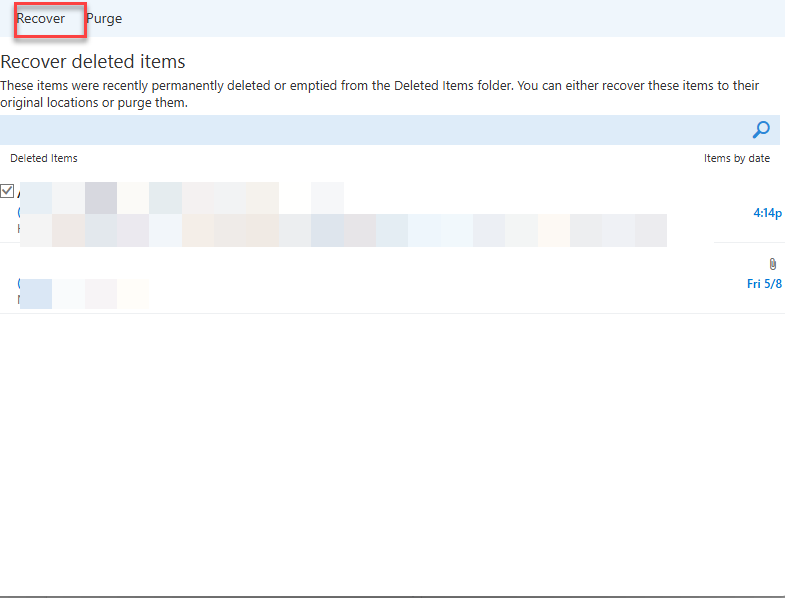
If you are using OWA – Outlook web access then you can recover your deleted emails directly from the web interface. You can us this method when emails are removed from the Deleted Items folder but are still available within the server retention period. This method is also useful when Outlook desktop application is unavailable or not syncing properly. Here’s how:

If the Recover Deleted Items option does not restore your emails, the retention period has expired, or the deleted items are no longer available on the server, then you can go for a professional email recovery tool.
Stellar Undelete Email for Outlook helps recover permanently deleted emails and other mailbox items directly from Outlook PST files.
This is a dedicated tool for bringing back accidentally deleted emails, attachments, contacts, calendars, and other email items from Outlook data files - .pst. You can even recover emails from password-protected PST files. Recovered items will be saved in PST - Personal Storage Table - format that can be imported to Outlook. This utility can also save mailbox items to various file formats such as HTML, PDF, RTF, EML, or MSG file. To recover deleted emails using this tool:
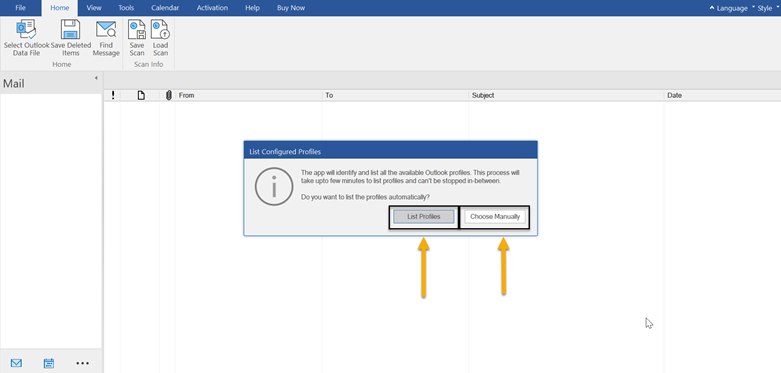
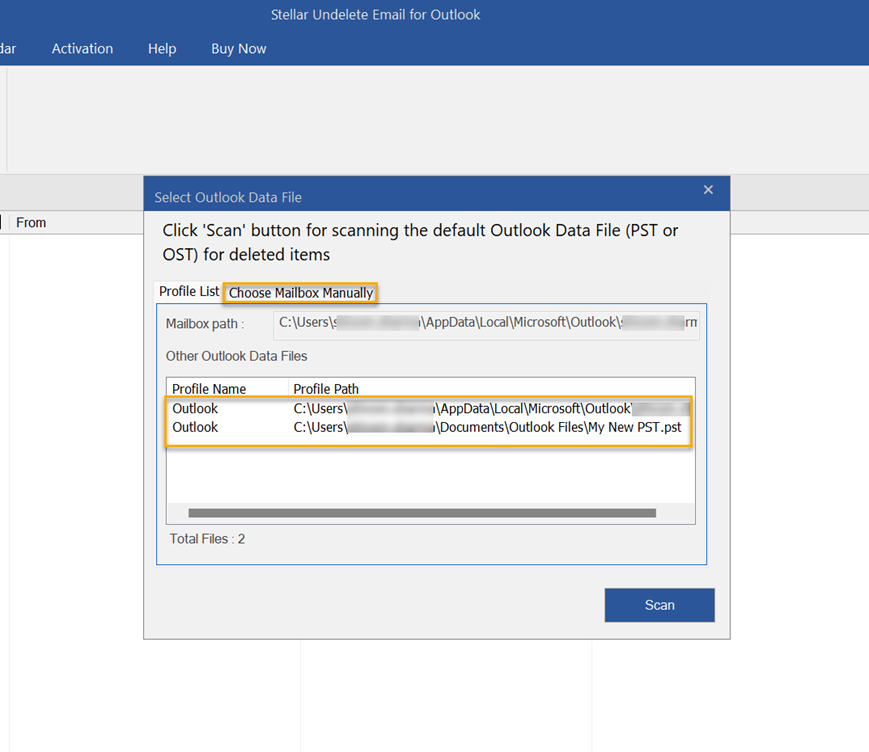
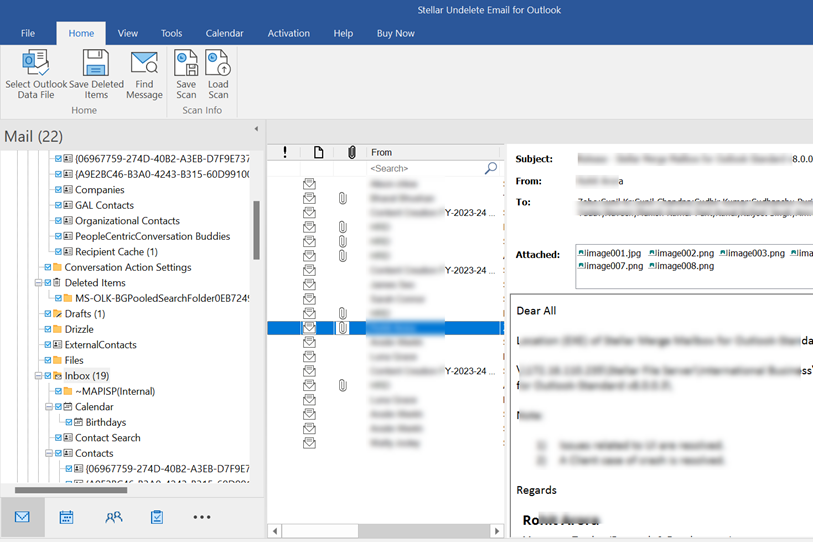
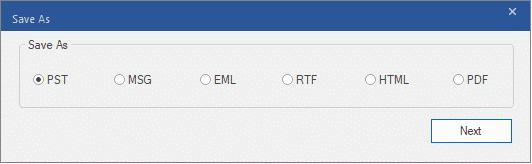
Now, you can import the PST file into Outlook and access your deleted emails.
Deletion of emails from your mailbox can result in the loss of critical data and can affect your business. You can follow the above mentioned methods to recover your deleted mail items in Outlook. However, the best option is to use Stellar Undelete Email for Outlook. This email recovery software can help you recover and restore deleted mail items from Outlook by maintaining 100% integrity and save them to PST format.
You can restore your deleted Outlook account only within 30 to 60 days grace period after closure. To recover your account, sign in at, verify with the security code, and your account will be restored.
Data Recovery Expert
This article was Reviewed by Kuljeet Singh, a Data Recovery Expert at Stellar Data Recovery.
Senior Content Writer
This article was written by Jyoti , a Senior Content Writer at Stellar Data Recovery.
July 24, 2026| 5 min read
January 5, 2026| 5 min read

March 6, 2025| 5 min read






 5 min read