


Often, SQL users find themselves in situations that call for restoring SQL database with a different name on the same PC or server. Let’s take a look at a few user instances:
User Instance 1: “I have a backup of Database1 from a week ago. The backup is done weekly in the scheduler, and I get a .bak file. Now I want to work on some data, so I need to restore it to a different database - Database2.”
User Instance 2: “I am using SQL Server 2014. I have a database, but as the user deleted some records, I need to create another database with a different name and then transfer the data from the restored database to the current one.”
Methods to Restore Same Database with Different Name in SQL Server
Here, we will discuss two methods on how to restore a SQL Server database with a different name from a backup (.bak) file:
Tip: Make sure that the database backup file that you want to restore is updated, as running obsolete backup can result in data loss. If the backup file is not up to date, use Stellar Repair for MS SQL software to restore SQL database to a new db.
Method 1 – Using SQL Server Management Studio (SSMS)
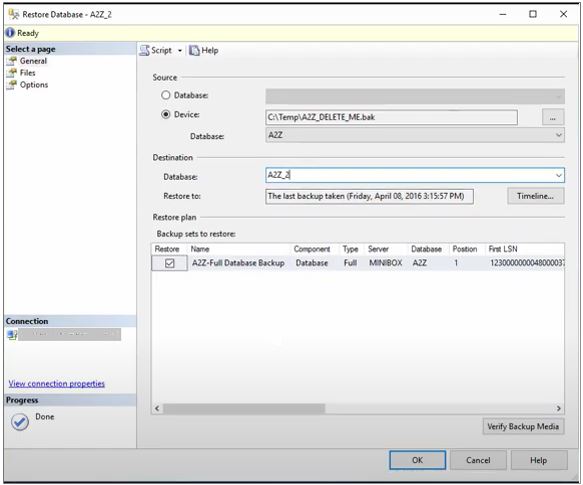
In this method, we will share an example showing how to restore the database backup to a different name in SQL Server using SSMS. In the following example, we will restore backup of ‘A2Z’ db and save it to the same database with a different name ‘A2Z_2’.
Step 1: Open SSMS and connect to the SQL Server instance.
Step 2: Under Object Explorer, right-click Databases, and then select the Restore Database option.

Step 3: In the Restore Database window, select the Device option under Source, and then click the Browse button.
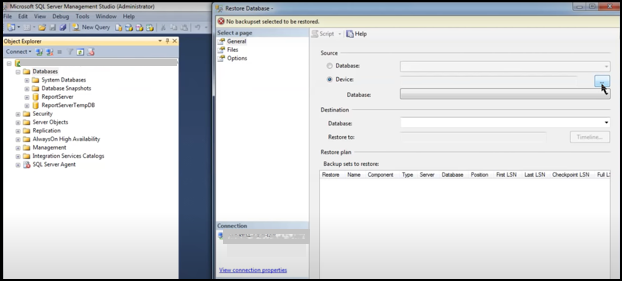
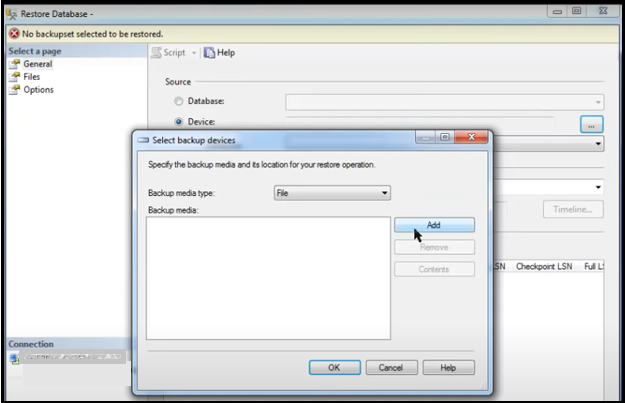
Step 4: When the Select backup devices window is displayed, click the Add button.
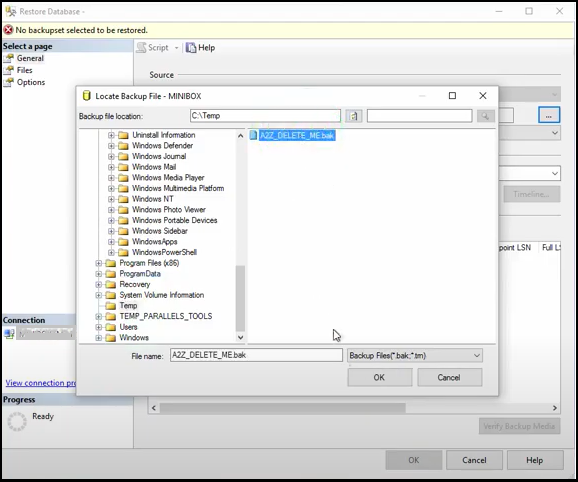
Step 5: Locate and select the SQL database backup file that you want to restore, and then click OK.
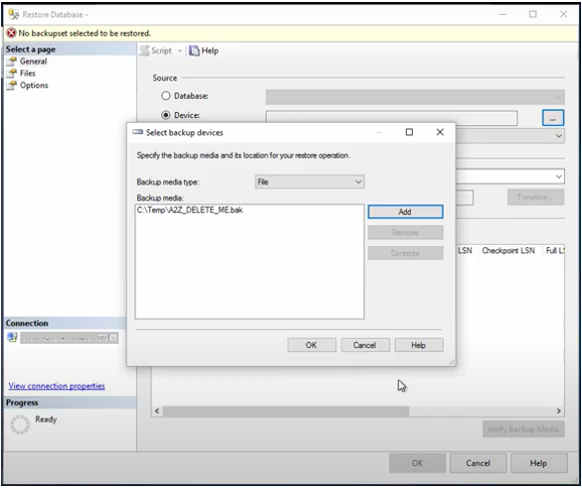
Step 6: Once the backup file is selected, click OK.
Step 7: Next, change the destination database name to the database name to which you want to restore the backup file. For example, we have changed the existing database name ‘A2Z’ to ‘A2Z_2’.
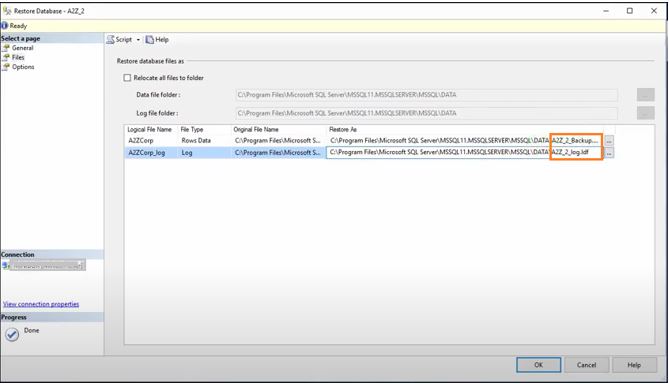
Step 8: On the Files page, change names of the existing database files (.mdf and .ldf) name. In our case, we have changed ‘A2Z_Backup.mdf’ and ‘A2Z_log.ldf’ file names to ‘A2Z_2_Backup.mdf’ and ‘A2Z_2_log.ldf’.
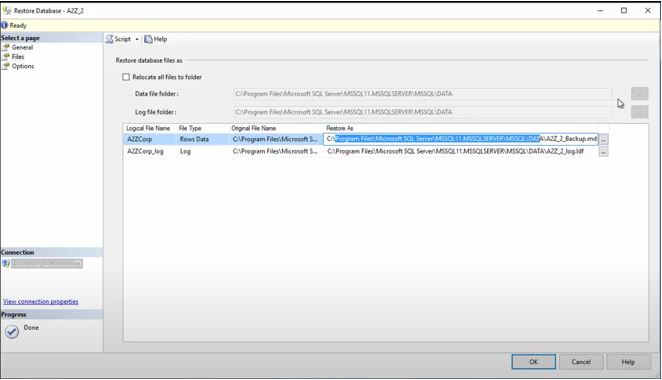
Step 9: Next, change the directory name to any folder on SQL Server where you want to save the restored database.
Note: Avoid adding database files in the same directory as the existing database to avoid collisions. Change the directory name as desired. But make sure that you are going to a drive that has sufficient space.
Step 10: Once you have changed the directory name, click the Options tab under Select a page.
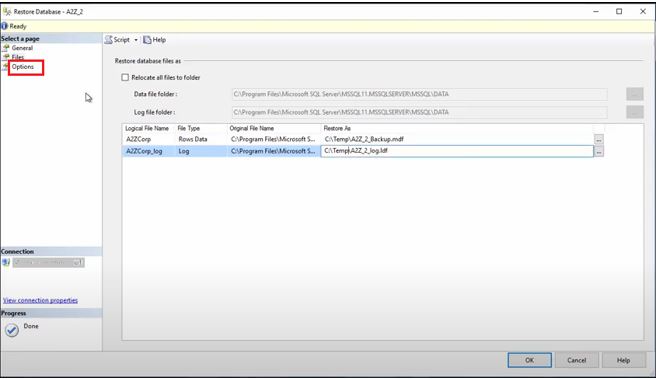
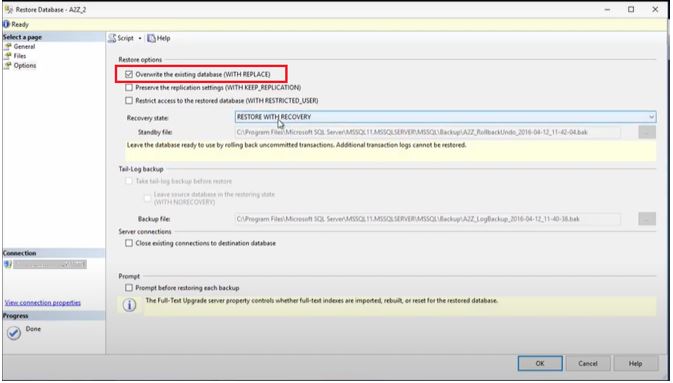
Step 11: On the Options page, check the ‘Overwrite the existing database (WITH REPLACE)’ checkbox under Restore Options.
Step 12: Click OK when the ‘database restored successfully’ message box pops-up. Click the OK button again.
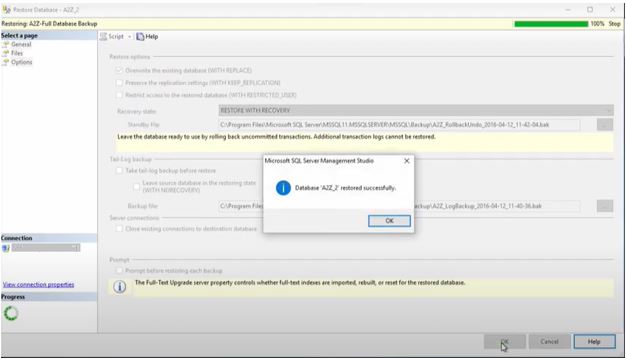
Step 13: The same database with a different name will be added under Databases.
Method 2 – Using Transact SQL (T-SQL)
Use T-SQL to restore SQL database with different name by following these steps:
Step 1: Determine the logical file names of the database, from the backup file, along with their physical paths by executing the RESTORE FILELISTONLY command:
RESTORE FILELISTONLY FROM DISK = 'C:\A2Z_Delete_Me.bak' |
Step 2: Once you have obtained the logical and physical names of the database files, perform SQL restore to different database using RESTORE command with MOVE option. To demonstrate this, let’s take an example. In the example, we will restore data from A2Z database backup file to A2Z_2 database along with .mdf and .ndf files.
RESTORE DATABASE A2Z_2 FROM DISK = 'C:\A2Z_Delete_Me.bak' WITH REPLACE, RECOVERY, MOVE N'A2Z_data' TO 'c:\...\A2Z_2.mdf', MOVE N'A2Z_log' TO 'c:\...\A2Z_2.ldf'; |
Problem Associated with Restoring Database using SSMS and T-SQL
Both the above-discussed methods to restore database with different name in SQL Server are efficient. However, you can face the following issues when using these methods:
- Not having SQL permissions to run the T-SQL command
- Insufficient disk space to restore the database
- Database inconsistency errors
Besides these issues, incorrect implementation of a single step to restore the database can corrupt the database and result in potential data loss. Also, you may encounter ‘SQL Database Restore Failed, Database in Use’ error message.
You can, however, overcome such issues by using the Stellar Repair for MS SQL software. The software can repair a corrupted SQL database (MDF/LDF) files and restore the database to a ‘New’ or ‘Live’ database. Also, it helps to maintain data integrity and precision when performing the restore operation.

Conclusion
This article serves as a helpful guide on ‘how to restore same database with different name on SQL server’. It discusses step-wise instructions to restore a database with a different name from the backup file, by using SSMS and T-SQL commands to perform the restoration. Be wary though, a wrong step can turn the database corrupt and render the data inaccessible. Also, restoring the db from a good known recent backup is crucial to avoid data loss. If the database is corrupted or the backup file is not available, using an SQL database repair software such as Stellar Repair for MS SQL can help.
Read this: How to restore the SQL Server database with Stellar Repair for MS SQL Software


Yes, you can restore a SQL database with a different name to the same server instance. But before restoring, you need to ensure the following:
- Specify a unique database name from the destination database field
- Provide unique file paths and names
- You’re not using the WITH REPLACE option
- You have closed existing connections
To restore a SQL database under a different name, make sure you have fixed server roles, like sysadmin and dbcreator. To know how to grant server-level roles, you can refer to this article.


 7 min read