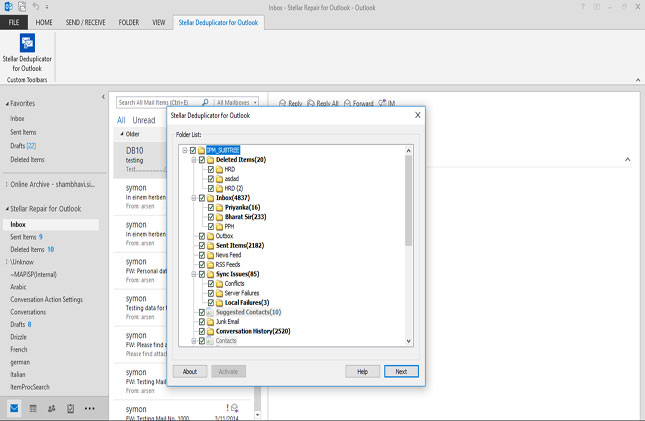
Step 1: Launch Stellar De-Duplicator for Outlook. It will display the List Configured Profiles prompt. Choose from the given actions: List Profiles or Choose Manually to identify and list all the available Outlook profiles on your PC. Select the List Profiles option to automatically identify and list all the available Outlook profiles from the default location on your PC. Select the Choose Manually option to manually select the Outlook profile (PST) on your computer.
Step 2: Next, click on Browse to locate the Outlook profile on your PC. Once you find the profile, select it and click on Scan. Wait for the software to scan the selected Outlook profile and list various mailbox folders containing emails.
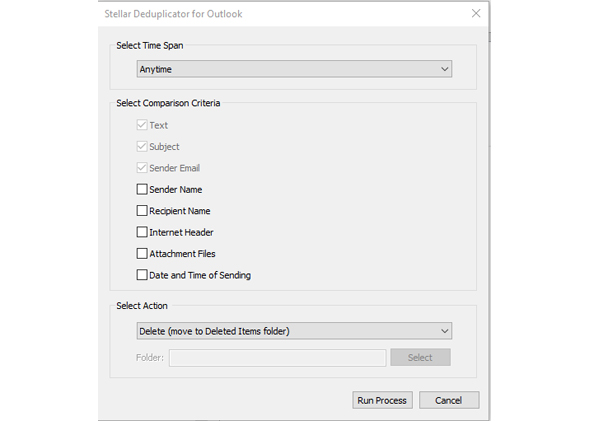
Step 3: Once the scan is complete, the software will display various parameters under different criteria. Choose parameters given under the Search Criteria, Select Action sections respectively. Use the drop-down menu under the Select Duration parameter to search emails for the selected time period. Next, choose parameters under the Comparison Criteria section. The software will use the selected parameters to compare duplicate emails. You can select multiple parameters. Finally, select an action using the drop-down menu in the Select Action section. After selecting various parameters, click on Run Process. The software will process the duplicate emails based on the selected parameters.
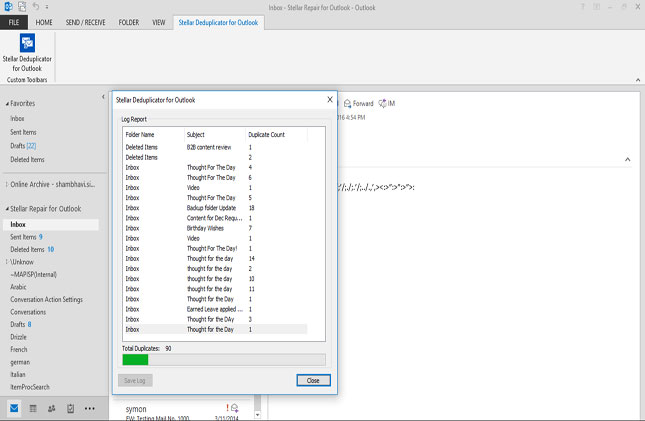
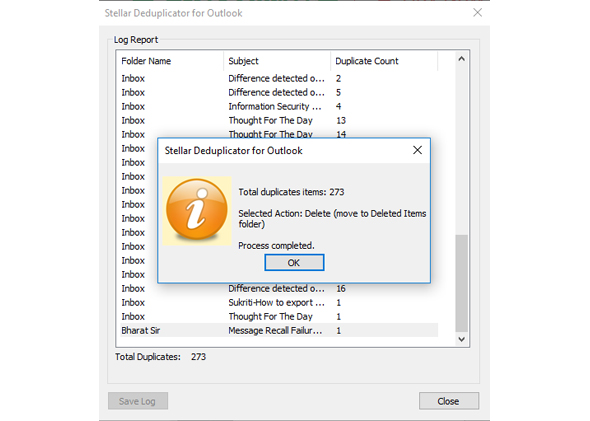
Step 4: Once the operation is complete, the software will display the Process Complete prompt with all the details. Click OK.
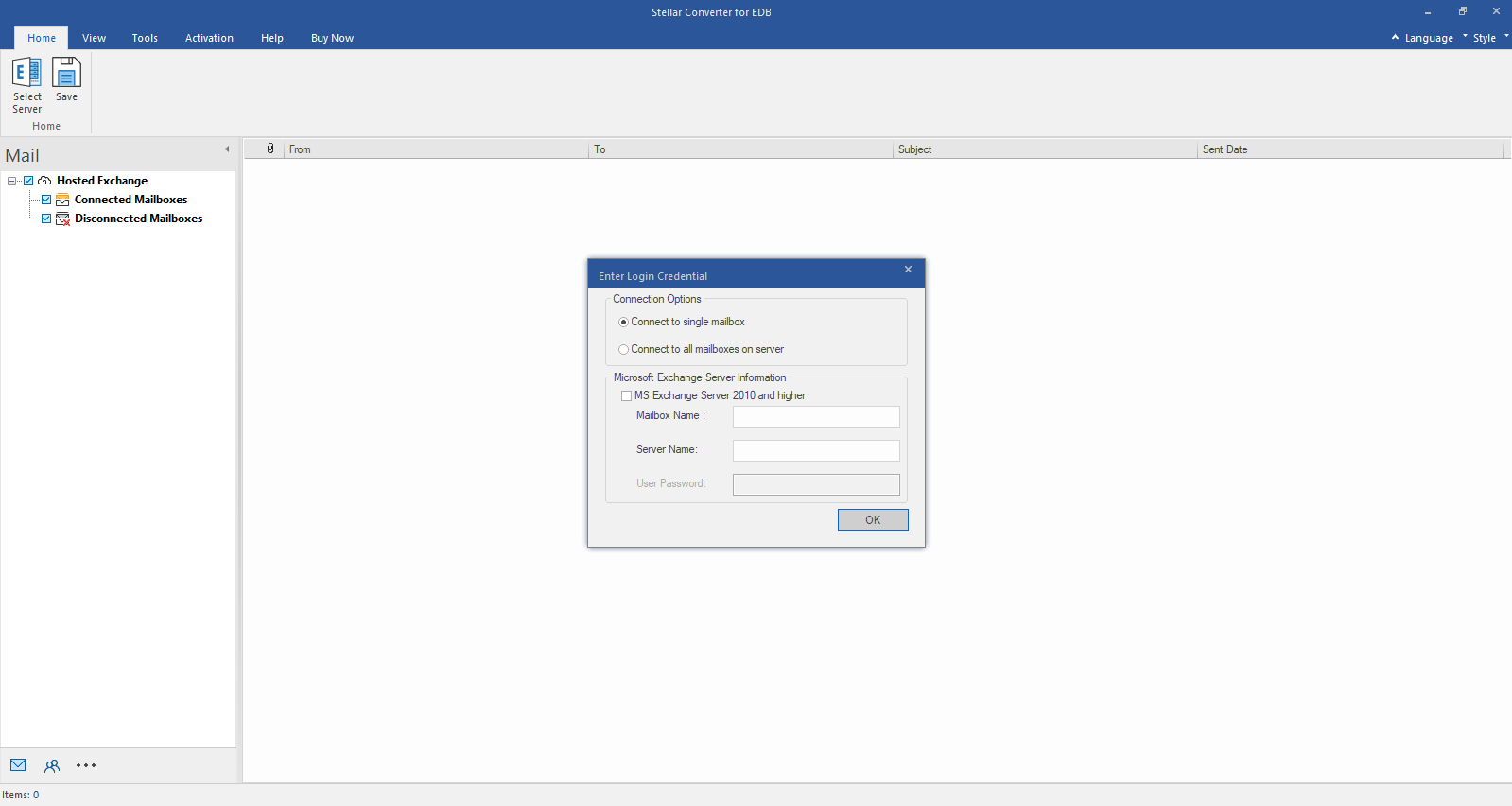
Step 1: Select Hosted Exchange to export mailboxes from an online EDB file. Select Connect to Single Mailbox or Connect to Single Mailbox from Connection Options
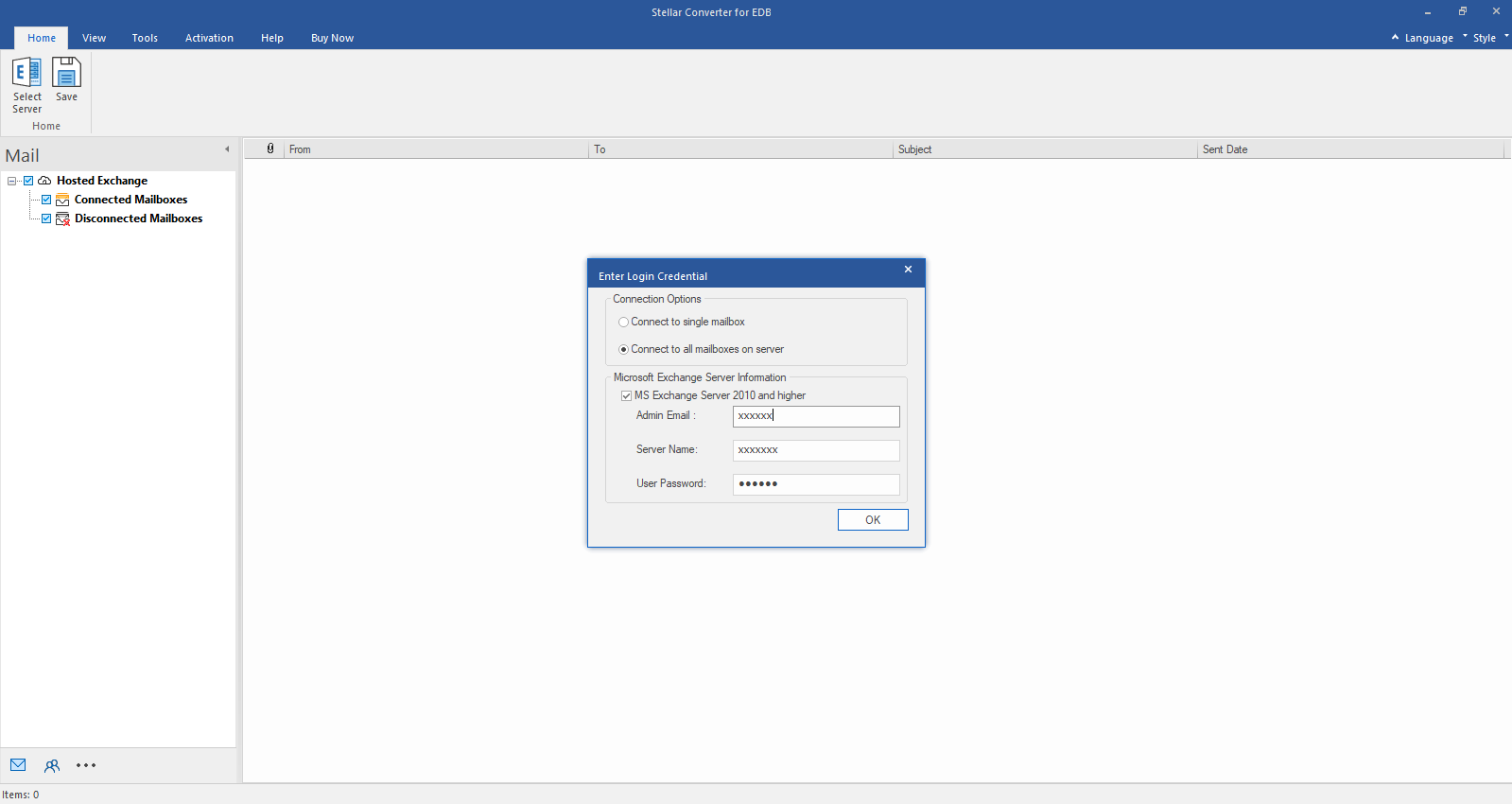
Step 2: Enter Admin and Server Name (for Exchange 5.5, 2000, 2003, 2007) or tick "Exchange Server 2010 and higher" checkbox to enter Admin Email, Server Name and Password (for MS Exchange 2010, 2013, 2016, and 2019). Click OK.
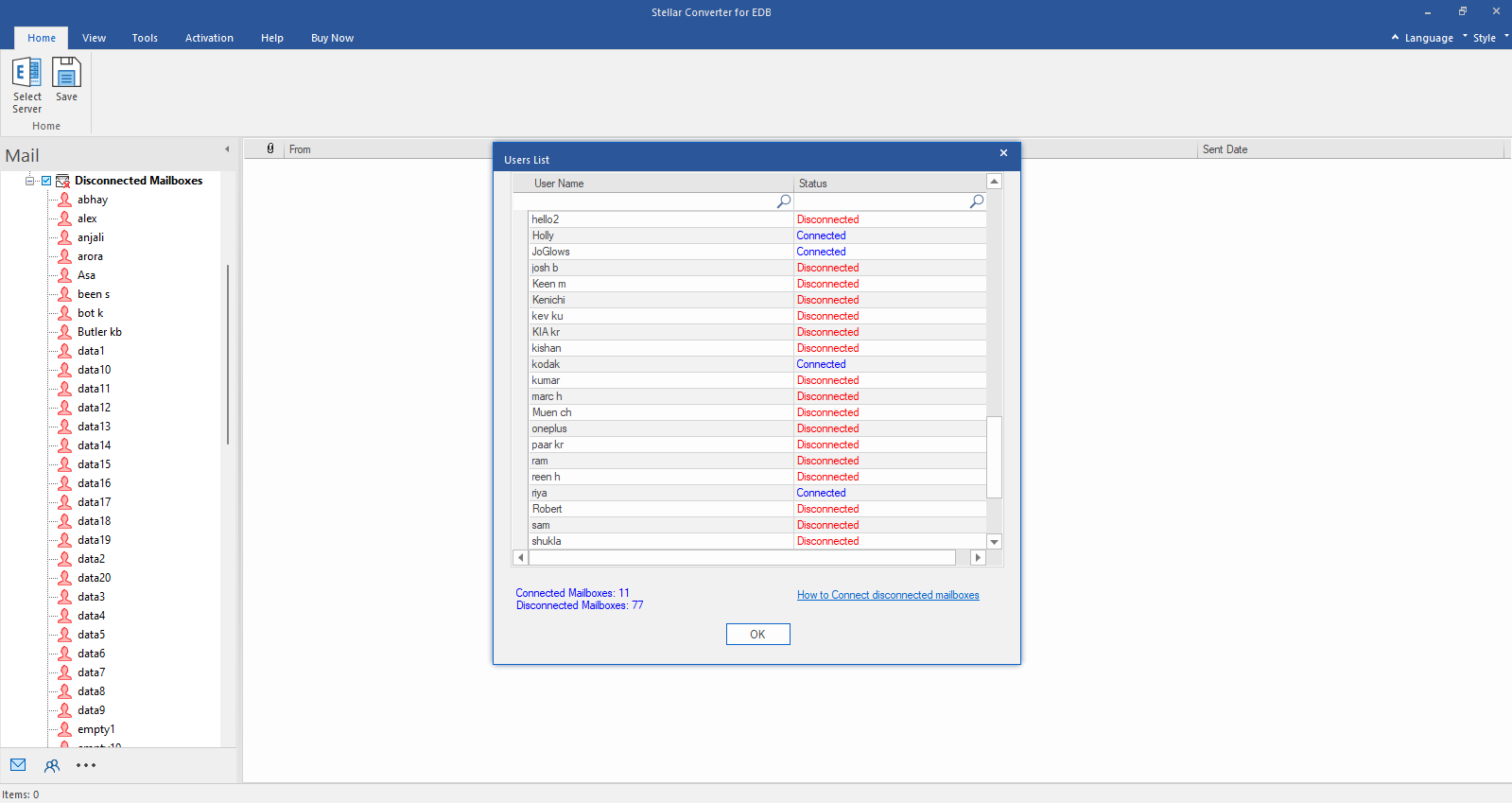
Step 3: After establishing the connection with Exchange Server, Next window displays list of connected and disconnected mailboxes. Click "OK" to proceed.
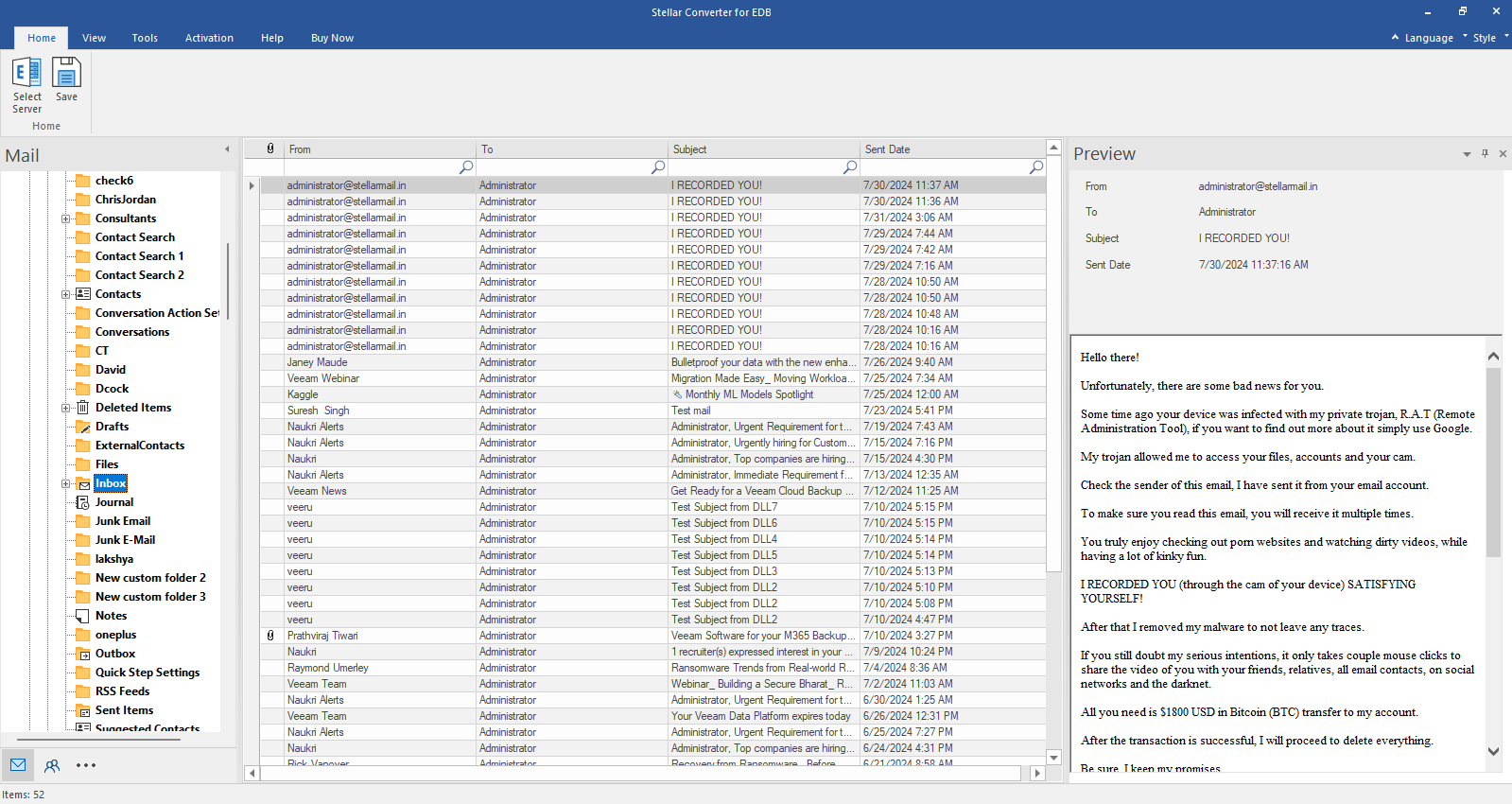
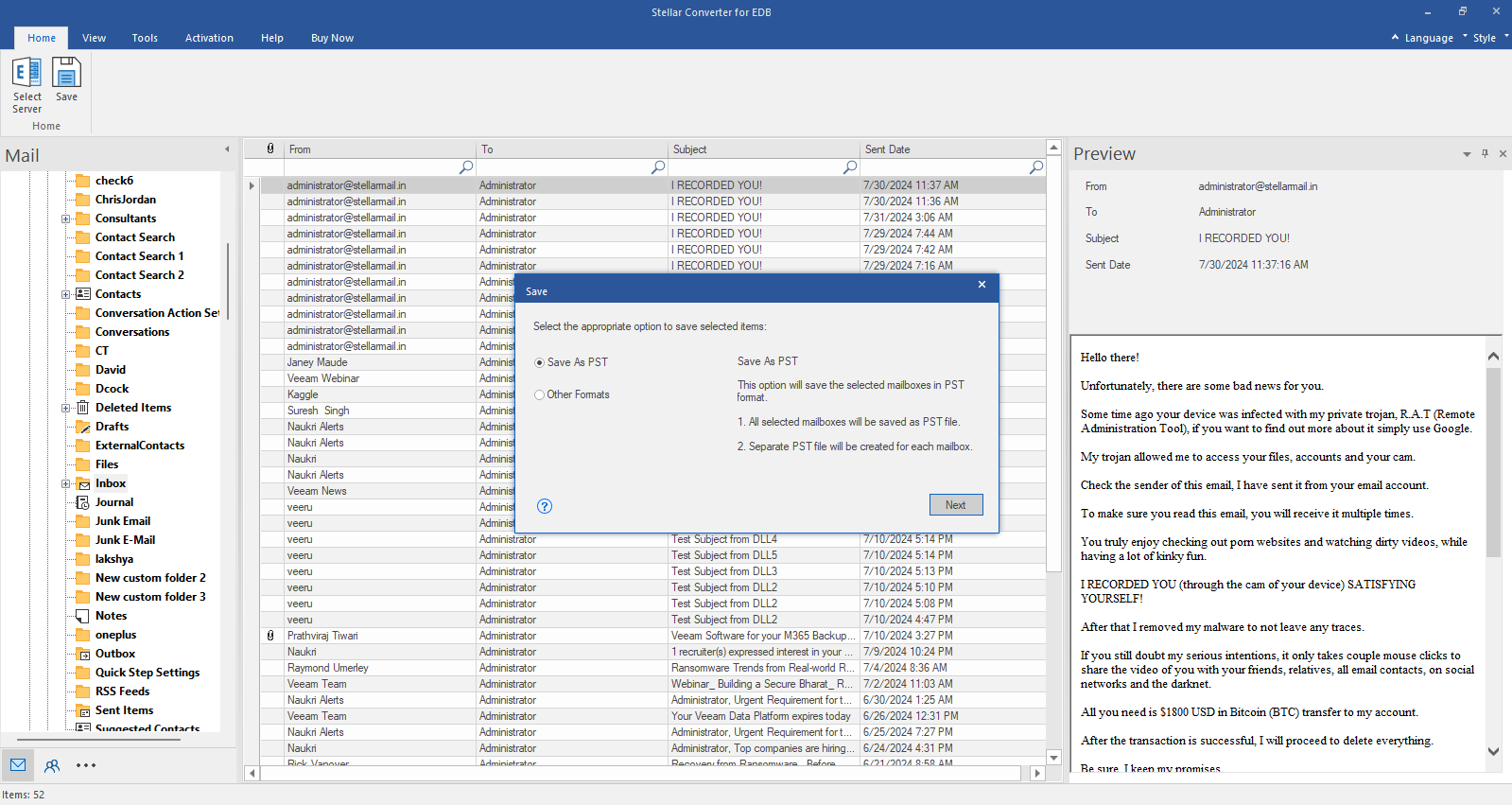
Step 4: Check the preview of all mailbox items- Emails, Calendars, Contacts etc.
Step 5: Click Save from Home Ribbon and Select Save as PST option. Click "Next" to proceed.