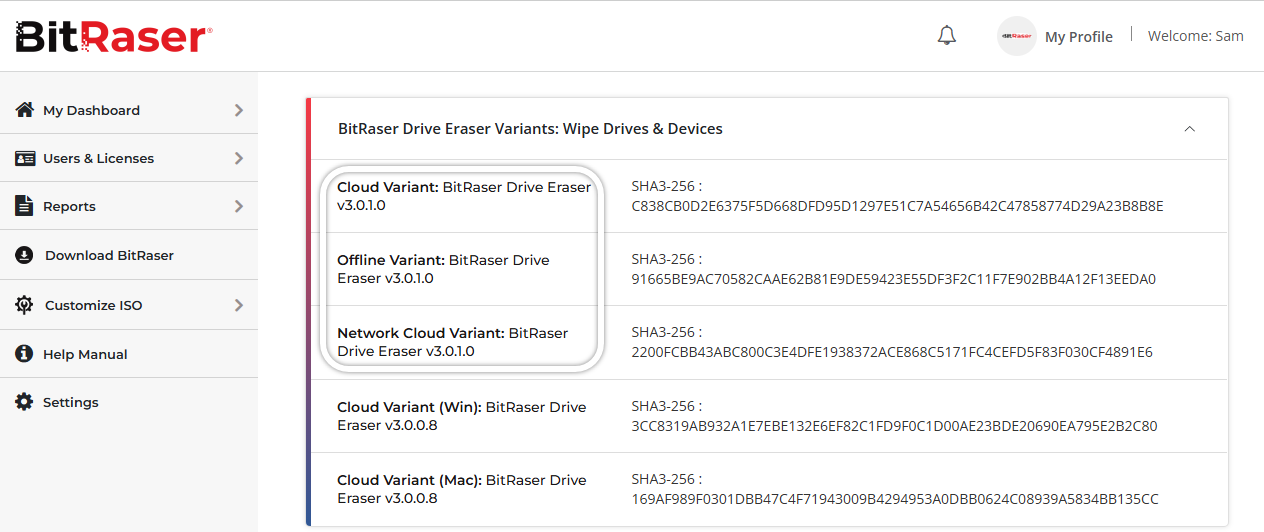
Step 1: Log in to BitRaser Cloud using the credentials received in your post-purchase email. Click the User Profile icon on the BitRaser Cloud home screen and download the BitRaser Drive Eraser ISO.
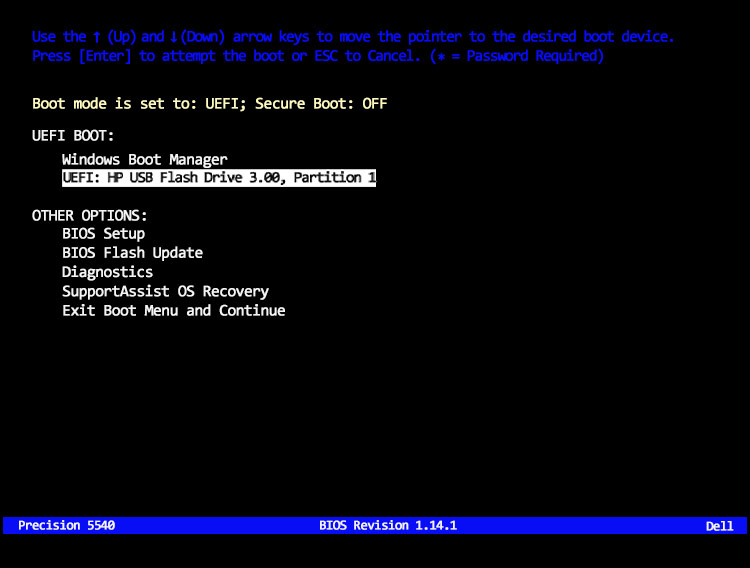
Step 2: Create a bootable USB using the downloaded BitRaser Drive Eraser ISO. Connect the USB to the host machine and select it from the device Boot Menu.
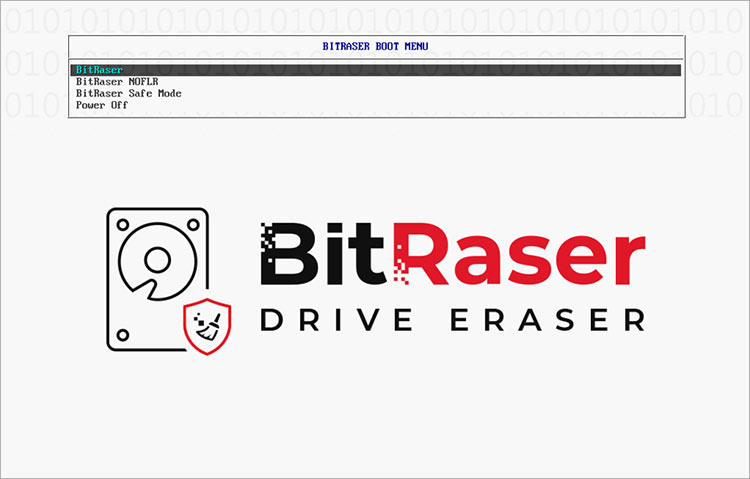
Step 3: Now your device has started booting with BitRaser Drive Eraser bootable USB.
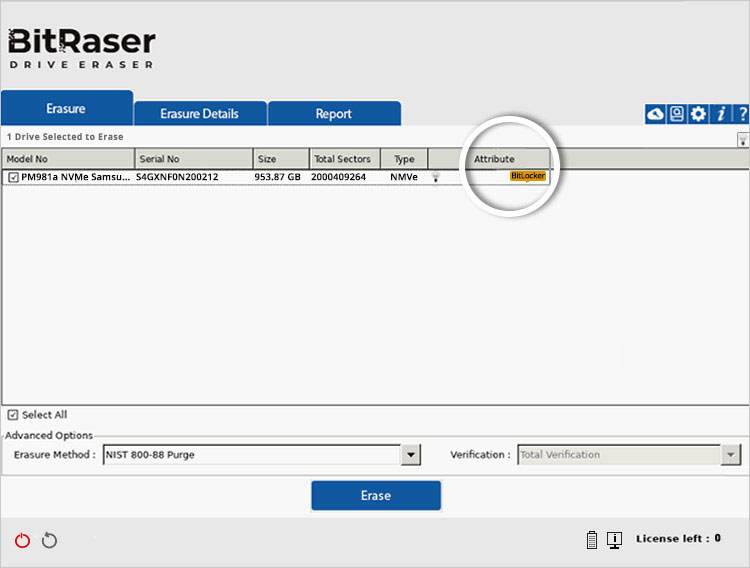
Step 4: Once booted, the BitRaser Drive Eraser application screen will appear, displaying all the drives connected to the system.
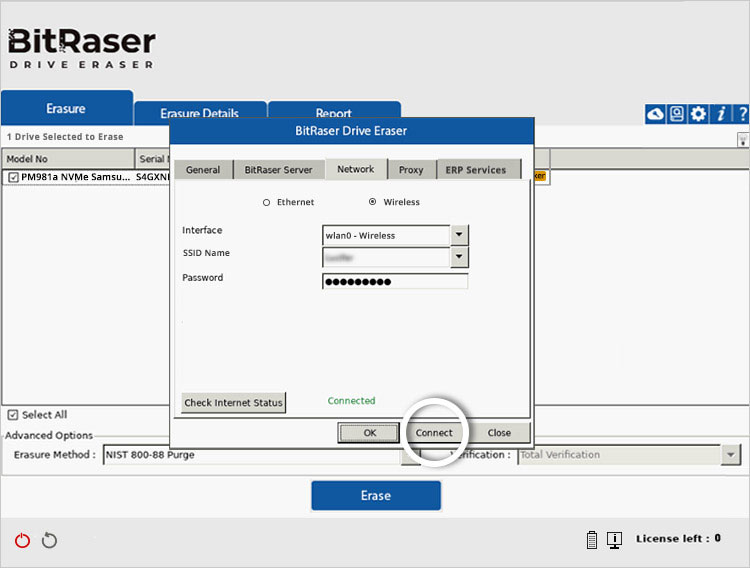
Step 5: Ensure the system is connected to the internet to download erasure licenses from your BitRaser Cloud account. Click the Settings icon at the top-right corner, navigate to the Network tab, and enter your Wireless or Ethernet details.
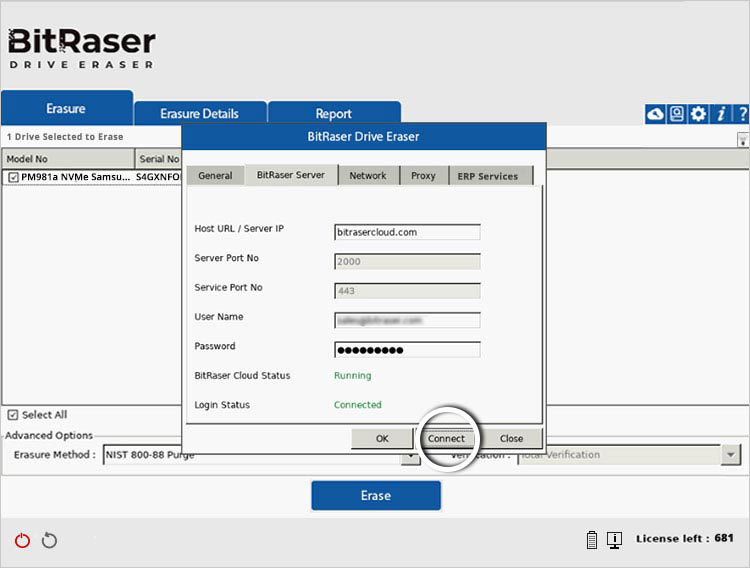
Step 6: Connect to the BitRaser server using the login credentials received via email. Once connected, available licenses are automatically synced with the BitRaser Drive Eraser application.
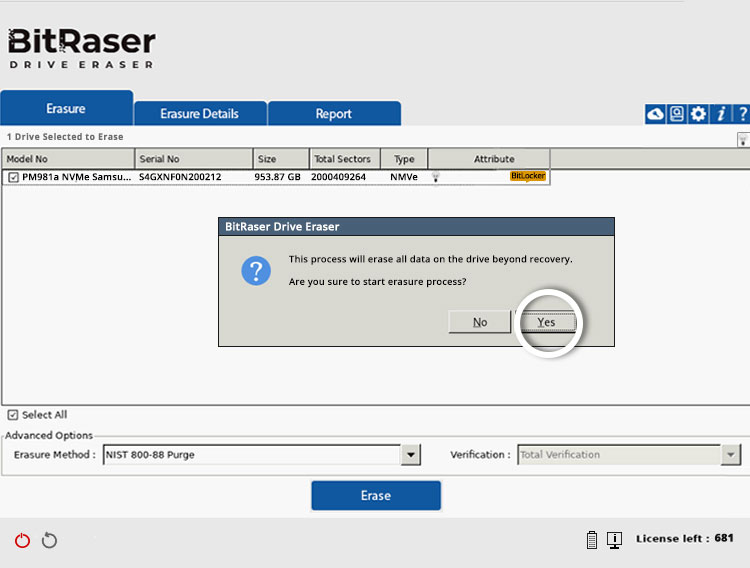
Step 7: The number of licenses will be displayed at the bottom-right corner. By default, the NIST 800-88 Purge method is selected for erasure. You may choose other erasure standards as required. Click Erase to begin the process, and confirm by clicking Yes.
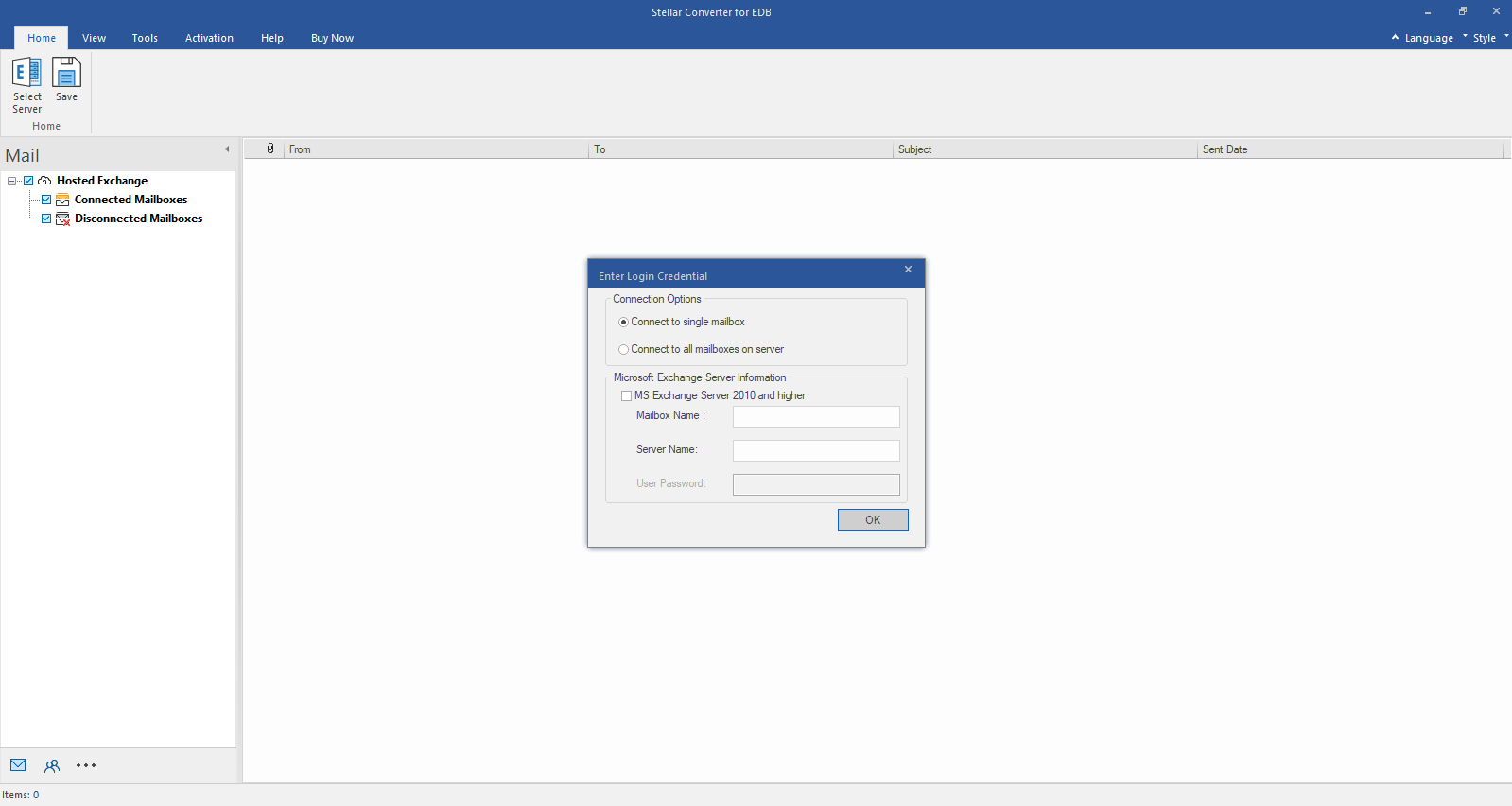
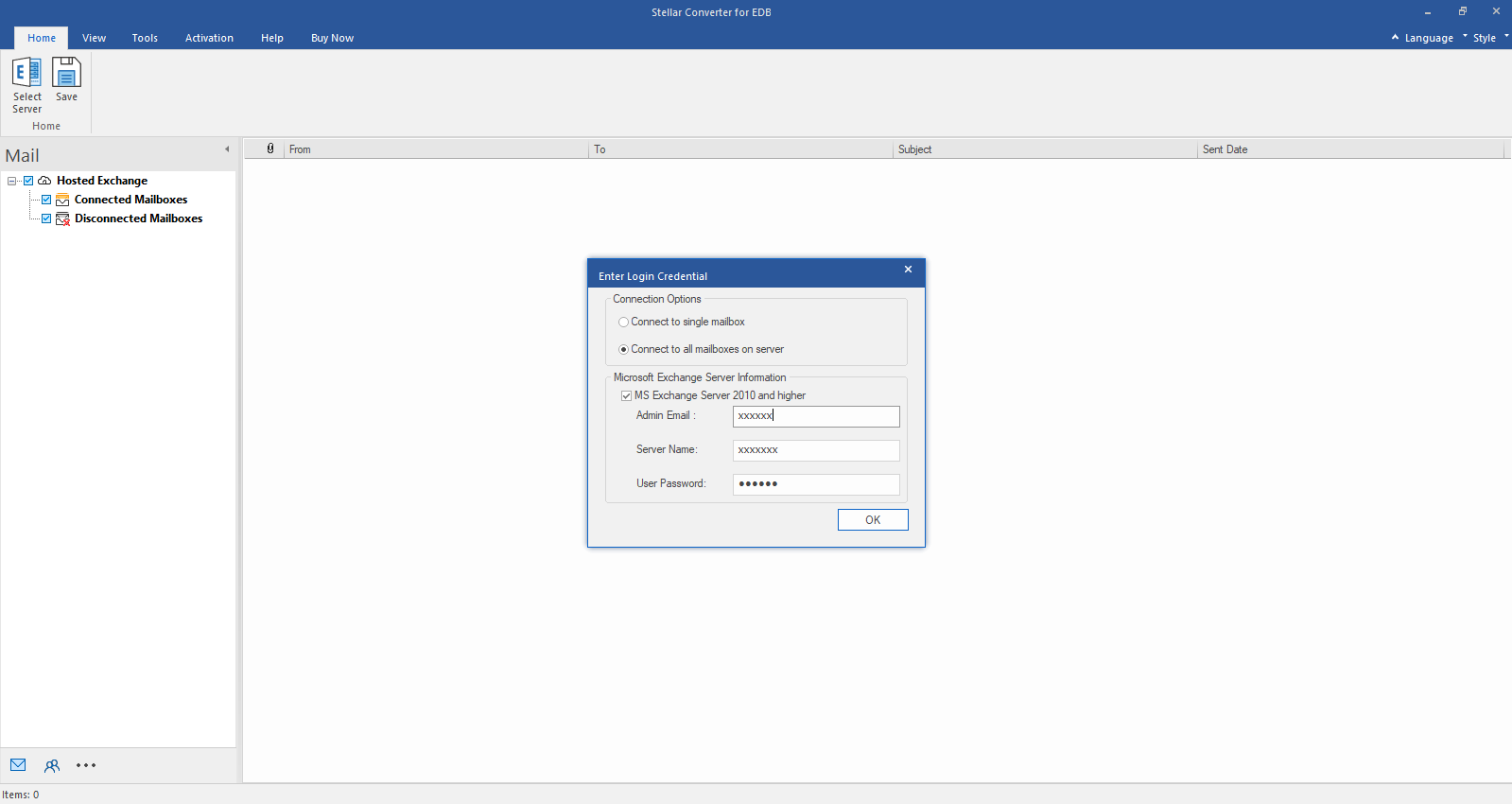
Step 1: Select Hosted Exchange to export mailboxes from an online EDB file. Select Connect to Single Mailbox or Connect to Single Mailbox from Connection Options
Step 2: Enter Admin and Server Name (for Exchange 5.5, 2000, 2003, 2007) or tick "Exchange Server 2010 and higher" checkbox to enter Admin Email, Server Name and Password (for MS Exchange 2010, 2013, 2016, and 2019). Click OK.
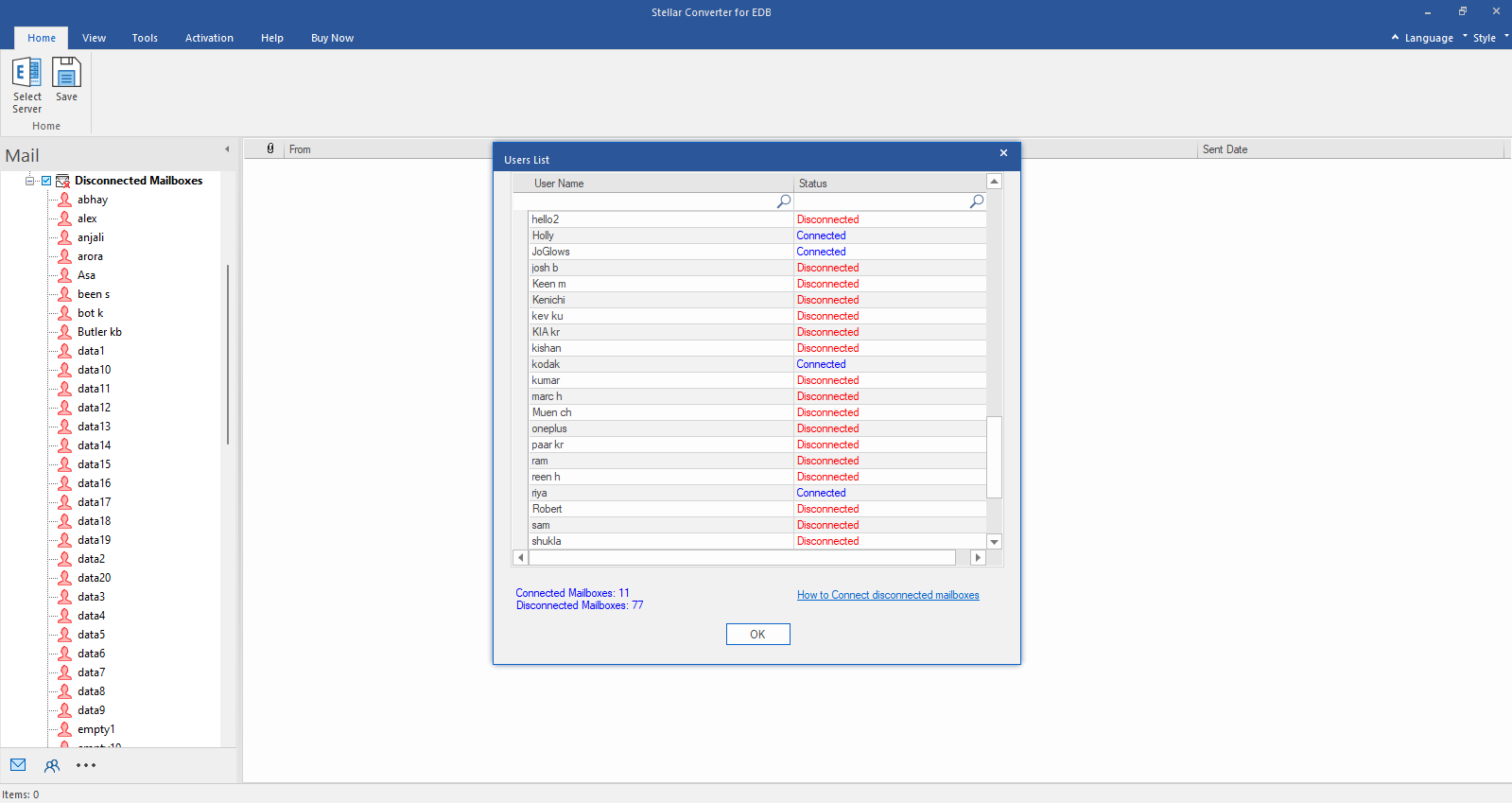
Step 3: After establishing the connection with Exchange Server, Next window displays list of connected and disconnected mailboxes. Click "OK" to proceed.
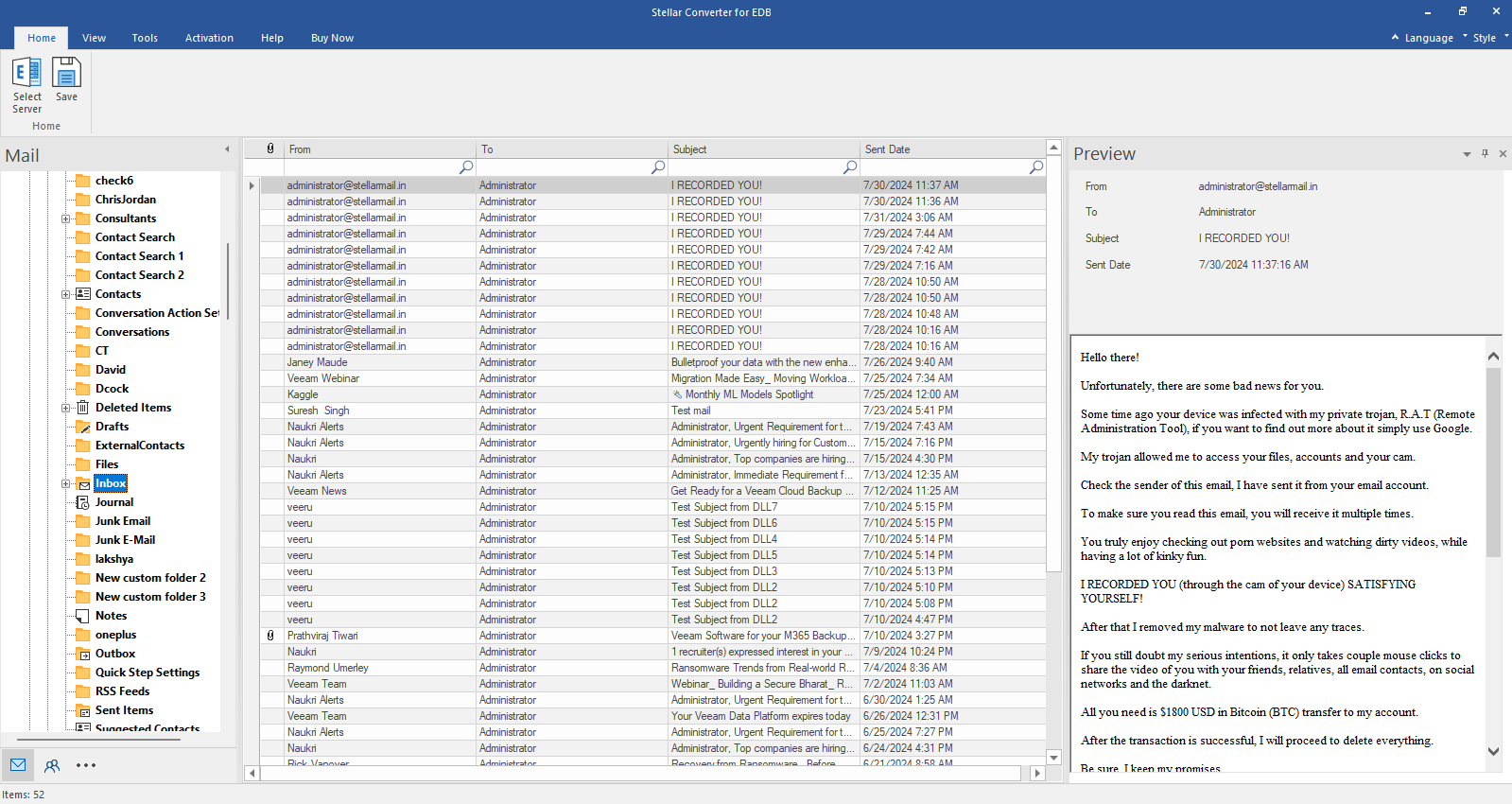
Step 4: Check the preview of all mailbox items- Emails, Calendars, Contacts etc.
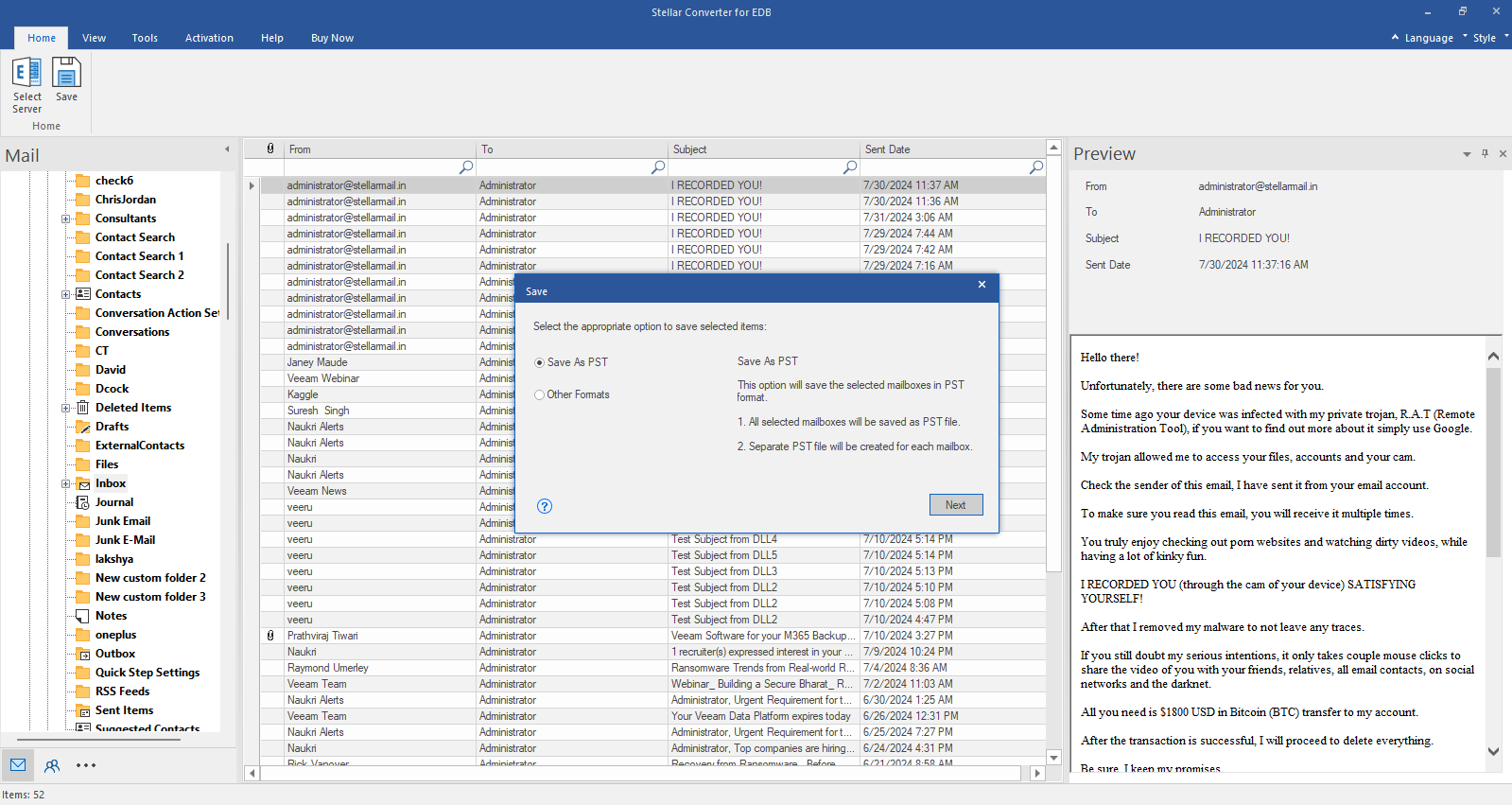
Step 5: Click Save from Home Ribbon and Select Save as PST option. Click "Next" to proceed.