



How to Fix Outlook for Mac unable to add Office 365 account Issue?
February 5, 2024| 6 min read


Summary: The new version of Microsoft Outlook for Mac lacks several features that were included in the classic Outlook legacy classic view. Therefore, may Mac users want to go back to the Outlook legacy view. Read this post for methods and steps you can follow to easily switch back to legacy Outlook for Mac.
Free Download 100% SecureA new version of any application comes with numerous changes. These modifications are done to make the app more user friendly. In case of the latest version of Outlook for Mac, the changes made to the application takes away a lot of functionality previously available to the users of legacy classic edition. The changes made in tools, design, functions, layout, settings, and the user interface, etc. are creating issues among many users.
Since Outlook for Mac is a widely used desktop email clients used at workplace, school, or home for security and convenience, any inconvenience using the new version of Outlook for Mac can push the users to go back to the old legacy classic view of Outlook. If you have downloaded and installed the new version of the app and want to switch back to the classic outlook view, we will provide you a complete guide to do so– step by step.
The principal reason for users wanting to go back to the legacy version of Outlook from the New Outlook for Mac is the familiarity with the old version. When you have used the old Outlook for many years, you become aware of every aspect of the app. When all of a sudden, your app is updated and shows a new design with a lot of changes but reduced features, problems are bound to occur.
Familiarity is one of the many reasons for users to switch from New Outlook to Old on Mac but there are other notable changes, which are not welcomed by the users:
Follow these simple steps given below to switch to legacy Outlook for Mac:
Once you deselected the New Outlook, your current Outlook will be closed and an old classic Outlook will open.
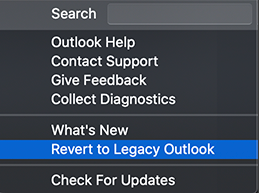
Some version of the New Outlook for Mac comes with a toggle button, which is just beside the email Search field. You can simply use the toggle button to switch to the old Outlook interface.

It is the last option to switch back to old interface for Outlook app on Mac. You have to uninstall the existing app and then install the old one.
However, you cannot just uninstall Outlook. To uninstall Outlook, you will also need to uninstall other apps of Microsoft Office 2021 suite like Word, Excel, OneNote, and PowerPoint.
Now, to remove these apps, follow the steps given below:
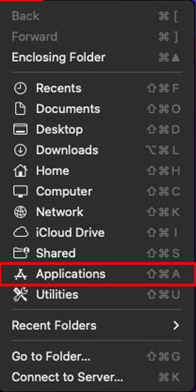
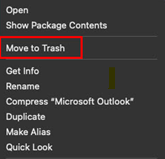
Microsoft is always redesigning its prominent app bundle, Microsoft Office for desktop. In this regard, Microsoft came up with an upgraded Outlook. To promote the redesigned apps like Excel, Word, OneNote, etc., including Outlook app, Microsoft Office 2021 sends forced update for all MacOS (10.14), and later versions.
If you are not happy with the upgraded version of Outlook for Mac, we have explained different methods in this post, using which, you can conveniently move back to the legacy Outlook version from New Outlook for Mac. Those users who want to migrate from Mac to Outlook for Windows can use Stellar Converter for OLM to migrate. The software, with cutting edge technology and efficient conversion ability from OLM to PST format, can help you in an easy switch from Outlook for Mac to Windows Outlook. The tool features detailed file analysis report and supports bulk migration of OLM files to Outlook PST files.
The Stellar Converter for OLM is compatible to all the latest version of MS Outlook, Outlook for Window and Mac. The tool offers a safe and secure conversion from OLM to PST files without any data loss with multiple saving options like PST, MSG, PDF, EML, and HTML.
This is the easiest and safest way to keep your important files secure and as a portable/backup PST file.
Technology expert
This article was written by Shelly Bhardwaj , a Technology expert at Stellar Data Recovery.
February 5, 2024| 6 min read
February 5, 2024| 6 min read

February 5, 2024| 6 min read






 6 min read