&media=https://www.stellarinfo.com/public/image/article/How-to-Recover-Photos-From-a-Corrupted-SD-Card-9.jpg&url=https://www.stellarinfo.com/article/sd-card-recovery.php)


SD (Secure Digital) cards are still prevalent. Your digital camera or DSLR uses one. Your Android phone probably does too. These portable micro storage devices store your photos, videos and other media files, giving you ample space to do more with your devices. However, they are commonly prone to data loss. You may delete a photo by mistake, run a quick format on the SD card, a card may get corrupted after poor ejection, or your card may simply stop reading files. All instances, lead to data loss from SD card.
The good news is recovering deleted files from SD card is possible, as when you delete a file from an SD card, that file is not immediately gone. The card marks that space as "available" for new data. The actual data stays there until something new gets written over it. This is exactly what makes SD card recovery possible in every case.
Whether you are using Windows 11, latest macOS Tahoe, or an Android device - there are tested and practical ways to recover deleted files from an SD card. This guide covers all of them, including the capabilities and limitations for each case.
Common Causes of Data Loss from an SD Card
All data loss situations are not the same. Some are easier to fix than others. Understanding why files go missing - can help figure out the right recovery plan for your SD card.
Accidental Deletion: If you delete the wrong file or clear a folder without checking or accidentally tap the delete all button while deleting just one photo - it results in data loss.
Incompatible device or reader: A card inserted the wrong way or in a wrong card reader can sometimes cause read errors. Trying a different card reader or a different USB port often solves this without any recovery needed at all.
Accidental formatting: Formatting wipes the file system on the card and makes all files disappear. A quick format, however, only erases the file table without touching the actual data. A full format makes recovery extremely difficult and is largely irreversible without professional data recovery services.
File system corruption: This happens when the card does not get properly ejected or when there is a sudden power cut while the card is writing live data. This damages the file system.
Virus or malware infection: Some malware hides files or marks them as system files so they do not appear in normal browsing. The files may still be on the card but are invisible or hidden until the attribute is removed.
Physical damage: Broken connector pins, water damage, or any type of physical damage makes your data completely inaccessible. Software tools are completely useless here. Physical recovery requires a professional data recovery lab where technicians work directly on the hardware.
Things to Do Before You Start Recovery
The below provided three rules can make the difference between a successful recovery and a permanent loss when files are missing from SD card.
- Stop using the card right away. Writing new files to the card risks overwriting the space where your deleted files are still sitting quietly. Even taking one new photo can permanently destroy files you are trying to recover. Plug the card out and leave it alone.
- Do not save recovered files back onto the same SD card. Saving files to the same SD card will overwrite the data you are trying to get back.
- If the card is physically broken or damaged - skip software tools. Instead use a professional data recovery service. Physical damage needs hardware-level recovery that data recovery software isn’t capable of.
How to Recover SD Card Files from Windows?
When it comes to recovering files from an SD card - Windows is comparatively a more recovery-friendly environment. Both Windows 11 and Windows 10 support FAT32, exFAT, and NTFS file systems, this covers the majority of SD cards that are in use. Meaning your card will show up as a readable drive the moment you plug it into a card reader, even when some files are missing.
Recovering SD Card Files on Windows without Software
While the Recycle Bin is the standard place to find files deleted from a Windows PC's internal storage, it does not store files deleted from SD cards or external removable drives. That’s because, files or photos directly deleted from an SD card will bypass recycle bin and lead to permanent deletion.
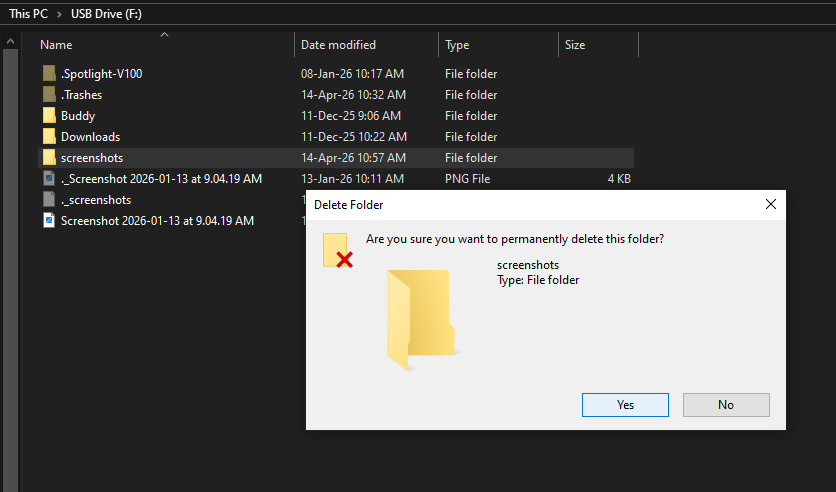
So, in case of a windows device you are not left with in-built option to secure your file. The only way for SD card recovery on Windows is using a dedicated file or photo recovery software.
Recovering SD Card Files on Windows with Software
Free SD card recovery tools are great for limited file recoveries. They allow you to test if your deleted SD Card data is recoverable. Stellar Photo Recovery scans SD cards formatted in FAT32, exFAT, or NTFS and specifically targets media files - including photos or videos or music files.
Stellar Photo Recovery tool is free and lets you recover up to 10 files of 100 MB each. The tool can also attempt recovery from corrupted SD Card or data that is heavily fragmented.
Apart from Stellar, Recuva is another popular free file recovery option for Windows - offering easy accessibility and a clean UI experience. It works well on FAT32-formatted cards. PhotoRec is another free option, though it runs through a highly technical and difficult Command Prompt setup, putting off some users.
However, both Recuva and PhotoRec have limits. Firstly, they do not focus on specific files and recover everything, making SD Card recovery look cluttered. Both can struggle with data that has been partially overwritten or is heavily fragmented. If photos, videos, or music files are your main priority, there are other free photorec alternatives, such as Stellar Photo Recovery, which is built for exactly that kind of job.
Comparison of Popular Windows SD Card Recovery Methods
By simulating common SD card data loss scenarios, we put these tools through a series of real-world tests. We observed how each tool actually performs during our evaluation.
| Method | What It Recovers | Free or Paid | Best For | Key Limitation |
|---|---|---|---|---|
| Command Prompt (CHKDSK) | Corrupted file systems | Built-in | Corrupt SD card with hidden files | Only repairs file systems/ does not recover files |
| Stellar Photo Recovery | Photos, videos, music (up to 10 free) | Free (limited use) / Paid | Media recovery on FAT32, exFAT, NTFS | Free version capped at 10 files |
| PhotoRec | Photos, videos, documents | Free | Wide file type support | No GUI, Terminal-based |
| Recuva | Deleted files and folders | Free (basic) / Pro is Paid | FAT32 cards, recently deleted files | Struggles with certain file types/ severe data loss |
How to Recover SD Card Files from Mac?
Mac users looking to recover deleted or lost SD Card deal with a slightly different environment. This is mainly because of how macOS handles file systems. Internally, newer Macs run on APFS (Apple File System). Most SD cards, however, are formatted in FAT32 or exFAT.
Native read and write support for exFAT and FAT32 formats is available across certain new versions of Apple's operating system – that includes macOS Sonoma and macOS Sequoia and the recently added macOS Tahoe.
This means your SD card should appear in Finder without any extra drivers or configuration. Standard Windows recovery tools cannot read APFS. That is worth keeping in mind if you are switching between platforms.
Recovering SD Card Files on Mac without Software
Unlike the Windows Recycle Bin, the Trash on your Mac works for external storage too. If you deleted files from your SD card while it was plugged into your Mac - those files are still there in the Trash. Check the Trash first. Keep the SD card connected to your Mac to view its deleted files in Mac Trash.
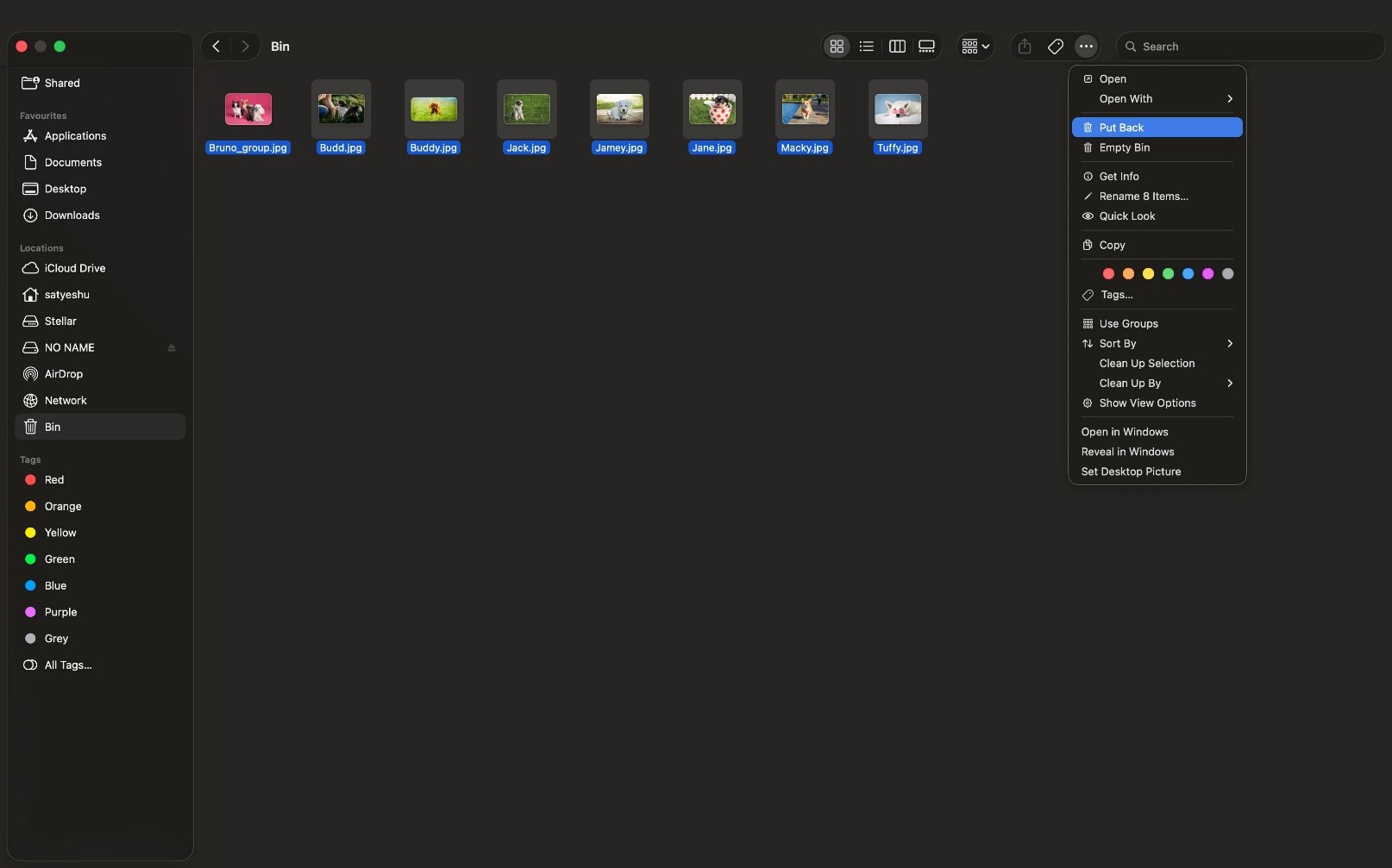
If the files are missing from the Mac Trash - check for backups created with built-in backup tools like Time Machine. If the SD Card was included in your regular time machine backup then you can easily restore the deleted files.
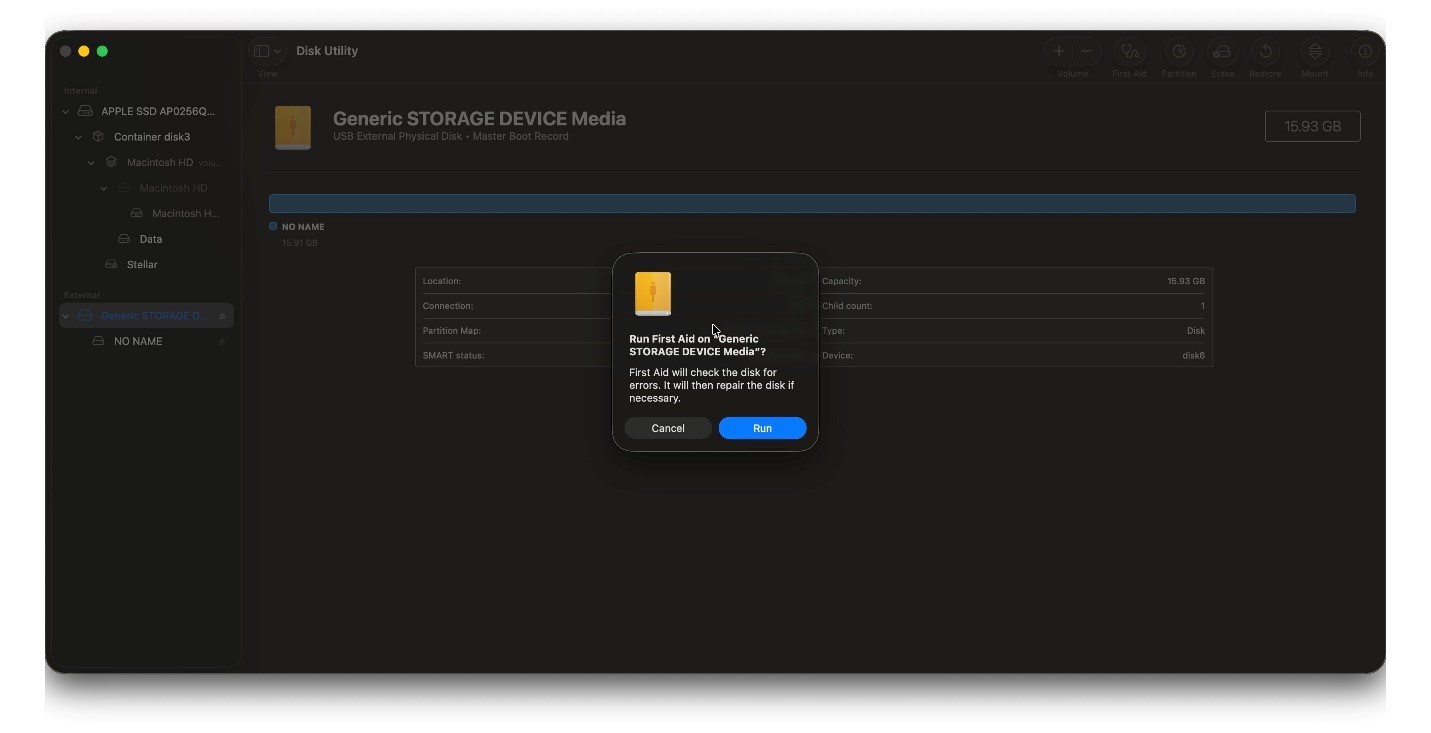
Disk Utility is another built-in macOS tool that includes a First Aid feature which helps repair minor file system errors on an SD card. Running First Aid on a card that appears unreadable sometimes fixes the issue and restores access to files right away.
Recovering SD Card Files on Mac with Software
Free recovery options on Mac are fewer than on Windows. Free tools like PhotoRec/TestDisk runs on macOS too and support various file types. But it still requires an understanding of Terminal commands, which makes it less accessible for users.
Stellar Photo Recovery for Mac handles APFS, HFS+, FAT32, and exFAT formatted cards. This matters especially because APFS support is rare among free tools, and some SD cards get reformatted to APFS when used extensively with newer Macs. Stellar Photo Recovery for Mac also allows you to recover up to 10 files of 100MB each. A paid upgrade is available for larger recoveries.
Read our complete step-by-step guide on how to recover deleted files from SD card on Mac.
Comparison: Mac SD Card Recovery Methods
To help you choose the correct tool - we put various in-built methods and mac photo recovery software to test their SD card recovery capabilities. Here is how they compared to each other in different scenarios.
| Method | What It Recovers | Free or Paid | Best For | Key Limitation |
|---|---|---|---|---|
| Trash / Recently Deleted | Files moved to Trash after deletion | Free (built-in) | Simple accidental deletion | Only works if files went to Trash |
| Time Machine | Files backed up before deletion | Free (built-in) | Restoring from earlier backup | Requires Time Machine to have been active |
| Disk Utility (First Aid) | Corrupted file systems | Free (built-in) | Cards showing as unreadable | Does not recover deleted files directly |
| Stellar Photo Recovery for Mac | Photos, videos, music (up to 10 free) | Free (limited) / Paid | APFS, HFS+, FAT32, exFAT cards | Free version limited to 10 files |
| TestDisk/PhotoRec | Photos, videos, documents | Free | Wide file type recovery | No GUI, Terminal-based only |
How to Recover SD Card Files from Android?
If you lost or deleted files from an SD Card in Android phone, the recovery process is similar to any other portable device like a DSLR camera. Android handles SD cards in two distinct ways depending on how the card was set up. Most Android phones use an SD card as removable external or secondary storage. While some devices use it as primary storage.
In Android phones - SD cards are readable as a FAT32 or exFAT volume. So if you deleted a file from your Android device that was stored in the SD card, eject the SD card and plug it directly into a computer.
Once connected to a Windows or Mac PC - you can recover lost SD card data with help of a SD card or file recovery software. As long as the deleted files have not been overwritten. You may face challenges in recovery when the SD card was being used as a primary storage.
That’s because when SD card is a primary storage – the Android device encrypts the file system and changes the partition map. Often the card itself becomes unreadable by Windows or Mac system and needs specialized Linux-based decryption keys.
Thus, making it harder for many data recovery tools. When the card is used as an external secondary storage then free photo recovery tools - Stellar Free Photo Recovery or PhotoRec can scan the card and recover deleted photos and other media files.
How to Fix a Corrupt SD Card and Recover Data?
A corrupt SD card means the file system of the card is damaged. Therefore, your device can’t read the corrupted SD card even though data may still be stored on it.
SD card corruption usually happens because of an improper ejection or a power cut during a write operation or heavy use that wears down the flash memory. It can also occur because of a virus. When an SD card is corrupt - you might see messages like "card not formatted" or "file system not recognized."
Run an Antivirus or Anti-Malware tool to scan the storage drive and rule out any Virus or Malware infection.
CHKDSK is a built-in Windows tool that scans for and repairs logical file system errors from an external storage like SD card.
To use it, search Command Prompt on your Windows computer.
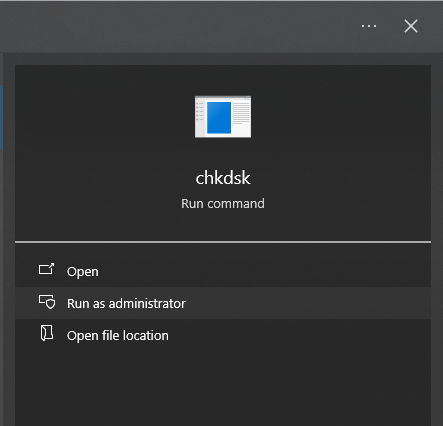
Run it as an administrator and run the command using the drive letter assigned to the SD card.
CHKDSK works best on FAT32 and exFAT formatted cards and can fix many of the logical errors that cause a card to appear unreadable.
It comes in-built and takes just a few minutes. This is worth trying. Although, CHKDSK is not guaranteed to work on severely damaged file systems. Also, it is not a file recovery tool. It repairs the file system structure, which often makes previously hidden files visible again.
If you don’t find success - do a recovery scan with Stellar Free Photo Recovery to get back your photos, videos or audio files that were hidden by the corruption. It is not guaranteed but Stellar Photo recovery software can often scan the raw data directly and recover files even without a working file system on a corrupt SD Card.
Also, never format a corrupt card before attempting recovery. Formatting removes the file system and risks permanently overwriting the data you are trying to save.
What precautions should you take to avoid data loss in SD Cards?
Most data loss situations are avoidable once you build a few simple habits:
- Always eject properly - Use the safe eject option on your phone or computer before removing the card. Pulling SD card out mid-use causes file system corruption.
- Keep regular backups - For all important files, keeping a separate backup of your SD card on your laptop or a portable hard drive is not just smart but necessary.
- Replace older cards - Secure Digital cards or flash memory have a limited number of write cycles. If your card throws random errors or has performance issues, replace it immediately.
- Keep Free Space - Leave 10 to 15 percent of the card's capacity free. It helps the card manage storage efficiently and reduces the risk of data loss.
- Avoid Generic SD cards - Always trust SD cards from brands like WD, SanDisk, Samsung, and Lexar. Because they meet global quality standards and offer reliable performance.
Conclusion
By now, we already know that SD Card data recovery is possible. Only if you stop using the card to write new data. However, the best approach is to routinely back up your SD card files including photos, videos, and audio. So if you ever face accidental deletion or formatting - you won’t have to worry. Files stored on your SD card behave differently on Mac, Windows, or Android. Each offering different tools and data handling mechanisms.
Basic free recovery tools often offer temporary relief. For a complete and full recovery, one should use specialized tools like Stellar Free Photo Recovery. Such tools don’t just help recover photos, videos, and audio files, they recover files across FAT32, exFAT, and NTFS-formatted cards, and recovers multiple RAW formats. If the data loss is severe and beyond the tools' capabilities, opt for professional data recovery services.




A tech enthusiast cum writer, transforming complex tech challenges into accessible guides for everyday users.

 11 min read