stellar data recovery
search
data recovery services
My status

USA : (Tollfree) 1-866-554-2512
UK : (Europe) +44-207-993-2293
Germany : +49-180-110-105-0051
Worldwide : +91-921-395-5509

Mailbox Exchange Server RecoveryStellar Phoenix Mailbox Exchange Recovery v.3.0

Exchange Recovery


An Exchange Server Recovery tool that repairs corrupted Exchange Server database (*.edb) file and restores the contained mailboxes as individual PSTs, directly importable within Outlook. In addition, it can also recover deleted mailboxes. The Exchange Recovery software offers safe data restoration at user-intended or default (same as of root) location. It is an EDB Recovery utility designed for recovering mailboxes created with Exchange Server 5.5, 2000, 2003 or 2007. Also, the software features recovering STM data in e-mail body for Exchange Server 2003, 2000, and 5.5.

  • Overview
  • Key Features
  • Spec
  • FAQs
  • Support
  • Testimonials

Stellar Phoenix Mailbox Exchange Recovery

Exchange Server Recovery Features :

  • Repairs corrupted *.edb file and restores mailboxes
  • Recovers deleted mailboxes
  • Restores mailboxes as distinct .pst files.
  • Can Recover EDB in all corruption instances
  • Supports Exchange Server 5.5, 2000, 2003, and 2007
  • Supports Unicode EDB file repair
  • Recovers STM file data in e-mail body for Exchange Server 2003, 2000, and 5.5
  • Selective mailbox recovery
  • Recovers email addresses from Active Directory storage
  • Compatible with Windows 7, Vista, XP, 2003 and 2000
  • Can Recover EDB File with all mail folders, messages, email attachments, notes, tasks, appointments and other objects
  • Generates log report
  • Restores creation details (time and date) of recovered objects
  • Restores RTF and HTML messages' formatting

The top database corruption issues that can ask for an Exchange Recovery Tool are as follows :


  • Unexpected shutdown
  • Antivirus software scans Exchange database files
  • Database reaches its maximum file size limit of 16 GB
  • Exchange transaction log file(s) corruption
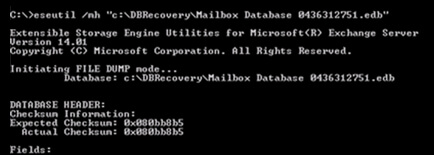
  • Database header corruption
  • Hardware problems


Stellar Phoenix Mailbox Exchange Recovery v3.0 is an EDB Recovery Tool applicable in all above and similar cases of database corruption.

Exchange Recovery Details :


Stellar Phoenix Mailbox Exchange Recovery v3.0 is capable of recovering Information Store databases , irrespective of their size, complexity and number of contained mailboxes. The MS Exchange Recovery software provides selective mailbox recovery option at each level of corruption, be it ESE-level corruption, Jet-level corruption or Application-level corruption. The software also recovers Unicode-formatted EDB files that ensures for required language support.


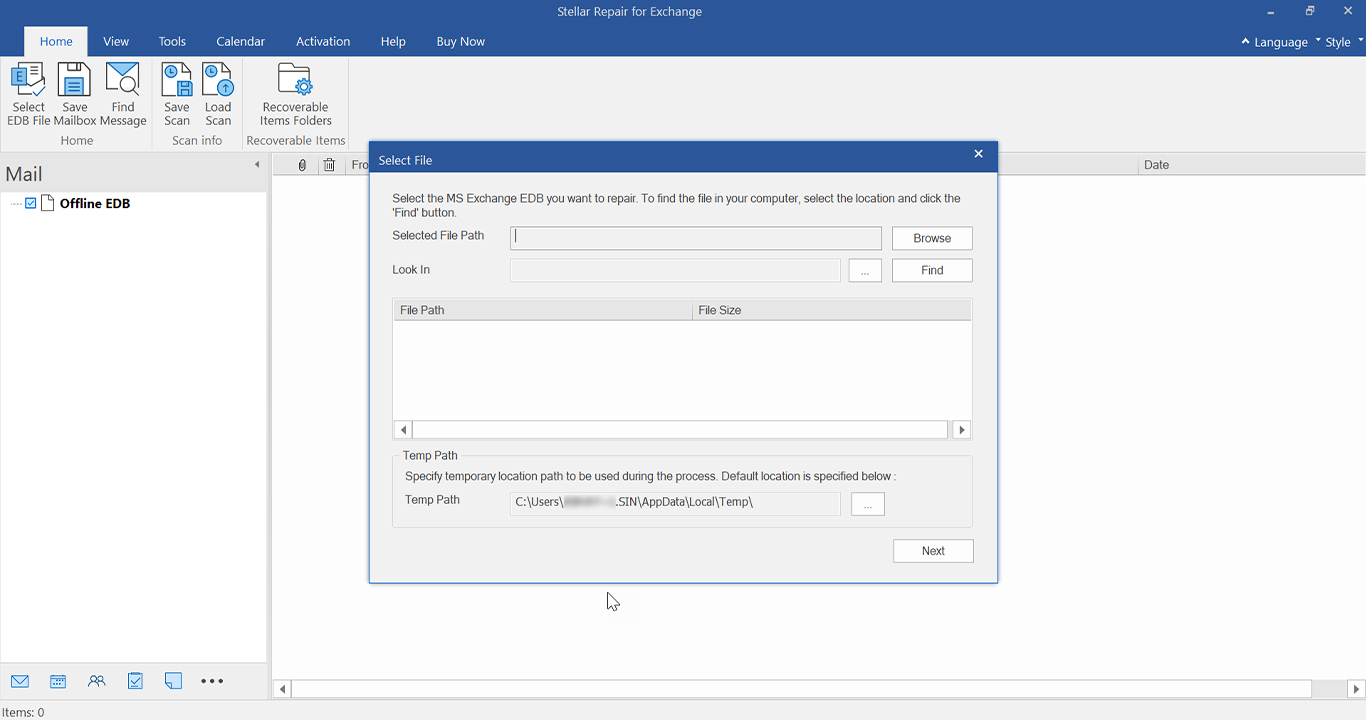
The Exchange Server Recovery software interface is consisted of different toolbar and menubar options, each assigned with a specific task to perform. Initially, the main window shows the Exchange Recovery steps and as the software proceeds, it displays the detailed history of recovery activities, including EDB path, recovery date and time, recovered folders etc.. When you launch the application, the 'Select EDB File' dialog box appears that gives you options to select the file either manually or automatically. The dialog box contains five buttons, as described underneath:


  • Open EDB File: This is a direct button that allows you to select the affected EDB file from the exact location you know. It opens a dialog box to navigate the corrupted database file.
  • Find EDB File: The 'Find EDB File' button searches for the EDB file in disk drive and folder. The option is used when the file path is not pre-known. It opens up another dialog-box to search in a specific drive through 'Look-in' list-box and search in folder through 'Select Folder' button. You can click 'Start' to begin the search and 'Stop' to stop it. The search results are displayed at the bottom of dialog box with options like 'Clear List', 'Cancel', and 'OK'.
  • Change Destination: The software restores the recovered mailboxes as .pst files in the original folder. If you want to change the destination, click 'Change Destination' that allows you to browse to the desired folder.
  • Start: This button starts the EDB Recovery process when the affected database is selected.
  • Cancel: Clicking 'Cancel' button closes the 'Select EDB File' dialog box.


The status bar at the bottom shows the recovery progress.


Toolbar


  • Select EDB File: This button opens the 'Select EDB File' dialog box (described above) to select the corrupted EDB, specify destination and start MS Exchange Recovery.
  • View All Mailboxes: It displays all the mailboxes that software found in its last scan.
  • Stop: This option ceases the recovery process.
  • Help: The 'Help' option is used to open the help file of Exchange Recovery Tool.
  • Update: The 'Update' button checks and downloads the software updates from a secure network connection.
  • About: The 'About' option gives the general product and system information.


Menubar


  • File Menu lists four options namely, 'Select EDB File', 'View All Mailboxes', 'Stop', and 'Exit' (to quit the application)
  • Tool Menu offers two options, which are 'Save Log' to save the log details generated by software and 'Clear Log' to clear the log report.
  • Activate Menu gives options to activate the product using Internet by 'Activate Online' option and manually through 'Manual Activation' option.
  • Help Menu lists various options to open the user guide, get purchase details, update the product, and get general product information


To Recover EDB by using Stellar Phoenix Mailbox Exchange Recovery v3.0, you need to follow these easy steps:


  • Locate EDB: Start the software and select the affected EDB at 'Select EDB File' dialog box. Use 'Open EDB File' button if you exactly know where the file is located or search it in disk drive or folder using 'Find EDB File' button. You can reopen the box using the corresponding toolbar or menubar option.
  • Select Destination and Start Recovery : Click 'Change Destination' at the dialog box if you want to restore the data at any location other than root folder. Browse to desired folder and click 'Start' to initiate the scanning process to Recover EDB File.
  • Restore Mailboxes: After the software completes scanning (or click 'View All Mailboxes' option, it displays a 'Select Mailbox' dialog box consisting of extracted mailboxes. You can check and select the desired mailboxes and click 'OK. This restores all the selected mailboxes with original name (but .pst file extension) at the specified folder location.


Note:


  • For best results with this EDB Recovery Tool, put .edb and .stm files in same folder.
  • Make sure MS Outlook is properly installed.


Download and test the free demo version of this Exchange Server Recovery software to check its recovery ability, interface and options.


Exchange Recovery Key Features :


  • Repairs damaged or corrupted Exchange database (EDB) file
  • Restores mailboxes in individual PST files, directly importable in Outlook
  • Recovers accidentally deleted mailboxes
  • Repairs Unicode-formatted EDB files
  • Recovers STM data as e-mail body (for MS Exchange Server 2003 and earlier versions)
  • Supports MS Exchange Server 5.5, 2000, 2003, and 2007
  • Allows to select the mailboxes for recovery
  • Creates and saves software generated log report
  • Restores original RTF and HTML messages' formatting
  • Recovers e-mails, mail folders, attachments, tasks, calendar items, contacts, appointments etc.
  • Recovers email addresses from Active Directory storage
  • Recovers object creation specifications like time and date
  • Compatible with Windows 7, Vista, XP, 2003 and 2000

Stellar Phoenix Mailbox Exchange Recovery


License Types :


  • Technician License - (CD+Download) –can use at multiple systems & locations
  • Admin License (educational) - (CD+Download) –can use at multiple systems & one location
  • Administrator License (corporate ) - (CD+Download) –can use at multiple systems & one location


Languages :


Software Interface Available In :

  • English


Package Details :


Name: Stellar Phoenix Mailbox Exchange Recovery

  • Version: 3.0
  • Version Launch – 2010
  • Do it yourself software


Software Components :

Box – Version

  • CD - 1
  • Hardware Lock – 1
  • Boot CD - 1


Microsoft Exchange Versions Supported :

Supports MS Exchange Server 5.5, 2000, 2003, and 2007


Systems Requirement:


  • Processor : Pentium Class
  • Operating System : Windows 7/Vista/2003/XP/2000/ NT4(SP6)
  • Memory : Minimum 256 MB (512 MB recommended)
  • Hard Disk : 50 MB of free space


FAQs – Mailbox Exchange Recovery Software


Using the EDB recovery software how can I import the recovered PST file in my outlook ?

Please follow the below mentioned procedure to import the PST file:

  • Open Microsoft Outlook
  • Click on File-->Open-->Outlook Data File.
  • Select the PST file to be imported and click on Ok.

After this, you will be able to see personal folder with the name of "Stellar Phoenix Outlook PST Repair" in which you will be able to see all the mail folders.

Back to top


I have recovered my emails but I am not able to see my contacts. How can I find them ?

Regarding the same we request you to open outlook and follow the below steps :

  • Select the PST file.
  • Press Ctrl+Shift+F then choose "contacts"
  • Click on "find now". Now you will be able to see all the contacts that are in the PST file in the search window. Just move them to your contact

Back to top


I want to recover my Calendars and address book, how do I recover them using mailbox exchange recovery tool ?

  • Open the software i.e. "Stellar Phoenix Mailbox Exchange Recovery".
  • Click on "Select EDB File" and then go to the location where is your PST file is located and select the same.
  • Now give the desire location to save the recovered PST file by clicking on "Change Destination"
  • Now click on “Start” and let the scanning process to be completed.
  • Once the scanning process will be completed you will get you recovered PST files on the same location where you have saved it

Now import your recovered PST file in outlook and check your calendars and Address book.

Back to top


Am not able to find my EDB file, how do I scan it ?

  • Open the software i.e. "Stellar Phoenix Mailbox Exchange Recovery"”.
  • Click on "Search EDB File" after this you will get the EDB files which is located in your system.
  • Please select the one from which you want to recover the mailboxes.
  • Now give the desire location to save the recovered file by clicking on "Change Destination"
  • Now click on "Start" and let the scanning process to be completed.

Once the scanning process will be completed you will get your recovered PST files on your desired location.

Back to top


While trying to activate the software, I’m getting an error message that the software is not installed correctly. How can I activate the software ?

Kindly follow the below steps to rectify the above mentioned problem

  • You need to start Crypkey service which is currently stopped.
  • Go to "Control Panel".
  • Open "Administrative Tools".
  • Then, open "Services".
  • Now, right click on "Crypkey License" and click on "start".
  • After starting the Crypkey Service, try to activate the software.
  • You need to start Crypkey service which is currently stopped.

Back to top


Support Options :


Phone Support :


USA (Tollfree- Pre Sales Queries) : 1-866-554-2512
USA (Post Sales Queries) : 1-315-220-6245
UK & (Europe) : +44-207-993-2293
Germany : +49-180-110-105-0051
Worldwide : +91-921-395-5509


SKYPE : stellarsupport

Monday – Friday 24 Hours


Support :


Free Download --- details :


Free Download – is demo download of the product and offers preview of all the recoverable files using the software. Only those files viewed in preview are recoverable. For Recovering data you will have to purchase the software.


Support is available Monday-Saturday (except holidays) 24/6


buy now30 days money back guarantee
Download Exchange Server Recovery Software
upgrade now

* Free Download offers free evaluation of the software & preview all the lost files and folder that can be recovered by the software.


product tour

Screenshots Mailbox Exchange Recovery


contact for lab recovery services