stellar data recovery
search
data recovery services
My status

USA : (Tollfree) 1-866-554-2512
UK : (Europe) +44-207-993-2293
Germany : +49-180-110-105-0051
Worldwide : +91-921-395-5509

PST recovery software Stellar Phoenix Outlook PST Repair Software v.4.0

PST Recovery Software


An Outlook PST Recovery tool that repairs corrupted or broken PST of Microsoft Outlook and restores it at a user-determined or default location. The PST Repair tool extracts the data in a new Outlook-usable PST, which the user requires to import in MS Outlook for further access. The software also provides recovery of deleted emails from Deleted Items folder or all those emails which are permanently deleted.

  • Overview
  • Key Features
  • Spec
  • FAQs
  • Support
  • Testimonials

Outlook PST Recovery Features :

Stellar Phoenix Outlook PST Repair

  • Recovers email messages, notes, meeting requests, contacts, calendar, distribution lists, tasks, journals and appointments.
  • Outlook-Resembling Interface- Previews Messages in 3-View Structure
  • Supports MS Outlook 2007, 2003, 2002 and 2000
  • Recovers deleted emails
  • PST Recovery from encrypted PST files
  • Restores RTF and HTML messages' formatting
  • Restores password-protected PST files
  • Counter for mail folders representing number of items present
  • Restores data in a new PST on any (including network) that can be detected by the host operating system
  • Demo version previews all recoverable contents (including emails, calendar, tasks and notes)- Outlook Installation not required necessarily
  • Generates a unique profile for each PST file
  • Compatible with Windows 7, Vista, XP, 2003, 2000 and NT4 (SP6)

The PST Repair tool rescues emails from a PST corrupted due to problems like :


  • File oversize issues above 2 GB
  • File sharing over a networked drive
  • Unexpected shutdown
  • Disrupted compaction
  • File header corruption


Stellar Phoenix Outlook PST Repair v4.0 does Outlook PST Recovery in all aforementioned instances without re-indexing, modifying or harming the original PST.

PST Repair Software Details :


Stellar Phoenix Outlook PST Repair v4.0 is a PST Recovery solution that can repair damaged PST after any file corruption scenario. The software extracts all inaccessible PST objects, which include e-mails, notes, contacts, journal, calendar, and tasks.


Outlook PST Recovery is feasible in 3-Simple Steps:


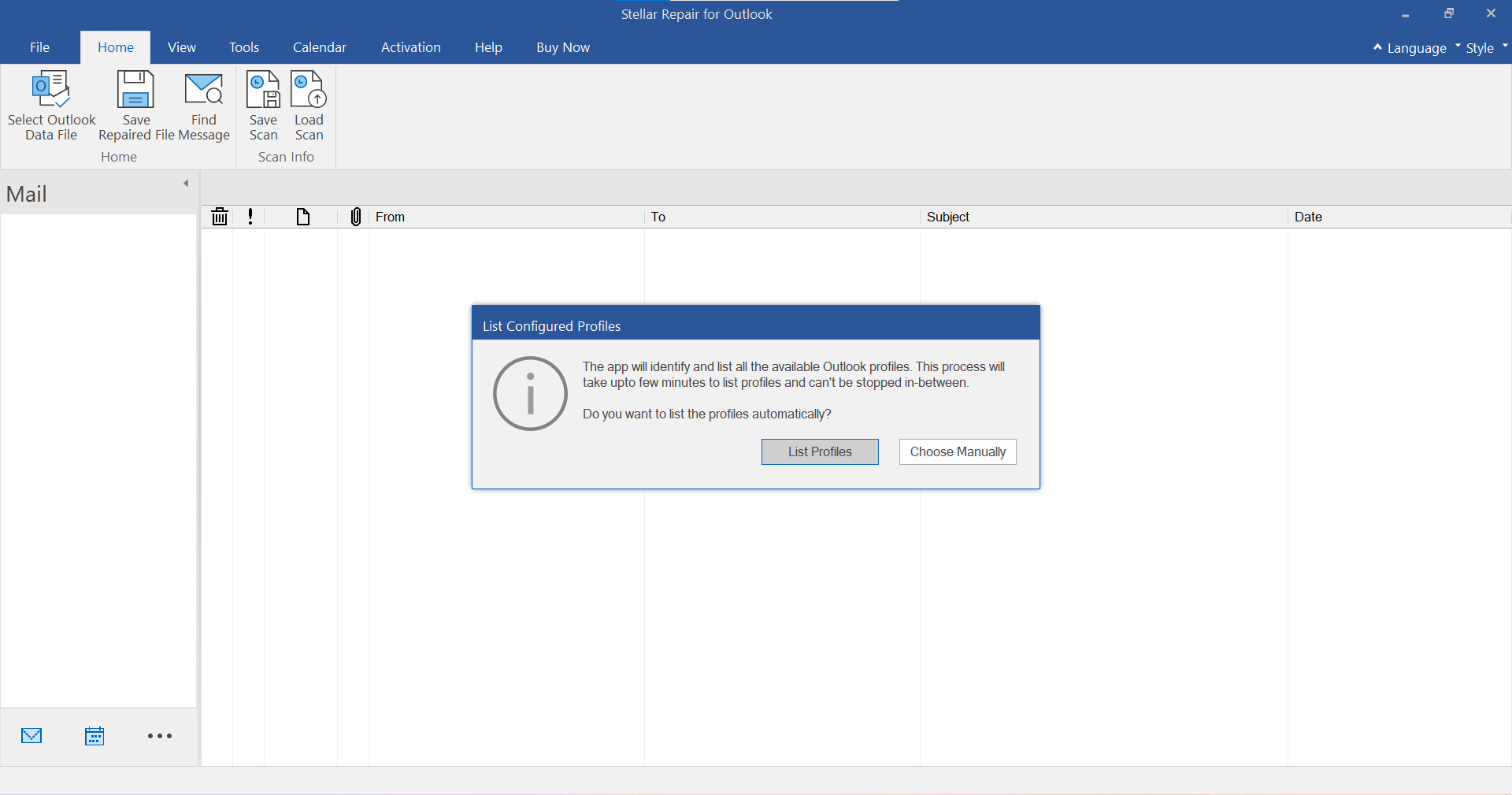
  • Locate PST : As the PST Recovery Software is launched, user receives a 'Select Outlook Data File ' dialog box. If the box is closed, one can reopen it from 'Open Outlook File' option of 'File' menu or 'Open a Outlook File to Repair' toolbar option. The dialog box gives two options to 'Select Outlook File' (used to browse when exact PST location is known) and to 'Find Outlook File' (used to search the disk for *.pst files). To start the PST Repair, click 'Start' button.
  • Restore PST : To save the scanned file, click 'Save Outlook File' from toolbar option (provided the software is activated). A dialog box appears asking for a 'Destination Path', which is same as of root by default. User can browse to the desired location with the provided option. The recovered file will then be restored at the specified location with original name, followed by word- 'Recovered' and extension .pst.
  • Import PST : To regain access to your emails and other PST objects after Outlook PST Recovery, you need to import the restored PST in Microsoft Outlook. For this, you can start MS Outlook to launch Import and Export wizard and specify the recovered PST file path.


Note: For recovering deleted emails, you need to perform the similar sequence of steps.


Download the free demo version of Stellar Phoenix Outlook PST Repair v4.0 to experience its functionalities, GUI and determine the recoverable number of PST objects. The evaluation version of product also previews the recoverable emails, contacts, calendar, notes and tasks.


Stellar Phoenix Outlook PST Repair v4.0 is an Outlook Recovery Software with a GUI equipped of various options. The software has a 3-pane structure view to display individual folders , expanded folder information (including sender and recipient addresses, email Subject and Date) and preview of selected PST object. At left-bottom side, user gets direct tabs for Mail, Calendar, Contacts, Tasks, Notes and Journal, similar to Outlook.


The PST Recovery tool gives different menubar and toolbar options as follows :


  • Open Outlook File : The first toolbar option that opens Select Outlook Data File ' dialog box to manually select or find PST on disk.
  • Save Outlook File : The second toolbar option that allows you to save the scanned file at desired or root location.
  • File Menu : The file menu of the PST Recovery Software gives two options to:
    • Open Outlook File
    • Exit from the application.
  • Switch Reading Pane : The toolbar option switches the emails' view in right-pane from horizontal to vertical columns and vice-versa, which is horizontal by default.
  • Update Wizard : This toolbar option will download and implement all the recent updates available for your software after a secure connection has been set.
  • Log Report : The top menubar gives 'View Log Report' and 'View Recovery Details' options under 'View' to respectively show log report and recovery details (same as mentioned in Restore PST step) generated by Outlook Recovery Software.
  • Stop Recovery Process : The toolbar menu gives you an option STOP the scanning process in between. The items till scanned will be displayed in tree structure.


Download the free demo version of Stellar Phoenix Outlook PST Repair v4.0 - The evaluation version of product also previews the recoverable emails, contacts, calendar, notes and tasks.

Key Features :


Comparison of features of Stellar Phoenix Outlook PST Repair Software v4.0 & v3.5


Features SP OPR v. 4.0 SP OPR v. 3.5

Windows 7 supported

Yes No

Complete preview of PST file components (emails, calendar entries, contacts etc.)

Yes No

Repairs PST files larger than 2GB

Yes Yes

Sorting by fields in File Preview option

Yes No

Graphical User Interface similarity with MS outlook

Yes No

Previews summary of all recoverable PST file components

Yes No

Restores formatting in HTML and RTF format

Yes Yes

View messages in 3-view format

Yes Yes

Deleted email recovery

Yes Yes

MS Outlook installation required for demo version

No Yes

Rescanning of PST file after activating the software

No Yes

Switching of reading Pane

Yes No

Count for items in Individual Folder

Yes No

Stellar Phoenix Outlook PST Repair Software


License Types :


Lifetime License available in :


  • Single user License - Download – can use only on a single system
  • Single user License - (CD +Download )– can use only on a single system
  • Technician License - (CD+Download) –can use at multiple systems & locations
  • Admin License (educational)- (CD+Download) –can use at multiple systems & one location
  • Administrator License (corporate )- (CD+Download) –can use at multiple systems & one location


Languages :


Software Interface Available In :

  • English


Package Details :


Name: Stellar Phoenix Outlook PST Repair

  • Version: 4.0
  • Version Launch – Nov, 2009
  • Do it yourself software


Software Components :

Box – Version

  • CD - 1
  • Hardware Lock – 1
  • Boot CD - 1


MS Outlook supported :

Supports MS Outlook 2000, 2002 (XP), 2003, 2007, Windows 7


Supported Linux Distributions :

Red Hat, SUSE, Debian, Caldera, Mandrake, Sorcerer, TurboLinux, Slackware, Gentoo etc.


Systems Requirement:


  • Processor : Pentium Class
  • Operating System : Windows 7, Vista, XP, 2003, 2000 and NT4 (SP6)
  • Memory : Minimum 256 MB (512 MB recommended)
  • Hard Disk : 50 MB of free space
  • MS Outlook : 2007, 2003, 2002 (XP), 2000
  • Internet Explorer : Version 5 or later


FAQs – Stellar Phoenix Outlook PST Repair


I have run the demo and can see the preview correctly in the PST Repair software window. Do I need to rescan the corrupted file ?


The demo version of the software is just to show you the possibility of the repair. If you are satisfied with the demo then you can purchase the full version software can repair the corrupted file with the full version software. No you needn’t re-scan the corrupted file.


Back to top


I repaired my PST file, but I’m unable to open my Outlook after recovery. How can I solve this problem ?


Follow the below procedure to set your recovered PST file as the default PST file to rectify the problem:


  • Open "Control Panel".
  • Then, open "Mail".
  • Now, click on "Data Files".
  • If you are able to see the recovered PST file listed, kindly select that file and click on "Set as default".
  • Now close everything and open your Outlook.
  • If you are not able to see the recovered PST file in the list, please add the same by clicking on ‘Add’ and add the recovered PST file.
  • After adding the PST file kindly follow steps from 4 – 5 to set the PST file as default.


Now, try to open your Outlook and access your emails.


Back to top


How much time the Outlook PST Repair software will take to repair the file ?


The scanning time depends upon the corruption level and size of the file. If the process is running that means that the software is still scanning the corrupted file and you have to wait for the scanning process to complete. Once the scanning will complete you will get the repaired file in the destination location.


Back to top


I have repaired my PST file. But I’m unable to find my contacts. How can I find my contacts ?


Kindly follow the below steps to find your contacts, after importing your recovered PST file into your Outlook


  • Open Outlook.
  • Then press "Ctrl+Shift+F".
  • "Find Message" window will open. Kindly choose "Contacts" in "Look For".
  • Click on the "Browse" button and select the imported PST file.
  • Then, click "Find Now".


Now you will be able to see all the contacts if you were able to see the preview of the contacts in Demo Version. You may select the entire contacts listed and drag it to your original contacts list, so that you may use further.


Back to top


Support Options :


Phone Support :


USA (Tollfree- Pre Sales Queries) : 1-866-554-2512
USA (Post Sales Queries) : 1-315-220-6245
UK & (Europe) : +44-207-993-2293
Germany : +49-180-110-105-0051
Worldwide : +91-921-395-5509


SKYPE : stellarsupport

Monday – Friday 24 Hours


Support :


Free Download --- details :


Free Download – is demo download of the product and offers preview of all the recoverable files using the software. Only those files viewed in preview are recoverable. For Recovering data you will have to purchase the software.


Support is available Monday-Saturday (except holidays) 24/6

My PST file has been totally damaged by Outlook 2000 as the file has been grown over 2 GB to 2.013.000 MB! I was naturally deeply said and shocked... Then I have installed Office 2003, and after it your software “Stellar Phoenix Outlook Pst Repair (v3.0) S” . After running your program (about 90 Minutes) the PST file has been not only totally reconstructed but all deleted messages of earlier time periods, too !!! It is very splendid, and I’ll publish that everywhere in my in-ternational magazines, of course! Very great was for me to see the absolutely professional running and nice information displaying (menus) to the user! Congratulations to this high-sophisticated product, and I wish your whole team a Happy and Successful New Year!


Pal Poth


buy now30 days money back guarantee
download PST recovery software
upgrade now

* Free Download offers free evaluation of the software & preview all the lost files and folder that can be recovered by the software.


product tour

screenshots PST recovery software


contact for lab recovery services